---
url: /guide/advanced/custom-head.md
---
# Customizing head tags
Adding head tags (such as meta tags) to web pages is crucial for SEO optimization and social media sharing. For example, [Open Graph](https://ogp.me/) is a web metadata protocol that controls how pages appear when shared on social media platforms.
Currently, Rspress automatically injects the following head tags:
| Tag | Description |
| ------------------------------------------------------- | ----------------------------------------------------------------------------------- |
| `` | Identifies the site generator and version |
| `` | Open Graph type, fixed as `website` |
| `` | Open Graph title, uses current page title (if available) |
| `` | Page description, uses description from frontmatter or global config (if available) |
If you want to add head tags, you can use the following methods:
## Global head configuration
In `rspress.config.ts`, you can set HTML metadata (head tags) for all pages. See [Basic Config - head](/api/config/config-basic.md#head) for details.
## Frontmatter configuration
You can modify the [title](/api/config/config-frontmatter.md#title) and [description](/api/config/config-frontmatter.md#description) fields in frontmatter to change the title and description of individual pages.
You can also use [frontmatter - head](/api/config/config-frontmatter.md#head) to customize page metadata tags for SEO optimization.
For example, if you want to add `` to the `` tag, you can use frontmatter like this:
```md title="example.mdx"
---
head:
- - meta
- name: og:title
content: This is title
- - meta
- name: og:description
content: This is description
---
```
## Head component
If you need more complex head customization, you can use the [Head component](/ui/runtime-components/head.md) provided by Rspress to dynamically set head tags in pages or layout components.
## Rsbuild html.tags configuration
Through `builderConfig.html.tags`, you can inject custom content into HTML, such as adding analytics code, scripts, or styles:
```ts title="rspress.config.ts"
import { defineConfig } from '@rspress/core';
export default defineConfig({
builderConfig: {
html: {
tags: [
{
tag: 'script',
attrs: {
src: 'https://cdn.example.com/analytics.js',
},
},
],
},
},
});
```
For more configuration details, please refer to the [Rsbuild html.tags documentation](https://rsbuild.rs/config/html/tags).
:::tip Difference from Rspress head configuration
- **Rspress head configuration**: Can access route-related information, supports dynamically setting head tags based on different pages
- **Rsbuild html.tags**: A static build-time configuration, suitable for global uniform tag injection (such as analytics code)
If you need to dynamically adjust head content based on page routes, use [Global head configuration](#global-head-configuration) or [Head component](#head-component).
:::
---
url: /guide/advanced/custom-search.md
---
# Customize search functions
In some scenarios, we need to customize the search function, such as:
- Processing keywords in the search process, such as removing sensitive words.
- Filtering the default full-text search results.
- Reporting the search keywords.
- Customizing the search data source, such as searching from the database.
- Rendering the custom search data source.
- ......
Faced with these flexible custom requirements, we provide corresponding interfaces to extend the search components of the default theme, making it easy for you to customize the search function.
## Understanding `searchHooks`
In the Rspress config, we provide a `search.searchHooks` config item for configuring the hook functions of the search components, as follows:
```js
import { defineConfig } from '@rspress/core';
import path from 'path';
export default defineConfig({
search: {
searchHooks: path.join(__dirname, './search.tsx'),
},
});
```
The value of the `search.searchHooks` config item is a file path. This file will export the corresponding hook logic, such as `onSearch`, so that you can customize the capabilities of the search at run time. We can call this file a **`searchHooks` module**.
## Hook functions in searchHooks
Next, let us introduce the hook functions in searchHooks, namely `beforeSearch`, `onSearch`, `afterRender` and `render`.
:::tip
In the searchHooks module, you only need to export the hook functions you need, instead of necessarily exporting all the hook functions.
:::
### beforeSearch
The `beforeSearch` hook function will be executed before the search starts, you can use it to process the search keywords, such as removing sensitive words, or reporting the search keywords.
> This hook supports asynchronous operations.
Here is an example of usage:
```ts
import type { BeforeSearch } from '@rspress/core/theme';
const beforeSearch: BeforeSearch = (query: string) => {
// Some operations before search can be done here
console.log('beforeSearch');
// Return the processed query
return query.replace(' ', '');
};
export { beforeSearch };
```
### onSearch
The `onSearch` hook function will be executed after the default full-text search logic is finished. You can use this hook function to filter or report the search results, or you can add a custom search data source in this hook function.
> This hook supports asynchronous operations.
Here is an example of how to use it:
```ts
import type { OnSearch } from '@rspress/core/theme';
import { RenderType } from '@rspress/core/theme';
const onSearch: OnSearch = async (query, defaultSearchResult) => {
// Can request data based on query
console.log(query);
// The results of the default search source, which is an array
console.log(defaultSearchResult);
// const customResult = await searchQuery(query);
// Can directly operate the default search results.
defaultSearchResult.pop();
// The return value is an array, each item in the array is a search source result, and they will be added to the search result
return [
{
group: 'Custom',
result: {
list: [
{
title: 'Search Result 1',
path: '/search1',
},
{
title: 'Search Result 2',
path: '/search2',
},
],
},
renderType: RenderType.Custom,
},
];
};
export { onSearch };
```
Note that the return value of the `onSearch` hook function is an array, each item in the array is a search source result, and each item has the following structure:
```ts
{
group: string; // The group name of the search result, which will be displayed in the search results.
result: unknown;
renderType: RenderType; // The type of the search result, which can be `RenderType.Default` or `RenderType.Custom`. `RenderType.custom` by default.
}
```
The `result` is the search result, you can customize its internal structure. The `renderType` is the type of the search result, which can be `RenderType.Default` or `RenderType.Custom`. If it is `RenderType.Default`, the default search result rendering logic will be used; if it is `RenderType.Custom`, the `render` function will be used to render the search result.
### afterSearch
The `afterSearch` hook function will be executed after the search result is rendered. You can get the final search keywords and search results in this hook.
> This hook supports asynchronous operations.
Here is an example of usage:
```ts
import type { AfterSearch } from '@rspress/core/theme';
const afterSearch: AfterSearch = async (query, searchResult) => {
// Search keyword
console.log(query);
// Search result
console.log(searchResult);
};
export { afterSearch };
```
### render
The `render` function will render the custom search source data in your `onSearch` hook. Therefore, it generally needs to be used together with `onSearch`. Here's how to use it:
```tsx
import type { RenderSearchFunction } from '@rspress/core/theme';
// The above OnSearch hook implementation is skipped
interface ResultData {
list: {
title: string;
path: string;
}[];
}
// The render function for each search source
const render: RenderSearchFunction = (item) => {
return (
);
};
export { onSearch, render };
```
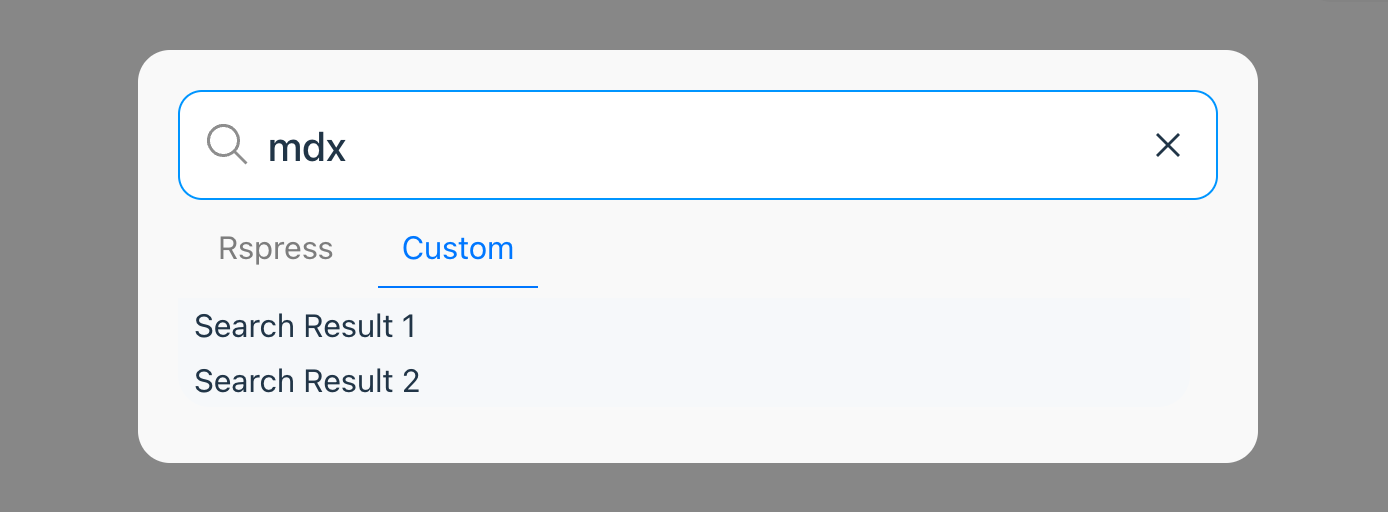
The result is as follows:
---
url: /guide/advanced/extend-build.md
---
# Build extension
## Rsbuild
Rspress builds documents based on [Rsbuild](https://github.com/web-infra-dev/rsbuild).
### Configure Rsbuild
Rsbuild provides a rich set of build configurations. You can customize these configurations through [builderConfig](/api/config/config-build.md#builderconfig). For example, change the output directory to `doc_dist`:
```ts title="rspress.config.ts"
import { defineConfig } from '@rspress/core';
export default defineConfig({
builderConfig: {
output: {
distPath: {
root: 'doc_dist',
},
},
},
});
```
Rspress also provides the [builderConfig.plugins](/api/config/config-build.md#builderconfigplugins) config to register Rsbuild plugins. You can leverage Rsbuild's extensive plugin ecosystem to enhance and extend your build capabilities.
For example, add Google analytics through [rsbuild-plugin-google-analytics](https://github.com/rstackjs/rsbuild-plugin-google-analytics):
```ts title="rspress.config.ts"
import { defineConfig } from '@rspress/core';
import { pluginGoogleAnalytics } from 'rsbuild-plugin-google-analytics';
export default defineConfig({
builderConfig: {
plugins: [
pluginGoogleAnalytics({
// replace this with your Google tag ID
id: 'G-xxxxxxxxxx',
}),
],
},
});
```
:::tip
You can learn more about the configuration options through [Rsbuild - Config](https://rsbuild.rs/config/) documentation.
:::
### Configure Rspack
You can configure Rspack through the [tools.rspack](https://rsbuild.rs/config/tools/rspack) option provided by Rsbuild:
```ts title="rspress.config.ts"
import { defineConfig } from '@rspress/core';
export default defineConfig({
builderConfig: {
tools: {
rspack(options) {
// modify the rspack configuration
},
},
},
});
```
## MDX compilation
The compilation of MDX in Rspress is based on [unified](https://github.com/unifiedjs/unified), and you can add related compilation plugins through `markdown` configuration. for example
:
```ts title="rspress.config.ts"
import { defineConfig } from '@rspress/core';
export default defineConfig({
markdown: {
remarkPlugins: [
[
require('remark-autolink-headings'),
{
behavior: 'wrap',
},
],
],
rehypePlugins: [require('rehype-slug')],
},
});
```
---
url: /guide/advanced/overview-page.md
---
# Overview page
The Overview page displays an overview of all articles in a directory, automatically extracting information from the sidebar to generate grouped content.
## Usage
Configure `overview: true` in the directory's `index.md` to enable it:
```md title="api/index.md"
---
overview: true
title: API Overview
---
This is the API overview page.
```
The Overview page automatically reads the current directory's [sidebar configuration](/guide/basic/auto-nav-sidebar.md) and extracts article titles to generate grouped cards.
## Example
Given the following directory structure and `_meta.json` configuration:
```tree
docs
└── api
├── _meta.json
├── index.md <-- overview: true
├── config
│ ├── _meta.json
│ ├── basic.mdx
│ └── theme.mdx
└── runtime
├── _meta.json
├── hooks.mdx
└── context.mdx
```
```mdx title="api/index.md"
---
overview: true
title: API Overview
---
This is the API overview page.
```
```json title="api/_meta.json"
[
{ "type": "file", "name": "index", "label": "API Overview" },
{ "type": "dir", "name": "config", "label": "Config" },
{ "type": "dir", "name": "runtime", "label": "Runtime" }
]
```
The generated Overview page looks like:
# Overview page
## Config
### [basic](/#)
- [title](/##title)
- [description](/##description)
### [theme](/#)
- [darkMode](/##dark-mode)
- [footer](/##footer)
## Runtime
### [hooks](/#)
- [usePage](/##use-page)
- [useSite](/##use-site)
### [context](/#)
- [DataContext](/##data-context)
- [ThemeContext](/##theme-context)
## Configuration
### overviewHeaders
Controls the heading levels displayed in the Overview page, defaults to `[2]` (only h2 headings).
Can be configured in `_meta.json`:
```json title="_meta.json"
[
{
"type": "file",
"name": "component",
"overviewHeaders": [2, 3]
}
]
```
Or in the article's frontmatter:
```md title="component.mdx"
---
overviewHeaders: [2, 3]
---
```
### Nested overview pages
Subdirectories can also have their own Overview pages by configuring `overview: true` in the subdirectory's `index.md`:
```tree
docs
└── api
├── index.md <-- overview: true
└── theme
├── index.md <-- overview: true (nested Overview page)
├── component.mdx
└── utils.mdx
```
## Customization
If you need to fully customize the Overview page content, you can use the [OverviewGroup](/ui/layout-components/overview-group.md) component to build it manually:
```mdx title="index.mdx"
---
overview: true
---
import { OverviewGroup } from '@rspress/core/theme';
```
---
url: /guide/basic/auto-nav-sidebar.md
---
# Autogenerated navigation
In Rspress, in addition to declaring [nav](/api/config/config-theme.md#nav) and [sidebar](/api/config/config-theme.md#sidebar) in the configuration file, you can also automatically generate the navigation bar and sidebar by declaring the `_nav.json` and `_meta.json` description files. We recommend the latter because it keeps the configuration file concise, supports HMR, and still exposes everything under `themeConfig`.
:::tip
Automated navbar/sidebar will only work if there are no `nav` and `sidebar` configurations in the config file `rspress.config.ts`.
:::
## Basic concepts
Rspress generates the nav through `_nav.json` and the sidebar through `_meta.json`. The `_nav.json` at the navigation bar level is located in the root directory of the document, while the `_meta.json` at the sidebar level is located in the subdirectories of the document root. For example:
```tree
docs
├── _nav.json // navigation bar level
└── guides
├── _meta.json // sidebar level
├── introduction.mdx
└── advanced
├── _meta.json // sidebar level
└── plugin-development.md
```
If your document supports i18n, then `_nav.json` at the navigation bar level will be placed in the corresponding language directory, for example:
```tree
docs
├── en
│ ├── _nav.json // navigation bar level
│ └── guides
│ ├── _meta.json // sidebar level
│ ├── introduction.mdx
│ ├── install.mdx
│ └── advanced
│ ├── _meta.json // sidebar level
│ └── plugin-development.md
└── zh
├── _nav.json // navigation bar level
└── guides
├── _meta.json // sidebar level
├── introduction.mdx
├── install.mdx
└── advanced
├── _meta.json // sidebar level
└── plugin-development.md
```
## JSON schema type hint
To better edit `_nav.json` and `_meta.json` files, Rspress V2 provides two schema files `@rspress/core/meta-json-schema.json` and `@rspress/core/nav-json-schema.json` for IDE type hinting.
For example, in VSCode, you can add the following configuration in `.vscode/settings.json`:
```json title=".vscode/settings.json"
{
//...
"json.schemas": [
{
"fileMatch": ["**/_meta.json"],
"url": "./node_modules/@rspress/core/meta-json-schema.json"
// or "url": "https://unpkg.com/@rspress/core@2.0.0/meta-json-schema.json"
},
{
"fileMatch": ["**/_nav.json"],
"url": "./node_modules/@rspress/core/nav-json-schema.json"
// or "url": "https://unpkg.com/@rspress/core@2.0.0/nav-json-schema.json"
}
]
// ...
}
```
## Navbar level config
At the navigation bar level, you can fill in an array in `_nav.json`, and its type is exactly the same as the nav config of the default theme. For details, please refer to [nav config](/api/config/config-theme.md#nav). For example:
```json title="docs/_nav.json"
[
{
"text": "Guide",
"link": "/guides/introduction",
"activeMatch": "^/guides/"
}
]
```
## Sidebar level config
At the sidebar level, you can fill in an array in `_meta.json`, with each item of the following type:
```ts
export type FileSideMeta = {
type: 'file';
name: string;
label?: string;
tag?: string;
overviewHeaders?: number[];
context?: string;
};
export type DirSideMeta = {
type: 'dir';
name: string;
label?: string;
collapsible?: boolean;
collapsed?: boolean;
tag?: string;
overviewHeaders?: number[];
context?: string;
};
export type DirSectionHeaderSideMeta = Omit &
Omit & { type: 'dir-section-header' };
export type DividerSideMeta = {
type: 'divider';
dashed?: boolean;
};
export type SectionHeaderMeta = {
type: 'section-header';
label: string;
tag?: string;
};
export type CustomLinkMeta =
| {
// file link
type: 'custom-link';
label: string;
tag?: string;
overviewHeaders?: number[];
context?: string;
link: string;
}
| {
// dir link
type: 'custom-link';
label: string;
tag?: string;
overviewHeaders?: number[];
context?: string;
link?: string;
collapsible?: boolean;
collapsed?: boolean;
items: _CustomLinkMetaWithoutTypeField[];
};
export type SideMetaItem =
| FileSideMeta
| DirSideMeta
| DirSectionHeaderSideMeta
| DividerSideMeta
| SectionHeaderMeta
| CustomLinkMeta
| string;
```
### file
- When the type is `string`, it means that the item is a file, and the file name is the string, for example:
```json
["introduction"]
```
The file name may or may not have a suffix, for example `introduction` will be parsed as `introduction.mdx`.
- When the type is an object, you can describe it as a file, a directory or a custom link.
In the case of describing **file**, the types are as follows:
```ts
export type FileSideMeta = {
type: 'file';
name: string;
label?: string;
tag?: string;
overviewHeaders?: number[];
context?: string;
};
```
Here, `name` means the file name, with or without a suffix is supported, `label` means the display name of the file in the sidebar. `label` is optional, if not filled, it will automatically take the h1 title in the document. `overviewHeaders` means the headers displayed in the overview page of the file. It is optional and the default value is `[2]`. `context` means adding the value of the `data-context` attribute to the DOM node when generating the sidebar, it is optional and will not be added by default. For example:
```json
{
"type": "file",
"name": "introduction",
"label": "Introduction"
}
```
### dir
In the case of describing **directories**, the types are as follows:
```ts
export type DirSideMeta = {
type: 'dir';
name: string;
label?: string;
collapsible?: boolean;
collapsed?: boolean;
tag?: string;
overviewHeaders?: number[];
context?: string;
};
```
Here, `name` indicates the directory name, `label` indicates the display name of the directory in the sidebar, `collapsible` indicates whether the directory can be collapsed, `collapsed` indicates whether the directory is collapsed by default, and `overviewHeaders` indicates the headers displayed on the overview page for files in this directory. It is optional and the default value is `[2]`. `context` means adding the value of the `data-context` attribute to the DOM node when generating the sidebar, it is optional and will not be added by default. For example:
```json
{
"type": "dir",
"name": "advanced",
"label": "Advanced",
"collapsible": true,
"collapsed": false
}
```
:::tip
If you want to display a document when clicking on the sidebar directory, it is recommended to create an `index.mdx` file inside the directory, for example:
```tree
docs
└── basic
├── guide
│ ├── index.mdx
│ ├── getting-started.mdx
│ └── _meta.json
└── _meta.json
```
```json title="basic/_meta.json"
[{ "type": "dir", "name": "guide" }]
```
```json title="basic/guide/_meta.json"
["getting-started"]
```
This means the sidebar only contains the `getting-started` document. When you click on the `Guide` directory, the content of the `index.mdx` file will be displayed.
:::
### dir-section-header
When describing a **directory**, you can also use `dir-section-header`, which only differs from `"type": "dir"` in UI. It is often used at the first level, where the directory title is displayed as a [section header](#section-header) and is at the same level as files under the directory.
Type:
```ts
export type DirSectionHeaderSideMeta = Omit &
Omit & { type: 'dir-section-header' };
```
```json
{
"type": "dir-section-header",
"name": "advanced",
"label": "Advanced",
"collapsible": true,
"collapsed": false
}
```
### divider
In the case of describing **divider**, the types are as follows:
```ts
export type DividerSideMeta = {
type: 'divider';
dashed?: boolean;
};
```
When `dashed` is set to `true`, it indicates that the divider line is dashed. Otherwise, it is solid.
### section-header
In the case of describing **section header**, the type is as follows:
```ts
export type SectionHeaderMeta = {
type: 'section-header';
label: string;
tag?: string;
};
```
Here, `label` represents the display name of this section header in the sidebar, for example:
```json
{
"type": "section-header",
"label": "Section Header"
}
```
This way, you can add section headers to the sidebar, which makes it easier to group documents and directories. Generally, you can use it in conjunction with `divider` to better distinguish different groups. For example:
```json
[
{
"type": "section-header",
"label": "Section 1"
},
"introduction",
{
"type": "divider"
},
{
"type": "section-header",
"label": "Section 2"
},
"advanced"
]
```
### custom-link
In the case of describing **custom link**, the types are as follows:
```ts
export type CustomLinkMeta =
| {
// file link
type: 'custom-link';
label: string;
tag?: string;
overviewHeaders?: number[];
context?: string;
link: string;
}
| {
// dir link
type: 'custom-link';
label: string;
tag?: string;
overviewHeaders?: number[];
context?: string;
link?: string;
collapsible?: boolean;
collapsed?: boolean;
items: _CustomLinkMetaWithoutTypeField[];
};
```
Here, `link` indicates the link address, `label` indicates the display name of the link in the sidebar, for example:
```json
{
"type": "custom-link",
"link": "/my-link",
"label": "My Link"
}
```
`link` supports external links, for example:
```json
{
"type": "custom-link",
"link": "https://github.com",
"label": "GitHub"
}
```
You can also use `items` to create nested custom links, for example:
```json
{
"type": "custom-link",
"label": "My Link",
"items": [
{
"type": "custom-link",
"label": "Sub Link 1",
"link": "/sub-link-1"
},
{
"type": "custom-link",
"label": "Sub Link 2",
"link": "/sub-link-2"
}
]
}
```
### Complete example
Here is a complete example using the three types above:
```json
[
"install",
{
"type": "file",
"name": "introduction",
"label": "Introduction"
},
{
"type": "dir",
"name": "advanced",
"label": "Advanced",
"collapsible": true,
"collapsed": false
},
{
"type": "custom-link",
"link": "/my-link",
"label": "My Link"
}
]
```
### No config usage
In some directories, you don't need to configure `_meta.json` and let Rspress automatically generate the sidebar. This requires ensuring that the directory contains only documents, not subdirectories, and you have no requirements for the order of documents. For example, there is now the following document structure:
```tree
docs
├── _meta.json
└── guides
├── _meta.json
└── basic
├── introduction.mdx
├── install.mdx
└── plugin-development.md
```
In the guides directory you can configure `_meta.json` as follows:
```json
[
{
"type": "dir",
"name": "basic",
"label": "Basic",
"collapsible": true,
"collapsed": false
}
]
```
In the `basic` directory, you may not configure `_meta.json`, and then Rspress will automatically generate a sidebar for you, the default is sorted alphabetically according to the file name. If you want to customize the order, you can prefix the file name with a number, such as:
```tree
basic
├── 1-introduction.mdx
├── 2-install.mdx
└── 3-plugin-development.md
```
## Tag icons for sidebar and navbar
You can add icons after titles in the sidebar or navbar through the `tag` config. The value of `tag` supports SVG tag strings or image URLs.
```json title="_meta.json"
{
"type": "file",
"name": "introduction",
"label": "Introduction",
"tag": ""
}
```
For detailed usage, please refer to [Tag Component](/ui/layout-components/tag.md).
---
url: /guide/basic/conventional-route.md
---
# Conventional route
## What is it?
Rspress uses file system routing, and the file path of the page is simply mapped to the routing path, which makes the routing of the entire project very intuitive.
For example, if there is a file named `foo.md` in the `docs` directory, the routing path for that file will be `/foo`.
## Mapping rules
Rspress automatically scans the root directory and all subdirectories, and maps file paths to route paths. For example, if you have the following file structure:
```tree
docs
├── foo
│ ├── bar.md
│ └── index.md
├── zoo.md
└── index.md
```
Then `bar.md` will be routed to `/foo/bar` and `/foo/index.md` will be routed to `/foo/`.
The specific mapping rules are as follows:
| filepath | route path | `cleanUrl: false` path |
| --------------- | ---------- | ---------------------- |
| `index.md` | `/` | `/index.html` |
| `/zoo.md` | `/zoo` | `/zoo.html` |
| `/foo/index.md` | `/foo/` | `/foo/index.html` |
| `/foo/bar.md` | `/foo/bar` | `/foo/bar.html` |
:::warning
Do not have files and folders with the same name, which will cause routing conflicts. For example, the following file structure is not allowed:
```tree
docs
├── foo
│ └── index.md
└── foo.md
```
:::
## TSX routing
In conventional routing, in addition to `.md(x)` files, you can also use `.tsx` files as route components. By default, a component is exported in `.tsx`, and this component will be automatically registered in the route. For example:
```tsx title="foo.tsx"
export default () => {
return
foo
;
};
```
Of course, if you want to customize the layout, you can add an export to declare the layout type. For example:
```tsx title="foo.tsx"
export const frontmatter = {
// Declare layout type
// The custom layout here will not have a sidebar
pageType: 'custom',
};
```
For detailed meanings of each `pageType`, please refer to the [API documentation](/api/config/config-frontmatter.md#pagetype).
## Custom behavior
If you want to customize the routing behavior, you can use the `route` field in the configuration file. For example:
```ts title="rspress.config.ts"
import { defineConfig } from '@rspress/core';
export default defineConfig({
route: {
// These files will be registered as routes (supports glob pattern)
include: ['other-dir/**/*'],
// These files will not be registered as routes (supports glob pattern)
exclude: ['components/**/*', 'fragments/**/*'],
},
});
```
## Exclude files starting with `_` by default
In the [docs directory](/api/config/config-basic.md#root), MDX fragments or React components need to be excluded from routing through the [route.exclude](/api/config/config-basic.md#routeexclude) configuration. For convenience, files starting with "\_" are excluded by default via [route.excludeConvention](/api/config/config-basic.md#routeexcludeconvention).
You can also place components in adjacent directories outside the docs directory, for example:
```tree
docs
├── _button.mdx
└── index.mdx
components
└── button.tsx
```
**docs/index.mdx**
```mdx
import ButtonFragment from './_button.mdx';
import Button from '../../components/button';
```
**docs/_button.mdx**
```mdx file="./_button.mdx"
#### button
This is text from MDX
```
**components/button.tsx**
```tsx
const Button = () => ;
export default Button;
```
It will be rendered as:
#### button
This is text from MDX
This is a button from tsx
## Best practices
We recommend that you place documentation files in the `docs` directory to make your project more clear. For non-documentation content, such as custom components, util functions, etc., they can be maintained outside the `docs` directory. If placed in the `docs` directory, you need to use `route.exclude` together.
:::tip
If you want to place custom components or document fragments in the `docs` directory, you need to use `route.exclude` together, otherwise these files will be automatically registered as routes, which may cause some unexpected issues.
:::
Here is a best practice file structure that includes [MDX fragments and React components](/guide/use-mdx/components.md#fragments), [custom themes](/guide/basic/custom-theme.md), [conventional routing](/guide/basic/conventional-route.md), and [internationalization](/guide/basic/i18n.md):
```tree
├── docs
│ ├── components # React components used in documentation
│ │ └── Example.tsx
│ ├── zh
│ │ ├── fragments # zh document fragments
│ │ │ └── example.mdx
│ │ └── index.mdx
│ └── en
│ ├── fragments # en document fragments
│ │ └── example.mdx
│ └── index.mdx
└── theme
├── components # React components for theme
│ └── DocFooter.tsx
└── index.tsx
```
```ts title="rspress.config.ts"
import { defineConfig } from '@rspress/core';
export default defineConfig({
route: {
exclude: ['*/components/**/*', '*/fragments/**/*'], // Files in these directories won't be registered as routes
},
lang: 'en',
locales: [
{
lang: 'zh',
label: '中文',
},
{
lang: 'en',
label: 'English',
},
],
});
```
```json title="tsconfig.json"
{
"compilerOptions": {
"lib": ["DOM", "ESNext"],
"jsx": "react-jsx",
"moduleResolution": "bundler",
"paths": {
"i18n": ["./i18n.json"],
"@theme": ["./theme/index.tsx"]
}
},
"include": ["docs", "theme", "rspress.config.ts"],
"mdx": {
"checkMdx": true
}
}
```
---
url: /guide/basic/custom-theme.md
---
# Custom theme
1. For CSS, Rspress provides [CSS variables](#css-variables) and [BEM classnames](#bem-classname) for customization.
2. For JS / React, Rspress implements a runtime interface based on ESM re-exports, supporting modification or replacement of built-in components to implement your own home page, sidebar, search components, etc.
On top of this, there are two modes:
- [**wrap**](#wrap): **Wrap** and enhance Rspress built-in components through props / slots.
- [**eject**](#eject): Directly **override** the entire component. You can use the [`rspress eject`](/api/commands.md#rspress-eject) command to copy the source code locally and modify it directly.
The following will introduce them in order according to the degree of theme customization.
## CSS variables \{#css-variables}
Rspress exposes some commonly used CSS variables. Compared to rewriting Rspress built-in React components, overriding CSS variables for customization is simpler and easier to maintain. You can view these CSS variables on the [UI - CSS Variables](/ui/vars.md) page, and override them through:
**theme/index.tsx**
```tsx
import './index.css';
export * from '@rspress/core/theme-original';
```
**theme/index.css**
```css
/* Copy CSS variable code here for style overrides */
```
## BEM classname \{#bem-classname}
Rspress built-in components all use BEM naming convention. You can use these classnames to override styles, in the same way as [CSS Variables](#css-variables).
```css
.rp-[component-name]__[element-name]--[modifier-name] {
/* styles */
}
```
For example:
```css
.rp-nav {
}
.rp-link {
}
.rp-tabs {
}
.rp-codeblock {
}
.rp-codeblock__title {
}
.rp-codeblock__description {
}
.rp-nav-menu__item,
.rp-nav-menu__item--active {
}
```
## Override built-in components using ESM re-exports \{#reexport}
By default, you need to create a `theme` directory under the project root directory, and then create an `index.ts` or `index.tsx` file under the `theme` directory, which is used to export the theme components.
```tree
├── docs
├── theme
│ └── index.tsx
└── rspress.config.ts
```
You can write the `theme/index.tsx` file using built-in components from `@rspress/core/theme-original`:
```tsx title="theme/index.tsx"
import { Layout as BasicLayout } from '@rspress/core/theme-original';
const Layout = () => some content} />;
export { Layout }; //[!code highlight]
export * from '@rspress/core/theme-original'; //[!code highlight]
```
By **ESM re-export** to override built-in components, all Rspress internal references to built-in components will preferentially use your re-exported version.
:::note About @rspress/core/theme-original
`@rspress/core/theme-original` is used to avoid circular references, only use it when customizing themes.
```tree
├── docs
│ └── index.mdx <-- use "@rspress/core/theme"
├── theme
│ └── index.tsx <-- use "@rspress/core/theme-original"
└── rspress.config.ts
```
1. In the `docs` directory, use `@rspress/core/theme`, which points to your `theme/index.tsx`.
2. In the `theme` directory, use `@rspress/core/theme-original`, which always points to Rspress built-in theme components.
:::
### Wrap: Pass props/slots \{#wrap}
Wrap means adding props to re-exported components. Here's an example of inserting some content before the navbar title:
**theme/index.tsx**
```tsx
import { Layout as BasicLayout } from '@rspress/core/theme-original';
import { useI18n } from '@rspress/core';
const Layout = () => {
const t = useI18n();
return {t('some content')}} />;
};
export { Layout };
export * from '@rspress/core/theme-original';
```
**i18n.json**
```json
{
"some content": {
"zh": "一些内容",
"en": "some content"
}
}
```
:::tip
The [`Layout`](/ui/layout-components/layout.md) component is designed with a series of slot props specifically for wrapping. You can use these props to extend the default theme layout:
:::
### Eject: Directly override the entire component \{#eject}
Eject means directly overriding a single Rspress built-in component, using your own version entirely. For this, Rspress provides the [`rspress eject [component]`](/api/commands.md#rspress-eject) command to copy the source code of built-in components locally and modify them directly. The steps are as follows:
1. Execute CLI, Rspress will eject the source code of the specified component to the local `theme/components` directory, without ejecting dependencies.
2. Update `theme/index.tsx` re-export:
```tsx title="theme/index.tsx"
// Assuming you ejected the DocFooter component
export { DocFooter } from './components/DocFooter';
export * from '@rspress/core/theme-original';
```
3. Modify `theme/components/DocFooter.tsx` as needed to meet your requirements.
To make it easier for users to eject, Rspress components are split with fine granularity. You can see which components are suitable for eject in [Layout Components](/ui/layout-components/index.md).
:::warning Do you really need eject?
Eject will increase maintenance costs, because when Rspress is updated in the future, these ejected components will not automatically receive updates, and you need to manually compare and merge changes.
Please check if wrap can meet your needs first. Only consider eject when wrap cannot meet your needs.
:::
---
url: /guide/basic/deploy.md
---
# Deployment
In this section, we will discuss the deployment of the project. We assume that you have completed the development of the project and now need to deploy the project online. You need to consider the following aspects:
- Production build and preview of the project.
- Static resource prefix configuration.
- Project base path configuration.
- Choose deployment platform for deployment.
## Build and preview
Before deployment, we need to first build the project in the production environment and preview it locally to ensure that the project can run normally. In Rspress projects, we can use the following `scripts` commands to build and preview:
```json
{
"scripts": {
"build": "rspress build",
"preview": "rspress preview"
}
}
```
:::tip Tip
For the preview command, you can specify the preview port number through the `--port` parameter, such as `rspress preview --port 8080`.
:::
It is worth noting that the final output will be output to the `doc_build` directory under the project root directory. The content in this directory is what we need to deploy.
## Static resource prefix configuration
We can divide the deployment output into two parts: HTML files and static resources. HTML files refer to the HTML files in the output directory. These files are the files we finally deploy to the server.
The so-called static resources refer to the `static` directory in the output directory, which contains the JavaScript, CSS, images and other static resources required by the project. When deploying, if you want to put these static resources on the CDN to ensure better access performance, instead of directly putting them on the server like HTML, then you need to configure the prefix of the static resources so that the project can correctly reference these static resources. You can complete it through `builderConfig.output.assetPrefix`:
```ts title="rspress.config.ts"
import { defineConfig } from '@rspress/core';
export default defineConfig({
builderConfig: {
output: {
assetPrefix: 'https://cdn.com/',
},
},
});
```
In this way, when referencing static resources in HTML, the prefix will be automatically added, for example:
```html
```
## Project base path configuration
When deploying, we may need to deploy the project to a subpath. For example, if you plan to deploy your site to `https://foo.github.io/bar/`, then you should set the `base` parameter to `"/bar/"`:
```ts title="rspress.config.ts"
import { defineConfig } from '@rspress/core';
export default defineConfig({
base: '/bar/',
});
```
## Deployment in platform
After completing the above configuration, we can deploy the output to the server. You have many choices, such as `Zephyr`, `GitHub Pages`, `Netlify`, `Vercel`, etc. Here we take `Zephyr`, `GitHub Pages` and `Netlify` as examples to explain how to deploy.
### Deploy with Zephyr Cloud
[Zephyr Cloud](https://zephyr-cloud.io) is a zero-config deployment platform that integrates directly into your build process and provides global edge distribution.
#### How to deploy
Follow the steps in [zephyr-rspress-plugin](https://www.npmjs.com/package/zephyr-rspress-plugin).
During the build process, your Rspress documentation site will be automatically deployed and you'll receive a deployment URL.
Zephyr Cloud handles asset optimization, global CDN distribution, and provides automatic rollback capabilities for your documentation sites.
### Deploy via GitHub actions
If your project is hosted on `GitHub`, then you can deploy via `GitHub Pages`. `GitHub Pages` is a static website hosting service provided by `GitHub`, which allows you to directly deploy your project to `GitHub` without having to build your own server.
#### 1. Create workflow file
First, you need to create a file named `.github/workflows/deploy.yml` in the project root directory, with the following content:
```yml
name: Deploy Rspress site to Pages
on:
push:
branches: [main]
workflow_dispatch:
permissions:
contents: read
pages: write
id-token: write
concurrency:
group: pages
cancel-in-progress: false
jobs:
# Build job
build:
runs-on: ubuntu-latest
steps:
- name: Checkout
uses: actions/checkout@v4
with:
fetch-depth: 0 # Not needed if lastUpdated is not enabled
- uses: pnpm/action-setup@v3 # pnpm is optional but recommended, you can also use npm / yarn
with:
version: 8
- name: Setup Node
uses: actions/setup-node@v4
with:
node-version: 20
cache: pnpm
- name: Setup Pages
uses: actions/configure-pages@v5
- name: Install dependencies
run: pnpm install
- name: Build with Rspress
run: |
pnpm run build
- name: Upload artifact
uses: actions/upload-pages-artifact@v3
with:
path: doc_build
# Deployment job
deploy:
environment:
name: github-pages
url: ${{ steps.deployment.outputs.page_url }}
needs: build
runs-on: ubuntu-latest
name: Deploy
steps:
- name: Deploy to GitHub Pages
id: deployment
uses: actions/deploy-pages@v4
```
#### 2. Configure GitHub Actions
In the `Pages` column of the repository `Settings` interface, you can choose `GitHub Actions` as the deployment source.
#### 3. Push code to main branch
When you push the code to the `main` branch, `GitHub Actions` will automatically execute the deployment process. You can view the progress of the deployment in the `Actions` column. After the deployment is complete, you can access your site through `https://.github.io//`.
### Deploy via Netlify
`Netlify` is a Web application deployment platform, which allows you to directly deploy your project to `Netlify` without having to build your own server.
#### Basic configuration
Deploying a project on `Netlify` is very simple. You only need to import your GitHub repository, and then configure some basic information to deploy. Just configure the following two fields:
- `Build command`: Build command, here we fill in the build command in the project, such as `npm run build`.
- `Publish directory`: Output directory, here we fill in the output directory `doc_build` in the project.
Then click the `Deploy site` button to complete the deployment.
#### Configure custom domain
If you want to bind your site to your own domain, you can configure it in the `Domain management` column of `Netlify`. The specific configuration method can refer to the [Netlify official documentation](https://docs.netlify.com/domains-https/custom-domains/).
### Deploy to Kinsta static site hosting
You can deploy your Rspress site on [Kinsta](https://kinsta.com/static-site-hosting/).
1. Login or create an account to view your [MyKinsta](https://my.kinsta.com/) dashboard.
2. Authorize Kinsta with your Git provider.
3. Select **Static Sites** from the left sidebar and press **Add sites**.
4. Select the repository and branch you want to deploy.
5. During the build settings, Kinsta will automatically try to fill out the **Build command**, **Node version**, and **Publish directory**. If it won't, fill out the following:
- Build command: `npm run build`
- Node version: `18.16.0`
- Publish directory: `doc_build`
6. Click the **Create site**.
### Deploy to Zeabur
[Zeabur](https://zeabur.com) is a platform for deploying services instantly, which allows you to directly deploy your Rspress site without any other configurations.
#### How to deploy
First of all, you need to [create a Zeabur account](https://zeabur.com). Then, follow the instructions to create a project and install a GitHub app to authorize Zeabur get your Rspress repository.
Click on `Deploy New Service` and import your Rspress repository, the deployment will be started automatically and Zeabur will recognize that your site is built with Rspress.
The deployment will be finished in a minute, you can also bind a free sub domain provided by Zeabur or your own domain for this site.
## Troubleshooting
### Page shows 404 after refresh
If your site navigates normally but shows a 404 error after refreshing the page, please refer to the ["Page shows 404 after refresh"](/guide/basic/ssg.md#refresh-404) section in the SSG documentation.
---
url: /guide/basic/home-page.md
---
# Home page
You can define the content of the Home page through frontmatter, see [FrontMatter Config](/api/config/config-frontmatter.md#hero) for detailed types. Here is a simple example:
```yaml title="docs/index.mdx"
---
pageType: home
title: Rspress
titleSuffix: 'Rsbuild-based Static Site Generator'
hero:
name: Rspress
text: A documentation solution
tagline: A modern documentation development technology stack
actions:
- theme: brand
text: Introduction
link: /en/guide/introduction
- theme: alt
text: Quick Start
link: /en/guide/getting-started
features:
- title: 'MDX Support'
details: MDX is a powerful way to write content. You can use React components in Markdown.
icon: 📦
- title: 'Feature Rich'
details: Out of box support for i18n, full-text search etc.
icon: 🎨
- title: 'Customizable'
details: You can customize the theme ui and the build process.
icon: 🚀
---
```
## Home components
The Rspress Home page consists of these components, which you can customize via [Custom Theme - ESM Re-export](/guide/basic/custom-theme.md#reexport):
- [HomeHero](/ui/layout-components/home-hero.md)
- [HomeFeature](/ui/layout-components/home-feature.md)
- [HomeFooter](/ui/layout-components/home-footer.md)
- [HomeBackground](/ui/layout-components/home-background.md)
:::tip
You can also customize the entire homepage directly by overriding the [`HomeLayout`](/ui/layout-components/home-layout.md) component. If you do this, it should be noted that the homepage related configuration and these frontmatter fields will not take effect.
:::
## Configuration details
For complete frontmatter configuration options for the Home page, please refer to [Frontmatter Config](/api/config/config-frontmatter.md#hero).
---
url: /guide/basic/i18n.md
---
# Internationalization
To achieve document internationalization in Rspress, you need to do the following:
1. Define I18n text data.
2. Configure the language list, `locales` in `rspress.config.ts`.
3. Configure the default language, `lang` in `rspress.config.ts`.
4. Create documents in different language versions.
5. Configure sidebar and navbar.
6. Use `useI18n` in custom components.
## Define I18n text data
Create a new `i18n.json` in the current workspace, the directory structure is as follows:
```tree
.
├── docs
├── i18n.json
├── package.json
├── tsconfig.json
└── rspress.config.ts
```
In this JSON file, you can define the text needed for internationalization, the type definition is as follows:
```ts
export interface I18n {
// key: text id
[key: string]: {
// key: language
[key: string]: string;
};
}
```
For example:
```json title="i18n.json"
{
"gettingStarted": {
"en": "Getting Started",
"zh": "开始"
},
"features": {
"en": "Features",
"zh": "特性"
},
"guide": {
"en": "Guide",
"zh": "指南"
}
}
```
These text data are used in both **config file** and **custom components**, which will be introduced in detail later.
## Configure `locales`
In `rspress.config.ts`, `locales` is used to configure the `lang`, `title`, `description` and other information of the site, mainly around the information of the site itself.
```ts title="rspress.config.ts"
import { defineConfig } from '@rspress/core';
export default defineConfig({
// locales is an array of objects
locales: [
{
lang: 'en',
// The label in nav bar to switch language
label: 'English',
title: 'Rspress',
description: 'Static Site Generator',
},
{
lang: 'zh',
label: '简体中文',
title: 'Rspress',
description: '静态网站生成器',
},
],
});
```
:::tip Note
`themeConfig.locales` also contains all the fields in `locales`. However, it will be removed in the future, please use `locales`.
:::
For other international theme parameters, please refer to [API type](/api/config/config-theme.md#locales).
## Configure `lang` default language
After configure `locales`, you need to configure the default language of the document via [lang](/api/config/config-basic.md#lang), as shown in the following example:
```ts title="rspress.config.ts"
import { defineConfig } from '@rspress/core';
export default defineConfig({
lang: 'en',
});
```
This is important because **for routes in the default language, Rspress will remove the language prefix**, such as `/en/guide/getting-started` will be converted to `/guide/getting-started`.
## Create documents in different language versions
After the above configuration, we can start to create documents in different language versions. It is very simple. We only need to create the following structure in the document root directory:
```tree
├── doc
│ ├── en
│ │ ├── _nav.json
│ │ ├── api
│ │ │ └── index.mdx
│ │ ├── guide
│ │ │ ├── _meta.json
│ │ │ └── start
│ │ │ ├── introduction.mdx
│ │ │ └── quick-start.mdx
│ │ └── index.md
│ └── zh
│ ├── _nav.json
│ ├── api
│ │ └── index.mdx
│ ├── guide
│ │ ├── _meta.json
│ │ └── start
│ │ ├── introduction.mdx
│ │ └── quick-start.mdx
│ └── index.md
├── i18n.json
├── package.json
├── rspress.config.ts
└── tsconfig.json
```
As you can see, we put documents in different languages in the `en` and `zh` directories under the `docs` directory, so that we can easily distinguish documents in different languages.
## Configure \_nav.json and \_meta.json
Through the \_meta.json file, we can configure the content of the nav bar and sidebar. For details, please refer to [Auto Nav/Sidebar](/guide/basic/auto-nav-sidebar.md).
### Navigation bar \_nav.json
In the \_nav.json configuration at the navigation bar level, you can specify `text` as an i18n key, for example:
```json title="_nav.json"
[
{
"text": "guide",
"link": "/guide/start/introduction"
},
{
"text": "api",
"link": "/api/"
}
]
```
Here, `text` is `guide`, this value will be automatically translated into `指南` or `Guide`, depending on `i18n.json` and the current language.
### Sidebar \_meta.json
In the \_meta.json configuration at the sidebar level, you can specify `label` as an i18n key, for example:
```json title="_meta.json"
[
{
"type": "dir",
"name": "start",
"label": "gettingStarted"
}
]
```
Here, `label` is `gettingStarted`, this value will be automatically translated into `开始` or `Getting Started`, depending on the current language.
## Use `useI18n` in custom components
In the process of MDX development or [custom theme](/guide/basic/custom-theme.md) development, you may write some custom components, which also need to use international text, so how to get it?
Rspress provides the [`useI18n`](/ui/hooks/use-i18n.md) hook to get the internationalized text, the usage is as follows:
```tsx
import { useI18n } from '@rspress/core/runtime';
const MyComponent = () => {
const t = useI18n();
return
{t('gettingStarted')}
;
};
```
For better type hinting, you can configure `paths` in tsconfig.json:
```json
{
"compilerOptions": {
"paths": {
"i18n": ["./i18n.json"]
}
}
}
```
Then use it like this in the component:
```tsx
import { useI18n } from '@rspress/core/runtime';
const MyComponent = () => {
const t = useI18n();
return
{t('gettingStarted')}
;
};
```
This way you get type hints for all text keys defined in `i18n.json`.
---
url: /guide/basic/multi-version.md
---
# Multi version
Rspress's default theme supports multi-version document management. Next, we will introduce how to access multi-version documents.
## `multiVersion` config
Configure the version list and default version through `multiVersion`, for example:
```ts title="rspress.config.ts"
import { defineConfig } from '@rspress/core';
export default defineConfig({
multiVersion: {
default: 'v1',
versions: ['v1', 'v2'],
},
});
```
Here, `default` is the default version, and `versions` is the version list.
## Adding multi-version documents
According to the version list you configured, add multi-version documents under the `docs` directory, for example:
```tree
docs
├── v1
│ ├── index.mdx
│ └── guide
│ └── index.mdx
└── v2
├── index.mdx
└── guide
└── index.mdx
```
In Rspress's conventional routing, for the default version, the version path prefix will be automatically omitted. For example, `v1/index.mdx` will be rendered as the `/` route, while `v2/index.mdx` will be rendered as the `/v2/` route.
:::tip Tip
For links in the document, you do not need to manually add the version prefix. Rspress will automatically add the corresponding version prefix according to the version of the current document. For example, the link `/guide/` in `v2/index.mdx` will be rendered as `/v2/guide/`.
:::
## Get the current version in components
In components, you can get the current version through [`useVersion`](/ui/hooks/use-version.md), for example:
```tsx
import { useVersion } from '@rspress/core/runtime';
export default () => {
const version = useVersion();
return
Current version: {version}
;
};
```
## Limit search to current version only
You can configure `search.versioned` to only search through the current version's documents.
```ts title="rspress.config.ts"
import { defineConfig } from '@rspress/core';
export default defineConfig({
multiVersion: {
default: 'v1',
versions: ['v1', 'v2'],
},
search: {
versioned: true,
},
});
```
---
url: /guide/basic/ssg-md.md
---
# llms.txt (SSG-MD)
> Want to get started quickly? Jump to [Quick Start](#quick-start).
## What is SSG-MD?
Rspress provides experimental Static Site Generation to Markdown (SSG-MD) capability, which is a brand new feature. Similar to the [Static Site Generation (SSG)](/guide/basic/ssg.md) process, SSG-MD renders your pages as Markdown files instead of HTML files and generates [`llms.txt`](#llms-txt) and llms-full.txt, making it easier for large language models to understand and use your technical documentation.
To help understand SSG-MD, here is an analogy between SSG and SSG-MD:
| Comparison | SSG | SSG-MD |
| ----------------------- | ------------------------------------------ | ------------------------------------ |
| **Full Name** | Static Site Generation | Static Site Generation to Markdown |
| **Optimization Target** | SEO (Search Engine Optimization) | GEO (Generative Engine Optimization) |
| **Object-oriented** | Search engine crawler | LLM / vectorized retrieval system |
| **Index File** | [`sitemap.xml`](https://www.sitemaps.org/) | [`llms.txt`](https://llmstxt.org/) |
| **Full Content File** | - | `llms-full.txt` |
| **Core Implementation** | `renderToString` | `renderToMarkdownString` |
| **Access Method** | `/guide/start/introduction.html` | `/guide/start/introduction.md` |
## What is llms.txt? \{#llms-txt}
[`llms.txt`](https://llmstxt.org/) is an emerging standard file format placed in a website's root directory to help large language models better understand and use website content.
Since LLMs have limited context windows and cannot process entire websites' HTML content, and converting complex HTML (with navigation, ads, JavaScript) to plain text is both difficult and imprecise, `llms.txt` uses Markdown format to provide a structured index of the website, including page URLs and their content descriptions, allowing AI to quickly locate and understand key information.
In simple terms:
- `sitemap.xml` → "Site map" for search engines
- `llms.txt` → "Documentation index" for AI
Output structure example:
```tree
doc_build
├── llms.txt
├── llms-full.txt
├── guide
│ └── start
│ └── introduction.md
└── ...
```
`llms.txt` content example:
```txt
# Rspress
> Rspress is a static site generator based on Rspack.
## Docs
- [Introduction](/guide/start/introduction.md): Introduction to Rspress
- [Quick Start](/guide/start/quick-start.md): Quick Start
```
## Why SSG-MD?
In frontend frameworks based on React dynamic rendering, there is often a problem of difficulty in extracting static information. This also exists in MDX, where `.mdx` files contain both Markdown content and support embedding React components, enhancing the interactivity of documents. For Rspress, Rspress allows users to enhance document expressiveness through dynamic features like MDX fragments, React components, Hooks, and TSX routes. However, these dynamic contents face the following problems when converting to Markdown text:
- Directly inputting MDX to AI will include a lot of code syntax noise and lose React component content
- Converting HTML to Markdown often produces poor results, making it difficult to guarantee information quality
[Static Site Generation (SSG)](/guide/basic/ssg.md) can generate static HTML files for crawlers to crawl, improving [SEO](https://en.wikipedia.org/wiki/Search_engine_optimization). SSG-MD also solves similar problems, improving [GEO](https://en.wikipedia.org/wiki/Generative_engine_optimization) and the quality of static information for large language models. Compared to converting HTML to Markdown, React's virtual DOM during rendering has a better source of information.
## How to implement SSG-MD?
1. Rspress internally implements a `renderToMarkdownString` method similar to `renderToString` in `react-dom`, which renders React components to Markdown strings:
```tsx
import { renderToMarkdownString } from 'react-render-to-markdown';
// HTML elements are converted to corresponding Markdown syntax
renderToMarkdownString(
);
};
renderToMarkdownString();
// Output: '# Hello World\n\nThis is a paragraph.\n'
```
In principle, this API works for any site built with React; see [react-render-to-markdown](https://www.npmjs.com/package/react-render-to-markdown) if you're interested.
2. Provides `import.meta.env.SSG_MD` environment variable, making it easy for users to distinguish between SSG-MD rendering and browser rendering in React components, thus achieving more flexible content customization:
```tsx
export function Tab({ label }: { label: string }) {
if (import.meta.env.SSG_MD) {
return <>{`** Here is a Tab named ${label}**`};
}
return
{label}
;
}
```
3. Rspress internal component library has been adapted for SSG-MD to ensure reasonable Markdown content is rendered during the SSG-MD phase. For example:
```tsx
```
Will be rendered as:
````md
```sh [npm]
npm create rspress@latest
```
```sh [yarn]
yarn create rspress
```
```sh [pnpm]
pnpm create rspress@latest
```
```sh [bun]
bun create rspress@latest
```
```sh [deno]
deno init --npm rspress@latest
```
````
## Quick start
Enable `llms` in `rspress.config.ts`:
```ts title="rspress.config.ts"
import { defineConfig } from '@rspress/core';
export default defineConfig({
llms: true,
});
```
After running `rspress build`, the output directory (default `doc_build`) will additionally contain the following files:
```tree
doc_build
├── llms.txt # Index file with titles and descriptions in navigation order
├── llms-full.txt # Contains Markdown content of all pages
├── guide
│ └── start
│ └── introduction.md # Corresponding .md file for each page
└── ...
```
Access pages by replacing the `.html` suffix with `.md`, e.g., `/guide/start/introduction.md`. Multilingual sites will output `{lang}/llms.txt` and `{lang}/llms-full.txt` for non-default languages.
:::warning
`llms` is an experimental feature and may have stability or compatibility issues. If SSG-MD cannot be enabled due to SSR incompatibility, please use [@rspress/plugin-llms](/plugin/official-plugins/llms.md).
SSG-MD requires React 19 or above. If you are using React 18 or below, please use [@rspress/plugin-llms](/plugin/official-plugins/llms.md) instead.
:::
## Configuration
### UI display
When `llms: true` is enabled, `LlmsCopyButton` and `LlmsViewOptions` components are automatically displayed below all H1 headers, allowing users to copy Markdown content or open it in AI tools like ChatGPT or Claude.
Customize or disable via `themeConfig.llmsUI`:
```ts title="rspress.config.ts"
import { defineConfig } from '@rspress/core';
export default defineConfig({
llms: true,
themeConfig: {
// Disable LLMS UI
llmsUI: false,
// Or customize options:
// llmsUI: {
// viewOptions: ['markdownLink', 'chatgpt', 'claude'],
// },
},
});
```
For more information, see [themeConfig.llmsUI](/api/config/config-theme.md#llmsui).
### Custom MDX splitting
When documents contain custom components, use `remarkSplitMdxOptions` to control which components to keep or convert to plain text when converting to Markdown:
```ts title="rspress.config.ts"
import { defineConfig } from '@rspress/core';
export default defineConfig({
llms: {
remarkSplitMdxOptions: {
excludes: [[['Demo'], '@project/components']],
},
},
});
```
- `excludes`: Matched components will be converted to plain text, with the highest priority.
- `includes`: If set, only matched components are allowed to be retained, and the rest will be converted to plain text.
- When configured simultaneously, `excludes` will be applied first, then filtered by `includes`.
---
url: /guide/basic/ssg.md
---
# Static site generation (SSG)
## What is SSG
SSG (Static Site Generation) refers to pre-rendering pages into HTML files during the **build phase**, rather than rendering them when users visit.
**Advantages of SSG:**
- **Faster First Contentful Paint**: Users don't need to wait for JavaScript to load and execute; they see complete content as soon as the browser loads the HTML
- **SEO Friendly**: Search engine crawlers can directly access complete HTML content
- **Easy to Deploy**: Output consists of pure static files with no server required, can be directly hosted on any static hosting service
Rspress enables SSG by default, which means when you run `rspress build`, each page will be pre-rendered into an HTML file containing complete content. The following details explain the implementation of SSG, helping you gain a deeper understanding of how it works.
## Differences between dev and build
Rspress employs different rendering strategies depending on the mode: it uses Client-Side Rendering (CSR) during development for a better experience, while defaulting to SSG during production builds for optimal performance.
| Aspect | Dev Mode (Development) | Build Mode (Production) |
| -------------- | -------------------------------- | -------------------------------------- |
| Command | `rspress dev` | `rspress build` |
| Rendering | Pure CSR (Client-Side Rendering) | SSG (default) or CSR |
| Pre-rendering | None | Pre-renders all pages when SSG enabled |
| Focus | Debugging, HMR | Performance, SEO |
| Preview Method | Access dev server directly | `rspress preview` |
### Dev mode
```bash
rspress dev
```
Dev mode uses **pure Client-Side Rendering (CSR)** without pre-rendering. This prioritizes iteration speed and Hot Module Replacement (HMR) capabilities.
:::tip
If your code works fine in Dev mode but throws errors in Build mode, it's usually because SSG renders in a Node.js environment and cannot access browser APIs (like `window` or `document`). See ["Common Issues and Solutions"](#common-issues-and-solutions) below.
:::
### Build mode
```bash
rspress build
```
Build mode enables SSG by default. You can control this via the [`ssg` configuration](#configuration):
- `ssg: true` (Default): Enable SSG. During the build, Rspress executes React component rendering in a Node.js environment, converting each page into an HTML file with complete content.
- `ssg: false`: Disable SSG. Use pure CSR. The generated HTML contains only an empty container, waiting for client-side rendering.
**After building:**
- **Local Preview**: Use `rspress preview` to start a local static server for previewing the output
```bash
rspress preview
```
- **Server Deployment**: Deploy the `doc_build` directory to static hosting services (GitHub Pages, Netlify, Vercel, etc.)
## SSG vs CSR output
### Output directory structure
Whether using SSG or CSR mode, the output directory structure is the same:
```tree
doc_build/
├── static/
│ ├── js/
│ │ ├── main.[hash].js
│ │ └── async/
│ └── css/
│ └── main.[hash].css
├── index.html
├── 404.html
├── guide/
│ └── getting-started.html
└── api/
└── config.html
```
The `404.html` is automatically generated by Rspress to handle non-existent routes. This file plays an important role in SPA deployment, see ["Page shows 404 after refresh"](#page-shows-404-after-refresh) for details.
### HTML content differences
The core difference between the two modes lies in the HTML file content:
**SSG Output HTML** (Pre-rendered complete content):
```html
Getting Started
Welcome to Rspress...
```
**CSR Output HTML** (only empty container, waiting for JS to render):
```html
```
### Loading flow differences
**SSG Loading Flow:**
1. Browser loads HTML → User **immediately sees complete content**
2. JavaScript finishes loading → React hydrates, binds event interactions
3. Subsequent navigation → SPA mode, client-side rendering
**CSR Loading Flow:**
1. Browser loads HTML → User sees **blank page**
2. JavaScript finishes loading → React renders page content
3. Subsequent navigation → SPA mode, client-side rendering
## Common issues and solutions
### `window is not defined` / `document is not defined`
**Cause**: SSG renders pages in a Node.js environment, where browser-specific global objects like `window` and `document` don't exist.
**Solutions**:
1. **Use `useEffect` for delayed execution**: Place browser API calls inside `useEffect` to ensure they only run on the client
```tsx
import { useEffect, useState } from 'react';
function MyComponent() {
const [width, setWidth] = useState(0);
useEffect(() => {
// Only runs on client
setWidth(window.innerWidth);
}, []);
return
Window width: {width}
;
}
```
2. **Conditional check**: Check the environment before accessing browser APIs
```tsx
if (typeof window !== 'undefined') {
// Browser environment
console.log(window.location.href);
}
```
3. **Dynamic import**: For third-party libraries that depend on browser APIs, use dynamic imports
```tsx
import { useEffect, useState } from 'react';
function MyComponent() {
const [Editor, setEditor] = useState(null);
useEffect(() => {
import('some-browser-only-library').then((mod) => {
setEditor(() => mod.default);
});
}, []);
if (!Editor) return
Loading...
;
return ;
}
```
### Hydration mismatch
**Cause**: The server-rendered HTML content doesn't match the client's first render. React checks for consistency during hydration, and mismatches will cause warnings or errors.
**Common scenarios**:
- Using `Date.now()` or random numbers
- Rendering different content based on `window` object properties (like `window.innerWidth`)
- Using data that only exists on the client (like localStorage)
**Solution**: Ensure the first render output is consistent between server and client. For content that needs to change dynamically on the client, use `useEffect` to update after hydration completes.
```tsx
import { useEffect, useState } from 'react';
function MyComponent() {
// First render uses default value for server/client consistency
const [theme, setTheme] = useState('light');
useEffect(() => {
// Read localStorage after hydration completes
const savedTheme = localStorage.getItem('theme');
if (savedTheme) {
setTheme(savedTheme);
}
}, []);
return
...
;
}
```
### Page shows 404 after refresh \{#refresh-404}
**Symptom**: Navigating to other pages within the site works normally, but refreshing the page results in a 404 error.
**Cause**: When you refresh the page or directly visit a URL, the request is sent to the server, but the server may not have a corresponding file for that path (especially on some static hosting services).
**Solution**: Most static hosting services (such as GitHub Pages, Netlify, Vercel, etc.) use `404.html` by default to handle all unmatched routes, requiring no additional configuration. If your server doesn't handle this automatically, you need to manually configure it to redirect unmatched requests to `404.html`. The `404.html` generated by Rspress contains the complete application code, which can correctly handle routing on the client side and display the corresponding page.
Here is an example of a `_redirects` file configuring 404.html redirect, which you can use if your hosting service supports it:
```txt title="docs/public/_redirects"
/* /404.html 200
```
## Configuration
You can control whether SSG is enabled through the `ssg` configuration:
```ts title="rspress.config.ts"
import { defineConfig } from '@rspress/core';
export default defineConfig({
ssg: true, // Default value, SSG enabled
});
```
If your site has special requirements, you can disable SSG:
```ts title="rspress.config.ts"
import { defineConfig } from '@rspress/core';
export default defineConfig({
ssg: false, // Disable SSG, use CSR
});
```
:::warning
Please be cautious when disabling SSG, as this will forfeit the advantages of faster first contentful paint and SEO benefits.
:::
## Custom HTML content
If you need to inject custom tags into HTML (such as meta tags, analytics code, scripts, or styles), please refer to [Customizing Head Tags](/guide/advanced/custom-head.md).
---
url: /guide/basic/static-assets.md
---
# Static assets
## Introduction
In Rspress, you may use the following static assets:
- Images, videos and other static assets used in MDX files
- Logo image at the top left corner of the site
- Site favicon icon
- Homepage logo image
- Other static assets
Next, we will introduce how to use these static assets one by one.
:::tip Tip
The `document root directory` mentioned below refers to the directory specified by the `root` field in `rspress.config.ts`:
```ts title="rspress.config.ts"
import { defineConfig } from '@rspress/core';
export default defineConfig({
root: 'docs',
});
```
:::
## Static assets used in MDX files
You can import static assets in `markdown` (or `mdx`) files. Rspress is built on [Rsbuild - Static Assets](https://rsbuild.rs/guide/basic/static-assets) under the hood.
### Regular static assets
For example, if the directory structure is as follows:
```tree
docs
├── guide
│ ├── index.mdx
│ └── demo.png
```
If there is an image in the same directory as the markdown, you can reference it like this:
```mdx

```
Of course, you can also directly use the img tag in `.mdx` files:
```mdx
```
Both usage above will be transformed into:
```mdx title="index.mdx"
import image from './demo.png';
```
Not only images, but you can also import videos, audios and other static assets. Other usage methods are consistent with Rsbuild.
### public folder
The public folder under the docs directory can be used to place static assets. These assets are not processed during the build and can be referenced directly via URL.
- When you start the dev server, these assets will be served under the [base](/api/config/config-basic.md#base) root path (default `/`).
- When you run a production build, these assets will be copied to the [doc\_build directory](/api/config/config-basic.md#outdir).
For example, you can place files like `robots.txt`, `manifest.json`, or `favicon.ico` in the public folder.
Here's an example of placing static assets in the `public` folder. If the root directory is `docs` and the directory structure is as follows:
```tree
docs
├── public
│ └── demo.png
├── index.mdx
```
In the above `index.mdx` file, you can use an absolute path to reference `demo.png`:
```mdx

```
When your site is configured with a `base` path and you use the `img` tag to introduce an absolute path, you need to use `normalizeImagePath` provided by `@rspress/core/runtime` to manually add the `base` path to its src. Here is an example:
```tsx title="guide.mdx"
import { normalizeImagePath } from '@rspress/core/runtime';
;
```
## Top left corner logo
In Rspress, you can specify the logo image at the top left corner through the `logo` field. For example:
```ts title="rspress.config.ts"
import { defineConfig } from '@rspress/core';
export default defineConfig({
logo: 'https://avatars.githubusercontent.com/u/56892468?s=200&v=4',
});
```
The logo field supports both string and object configurations.
When the logo is a string, there are the following config situations:
- Configured as an **external link**, like the above example.
- Configured as an **absolute path**, such as `/rspress-logo.png`. In this case, Rspress will automatically find the `rspress-logo.png` image in the `public folder` of your **document root directory** and display it.
- Configured as a **relative path**, such as `./docs/public/rspress-logo.png`. In this case, Rspress will find the `rspress-logo.png` image based on the project root directory and display it.
If your website needs to adapt to dark mode, you can also use the object configuration of the logo, such as:
```ts title="rspress.config.ts"
import { defineConfig } from '@rspress/core';
export default defineConfig({
logo: {
light: 'https://avatars.githubusercontent.com/u/56892468?s=200&v=4',
dark: 'https://avatars.githubusercontent.com/u/56892468?s=200&v=4',
},
});
```
Here, `light` represents the logo address in light mode, and `dark` represents the logo address in dark mode. Their configuration methods are consistent with the above string configuration.
## Favicon
In Rspress, you can specify the site's favicon icon through the `icon` field. For example:
```ts title="rspress.config.ts"
import { defineConfig } from '@rspress/core';
export default defineConfig({
icon: 'https://avatars.githubusercontent.com/u/56892468?s=200&v=4',
});
```
The icon field supports string or URL config, with the following specific ways:
- Configured as an **external link**, like the above example.
- Configured as an **absolute path**, such as `/favicon.ico`. In this case, Rspress will automatically find the `favicon.ico` icon in the public folder of your **document root directory** and display it.
- Configured as a **relative path**, such as `./docs/public/favicon.ico`. In this case, Rspress will find the `favicon.ico` icon based on the project root directory and display it.
- Configured as a `file://` protocol or `URL`, such as `file:///local_path/favicon.ico`. In this case, Rspress will use the local absolute path `/local_path/favicon.ico` icon directly and display it.
## Homepage logo
In the [frontmatter configuration](/api/config/config-frontmatter.md#hero) of the homepage, you can specify the homepage logo image through the `hero.image.src` field. For example:
```mdx title="index.mdx"
---
pageType: home
hero:
image:
src: https://avatars.githubusercontent.com/u/56892468?s=200&v=4
alt: Rspress
---
```
Here, src is a string, supporting the following configurations:
- Configured as an **external link**, like the above example.
- Configured as an **absolute path**, such as `/rspress-logo.png`. In this case, Rspress will automatically find the `rspress-logo.png` image in the `public folder` of your **document root directory** and display it.
## Other static assets
In some scenarios, you may need to deploy certain specific static assets, such as adding the deployment configuration file `_headers` of `Netlify` to specify custom HTTP response headers.
In that case, you can directly put these static assets in the `public folder` of the document root directory (such as `docs`). During the project build process, Rspress will automatically **copy all assets in the public folder to the product directory**. In this way, the assets under public can be deployed to the server.
---
url: /guide/migration/rspress-1-x.md
---
# Migrating from Rspress 1.x
This document will help you migrate from Rspress 1.x to Rspress V2. We recommend using the "Copy as Markdown" feature to pass this document to an LLM for automated migration assistance.
## Quick migration checklist
- [ ] **Node.js** ^20.19.0 || >=22.12.0
- [ ] **Dependencies**: `rspress` → `@rspress/core`, remove `@rspress/shared`
- [ ] **Import paths**: `rspress/runtime` → `@rspress/core/runtime`, `rspress/theme` → `@rspress/core/theme`
- [ ] **Custom themes**: Change default exports to named exports, use `@rspress/core/theme-original`
- [ ] **Top-level navigation**: `_meta.json` → `_nav.json` (top-level only)
- [ ] **Code highlighting**: Prism → Shiki, line highlight syntax `{1,3-4}` requires transformer config
- [ ] **builderPlugins**: Move to `builderConfig.plugins`
- [ ] **Sass/Less**: Manually install `@rsbuild/plugin-sass` or `@rsbuild/plugin-less`
- [ ] **External code blocks**: `` → ` ```tsx file="..." `
- [ ] **themeConfig.locales**: Remove `outlineTitle` and other text configs, use `i18nSource` instead
## \[Important] Node.js and upstream dependency requirements
### Node.js Version
Rspress V2 no longer supports Node.js 16 and 18. Please upgrade to **Node.js ^20.19.0 || >=22.12.0**. Node.js 22 LTS is recommended.
### Upstream dependency versions
| Dependency | Allowed Range | Default | Notes |
| ------------------ | ---------------------- | ------- | ----------------------------------------------- |
| `react` | `^18.0.0 \|\| ^19.0.0` | 19 | React 17 is no longer supported |
| `react-dom` | `^18.0.0 \|\| ^19.0.0` | 19 | Keeps in sync with react version |
| `react-router-dom` | `^6.0.0 \|\| ^7.0.0` | 7 | Uses project version if already installed |
| `unified` | `^11.0.0` | 11 | Custom remark/rehype plugins must be compatible |
:::tip
If `react`, `react-dom`, or `react-router-dom` is already installed in your project, Rspress will use the project's version instead of the built-in default version.
:::
## \[Important] Package name and import path changes
Rspress V2 consolidates multiple packages into `@rspress/core`. The original `rspress` package is no longer used.
- before:
```json title="package.json"
{
"dependencies": {
"rspress": "^1.x",
"@rspress/shared": "^1.x"
}
}
```
- after:
```json title="package.json"
{
"dependencies": {
"@rspress/core": "^2.0.0"
}
}
```
If you developed an Rspress plugin, change the plugin's peerDependencies from `rspress` to `@rspress/core`:
```json title="package.json"
{
"peerDependencies": {
"@rspress/core": "^2.0.0"
}
}
```
### Import path changes
| Old Path | New Path |
| ---------------------------- | ----------------------------------------------------- |
| `rspress` / `rspress/config` | `@rspress/core` |
| `rspress/runtime` | `@rspress/core/runtime` |
| `rspress/theme` | Use `@rspress/core/theme` in docs directory |
| `@rspress/theme-default` | Use `@rspress/core/theme-original` in theme directory |
It's recommended to use a global find-and-replace to update import paths.
Example:
- before:
```ts
import { usePageData, useDark } from 'rspress/runtime';
import type { RspressPlugin } from 'rspress';
```
- after:
```ts
import { usePageData, useDark } from '@rspress/core/runtime';
import type { RspressPlugin } from '@rspress/core';
```
### Removed standalone packages
The following plugins are now built into the core package and no longer need to be installed separately:
- `@rspress/plugin-shiki` - Shiki code highlighting is now default
- `@rspress/plugin-auto-nav-sidebar` - Navigation sidebar is built-in
- `@rspress/plugin-container-syntax` - Container syntax is built-in
- `@rspress/plugin-last-updated` - Last updated time is built-in
- `@rspress/plugin-medium-zoom` - Image zoom is built-in
## \[Important] Custom theme ESM export changes
Custom themes no longer use default exports. Use named exports instead.
- before:
```tsx title="theme/index.tsx"
import Theme from 'rspress/theme';
const Layout = () => content} />;
export default { ...Theme, Layout };
export * from 'rspress/theme';
```
- after:
```tsx title="theme/index.tsx"
import { Layout as BasicLayout } from '@rspress/core/theme-original';
const Layout = () => content} />;
export { Layout };
export * from '@rspress/core/theme-original';
```
### Theme import paths
| Context | Import Path | Description |
| ---------------- | --------------------------------- | --------------------------------------------------------- |
| `theme` folder | `@rspress/core/theme-original` | Use when customizing theme, get original theme components |
| `docs` directory | `@rspress/core/theme` or `@theme` | Use theme components in docs, supports theme override |
Using theme components in MDX files within the `docs` directory:
```tsx title="docs/guide/index.mdx"
import { PackageManagerTabs } from '@rspress/core/theme';
// Or use alias
import { PackageManagerTabs } from '@theme';
```
If using the `@theme` alias, add path mapping in `tsconfig.json` for type hints:
```json title="tsconfig.json"
{
"compilerOptions": {
"paths": {
"@theme": ["./theme/index.tsx"]
}
}
}
```
:::tip
If you encounter errors about missing exports from `@theme` or `@rspress/core/theme`, it's likely because you didn't use `@rspress/core/theme-original` when overriding the theme in the theme folder, causing a circular reference:
```txt
× ESModulesLinkingError: export 'SvgWrapper' (imported as 'SvgWrapper') was not found in '@theme' (possible exports: HomeLayout, Layout, Search, Tag, getCustomMDXComponent)
× ESModulesLinkingError: export 'Banner' (imported as 'Banner') was not found in '@rspress/core/theme' (possible exports: HomeLayout, Layout, Search, Tag, getCustomMDXComponent)
```
Make sure to use `@rspress/core/theme-original` in the `theme` folder and correctly export all components.
:::
## \[Important] Shiki code highlighting replaces prism
Rspress V2 uses Shiki v3 for code highlighting by default. Prism has been removed.
For the list of languages supported by Shiki, see [Shiki Languages](https://shiki.style/languages). For more Shiki usage, see the [Code Blocks documentation](/guide/use-mdx/code-blocks.md).
### Configuration migration
- before:
Configure language aliases via highlightLanguages:
```ts title="rspress.config.ts"
import { defineConfig } from 'rspress/config';
export default defineConfig({
markdown: {
highlightLanguages: [['ejs', 'javascript']],
},
});
```
- after:
Configure `langAlias` and other Shiki options via [markdown.shiki](/api/config/config-build.md#markdownshiki):
```ts title="rspress.config.ts"
import { defineConfig } from '@rspress/core';
export default defineConfig({
markdown: {
shiki: {
langAlias: {
ejs: 'javascript',
},
},
},
});
```
### Line highlighting syntax changes
V2 no longer includes the `{1,3-4}` meta line highlighting syntax by default. Choose from the following options based on your needs:
- **[Notation Line Highlight](/guide/use-mdx/code-blocks.md#notation-line-highlight)**: Uses `// [!code highlight]` comment syntax, requires `transformerNotationHighlight` configuration
- **[Meta Line Highlight](/guide/use-mdx/code-blocks.md#meta-line-highlight)**: Compatible with legacy `{1,3-4}` syntax, requires `transformerCompatibleMetaHighlight` configuration
To maintain compatibility with V1's meta line highlighting syntax, add the following configuration:
```ts title="rspress.config.ts"
import { defineConfig } from '@rspress/core';
import { transformerCompatibleMetaHighlight } from '@rspress/core/shiki-transformers';
export default defineConfig({
markdown: {
shiki: {
transformers: [transformerCompatibleMetaHighlight()],
},
},
});
```
## \[Important] Top-level Navigation file renamed
Rspress V2 separates nav and sidebar configuration. The top-level `_meta.json` needs to be renamed to `_nav.json`, while inner files remain unchanged.
- before:
```
docs/
├── en/
│ ├── _meta.json # Top-level navigation
│ └── guide/
│ └── _meta.json # Inner sidebar
```
- after:
```
docs/
├── en/
│ ├── _nav.json # Top-level navigation (renamed)
│ └── guide/
│ └── _meta.json # Inner sidebar (unchanged)
```
## \[Important] SSG strict mode by default
SSG is now in strict mode by default. On failure, the build exits immediately instead of falling back to CSR. The `ssg.strict` configuration has been removed.
To skip SSG, set `ssg: false`:
```ts title="rspress.config.ts"
import { defineConfig } from '@rspress/core';
export default defineConfig({
ssg: false,
});
```
## \[Important] Features enabled by default
The following features are enabled by default in V2:
| Feature | Description |
| ------------------------------ | --------------------------------------- |
| `markdown.link.checkDeadLinks` | Dead link checking with stricter logs |
| `search.codeBlocks` | Search results include code blocks |
| `dev.lazyCompilation` | Lazy compilation for faster dev startup |
| `performance.buildCache` | Persistent cache for faster builds |
To disable lazy compilation:
```ts title="rspress.config.ts"
import { defineConfig } from '@rspress/core';
export default defineConfig({
builderConfig: {
dev: {
lazyCompilation: false,
},
},
});
```
## base configuration reimplemented
The `base` configuration is now implemented using react-router's `basename`.
Key changes:
- `useLocation().pathname` no longer includes the `base` prefix
- Use `Link` / `useNavigate` for navigation instead of directly manipulating `window.location`
## `cleanUrls: true` Links are shortened
When `cleanUrls: true`, generated links no longer include the `/index` suffix.
- before: `/guide/index`
- after: `/guide/`
## builderPlugins configuration removed
`builderPlugins` has been removed. Please migrate to `builderConfig.plugins`.
- before:
```ts title="rspress.config.ts"
import { defineConfig } from 'rspress/config';
export default defineConfig({
builderPlugins: [pluginFoo()],
});
```
- after:
```ts title="rspress.config.ts"
import { defineConfig } from '@rspress/core';
export default defineConfig({
builderConfig: {
plugins: [pluginFoo()],
},
});
```
## Sass/Less Requires manual installation
Built-in Sass/Less plugins have been removed. Install them manually if needed:
```bash
# Sass
npm add @rsbuild/plugin-sass -D
# Less
npm add @rsbuild/plugin-less -D
```
Then register in configuration:
```ts title="rspress.config.ts"
import { defineConfig } from '@rspress/core';
import { pluginSass } from '@rsbuild/plugin-sass';
export default defineConfig({
builderConfig: {
plugins: [pluginSass()],
},
});
```
## External code block syntax changed
External code block syntax has changed:
- before:
```tsx
```
- after:
````md
```tsx file="./example.tsx"
```
````
## Relative link resolution changed
Relative links no longer require the `./` prefix. The following two syntaxes are now equivalent:
```md
[subfolder](subfolder)
[subfolder](./subfolder)
```
## MDX file route exclusion
Files starting with underscore `_` are automatically excluded from routing, suitable for MDX fragments and React components.
```
docs/
├── guide/
│ ├── _components.tsx # Will not generate route
│ └── index.mdx
```
## Theme style changes
### Tailwind class name prefix
Built-in theme class names now have a Tailwind prefix to avoid conflicts. If you rely on classes like `dark:hidden`, configure Tailwind/UnoCSS in your project.
### Native HTML tag styling
Native HTML tags now have document styling by default. To isolate styling, add the `.rp-not-doc` class:
```html
```
### Built-in Multilingual text
The default theme now includes built-in multilingual translation text with tree-shaking support based on your project's configured languages.
Key changes:
- If your documentation only includes `en` and `zh`, only those languages will be bundled
- For languages not supported by Rspress, it automatically falls back to `en`
- In most cases, you don't need to manually configure i18n text
The following `themeConfig.locales` text configurations have been removed. Please delete related configurations:
- `outlineTitle`
- `lastUpdatedText`
- `editLink.text`
- `prevPageText`
- `nextPageText`
- `sourceCodeText`
- `searchPlaceholderText`
- `searchNoResultsText`
- `searchSuggestedQueryText`
- `overview.filterNameText`
- `overview.filterPlaceholderText`
- `overview.filterNoResultText`
- before:
```ts title="rspress.config.ts"
import { defineConfig } from 'rspress/config';
export default defineConfig({
themeConfig: {
locales: [
{
lang: 'en',
label: 'English',
outlineTitle: 'ON THIS PAGE',
},
{
lang: 'zh',
label: '中文',
outlineTitle: '目录',
},
],
},
});
```
- after:
```ts title="rspress.config.ts"
import { defineConfig } from '@rspress/core';
export default defineConfig({
locales: [
{
lang: 'en',
label: 'English',
},
{
lang: 'zh',
label: '中文',
},
],
// Only use i18nSource when you want to modify built-in text
i18nSource: {
outlineTitle: {
zh: '大纲',
en: 'On This Page',
},
},
});
```
## Resources
- [GitHub Discussion: Rspress v2 Breaking Changes](https://github.com/web-infra-dev/rspress/discussions/1891)
---
url: /guide/start/getting-started.md
---
# Quick start
## 1. Initialize the project
### Method 1: create via CLI
You can create a Rspress project using the `create-rspress` cli:
```sh [npm]
npm create rspress@latest
```
```sh [yarn]
yarn create rspress
```
```sh [pnpm]
pnpm create rspress@latest
```
```sh [bun]
bun create rspress@latest
```
```sh [deno]
deno init --npm rspress@latest
```
Input the project directory name, and then the cli will create the project for you.
### Method 2: manual creation
First, you can create a new directory with the following command:
```bash
mkdir rspress-app && cd rspress-app
```
Execute `npm init -y` to initialize a project. You can install Rspress using npm, pnpm, yarn or bun:
```sh [npm]
npm install rspress -D
```
```sh [yarn]
yarn add rspress -D
```
```sh [pnpm]
pnpm add rspress -D
```
```sh [bun]
bun add rspress -D
```
```sh [deno]
deno add npm:rspress -D
```
Then create the file with the following command
```bash
mkdir docs && echo '# Hello world' > docs/index.md
```
Add the following script to `package.json`:
```json
{
"scripts": {
"dev": "rspress dev",
"build": "rspress build",
"preview": "rspress preview"
}
}
```
Then initialize a configuration file `rspress.config.ts`:
```ts title="rspress.config.ts"
import { defineConfig } from '@rspress/core';
export default defineConfig({
root: 'docs',
});
```
And then create `tsconfig.json`, add the following config:
```json
{
"compilerOptions": {
"lib": ["DOM", "ES2020"],
"jsx": "react-jsx",
"target": "ES2020",
"noEmit": true,
"skipLibCheck": true,
"useDefineForClassFields": true,
/* modules */
"module": "ESNext",
"moduleDetection": "force",
"moduleResolution": "bundler",
"verbatimModuleSyntax": true,
"resolveJsonModule": true,
"allowImportingTsExtensions": true,
"noUncheckedSideEffectImports": true,
"isolatedModules": true,
/* type checking */
"strict": true,
"noUnusedLocals": true,
"noUnusedParameters": true
},
"include": ["docs", "theme", "rspress.config.ts"],
"mdx": {
"checkMdx": true
}
}
```
## 2. Start dev server
Start the local development service with the following command:
```bash
npm run dev
```
:::tip TIP
For the dev command, you can specify the port number or host of the development service with the `--port` or `--host` parameter, such as `rspress dev --port 8080 --host 0.0.0.0`.
:::
## 3. Build in production
Build the production bundle with the following command
:
```bash
npm run build
```
By default, Rspress will set `doc_build` as the output directory.
## 4. Preview in local environment
Start the local preview service with the following command:
```bash
npm run preview
```
---
url: /guide/start/introduction.md
---
# Introduction
Rspress is a static site generator based on [Rsbuild](https://rsbuild.rs/), rendered with the React framework. It comes with a default documentation theme, and you can quickly build a documentation site with Rspress. You can also customize the theme to meet your personalized static site needs, such as blog sites, product homepages, etc. Of course, you can also integrate the corresponding plugins provided by the official to easily build component library documentation.
## Why Rspress
Rspress is designed around the following core features:
- **Build Performance**. Ensuring a fast enough startup speed brings a good development experience.
- **AI-native**. Technical documentation not only serves human readers but can also be better understood and utilized by AI through SSG-MD.
- **MDX Support**. Through MDX, we can conveniently reuse document fragments and render custom React components in documents.
- **Basic Capabilities of Documentation Site**. Including internationalization, multi-version support, full-text search, component library documentation, etc.
- **Extensibility**. Provides a built-in plugin system, supports extending Rspress through plugin API.
These also represent some core requirements for static site development. The following will introduce these aspects separately.
### Build performance
As the project becomes larger and larger, team members often worry about the lengthy project startup time, which negatively affects the development experience. The longer the project development time, the more obvious this deterioration of experience.
We couldn't help but start thinking, can we break the limitations of the current community tool chain, break through the performance bottleneck of the existing SSG framework, and achieve the effect of instant startup for most project scenarios?
Then, we continued to explore in this direction and finally achieved this effect on Rspress.
In Rspress V2, we have made significant performance improvements through multiple optimization methods:
- **LazyCompilation**. LazyCompilation compiles on-demand in dev mode. Pages are only compiled when you visit them, significantly improving development startup speed and even achieving millisecond-level cold starts.
- **Persistent Cache**. For production builds, persistent cache is enabled by default, reusing previous compilation results during warm starts to improve build speed by 30%-60%.
- **Rspack Bundler**. Rspress uses Rspack developed by the team. Rspack is a Bundler based on Rust, with built-in multiple performance optimization methods, such as multi-threaded parallel compilation, incremental compilation, etc., which are 5 to 10 times more efficient than traditional packaging tools in the community.
At the same time, Rspress internally also applies many other build optimization methods. These optimization methods, combined with the powerful Rust front-end toolchain, push the compilation performance of the SSG framework to a new height.
### AI-native
With the rise of large language models, technical documentation needs to serve not only human readers but also be better understood and utilized by AI.
Rspress V2 introduces **SSG-MD** capability, which renders pages as Markdown files instead of HTML files and generates index files compliant with the [llms.txt](https://llmstxt.org/) specification.
```ts title="rspress.config.ts"
import { defineConfig } from '@rspress/core';
export default defineConfig({
llms: true,
});
```
Once enabled, the build output will include `llms.txt` (an index file showing page titles and descriptions in navigation and sidebar order), `llms-full.txt` (a complete file containing Markdown content from all pages), and `.md` files corresponding to each route.
Just as SSG can generate static HTML files to improve SEO, SSG-MD can relatively improve GEO (Generative Engine Optimization) and the quality of static information for large models.
For detailed usage, please refer to the [SSG-MD documentation](/guide/basic/ssg-md.md).
### MDX support
In order to ensure the flexibility of content development, Rspress chooses to support the MDX content format.
MDX represents a method of componentized content organization. In other words, documents serve as components, allowing for the reuse of document fragments across different documents. Additionally, custom React components can be incorporated into documents, significantly enhancing the flexibility of document development.
### Basic capabilities of documentation site
Of course, Rspress has also done a lot of work on the polishing of the basic capabilities of the documentation site, supporting the following functional features:
- Automatically generate layouts, including navigation bars, left sidebars, etc.
- Static site generation, HTML is directly output after production build.
- Internationalization, support for multi-language documents.
- Full-text search, provide out-of-the-box search function.
- Multi-version document management.
- Custom document theme.
- Automatically generate component Demo preview and playground.
In the following text, we will introduce these functional features in detail.
### Extension mechanism
Rspress internally designed various extension mechanisms to ensure sufficient customization capabilities, including:
- Support for custom global components, global styles, page layout structure, please refer to [Custom Page](/ui/custom-page.md).
- Support **build extension**, including custom Rspack config, adding MDX compilation plugins, etc., please refer to [Build Extension](/guide/advanced/extend-build.md).
- Support **custom theme**, please refer to [Custom Theme](/guide/basic/custom-theme.md).
- Built-in **plugin system**, support for custom plugins, please refer to [Plugin System](/plugin/system/introduction.md).
## Features
Next, let's introduce the main functional features of Rspress.
### Brand new theme
Rspress V2 introduces a completely redesigned theme, featuring significant improvements in visual effects and reading experience while providing exceptional customizability.
#### BEM naming convention
All built-in components now adopt the [BEM naming convention](https://getbem.com/). This enables developers to flexibly adjust styles through standard CSS selectors, avoiding conflicts with tools like Tailwind CSS and significantly lowering the barrier for style customization.
```css
/* Easily override component styles */
.rp-nav__title {
height: 32px;
}
.rp-nav-menu__item--active {
color: purple;
}
```
#### Rich CSS variables
The new theme exposes more CSS variables, covering styles for theme colors, code blocks, homepage components, and more. You can interactively preview and adjust these variables on the [CSS Variables](/ui/vars.md) page.
#### `rspress eject` Command
When CSS variables cannot meet your customization needs, you can use the new `rspress eject` command to copy the source code of built-in components to your project's theme directory for complete customization.
```bash
# Export nav component to theme directory
npx rspress eject Nav
```
### Automatic layout generation
For the construction of a documentation site, in addition to displaying the main content, we generally need the following layout modules:
- Navigation bar, used to provide global navigation entrance.
- Sidebar, used to display the article directory under the current navigation.
- Article outline column, used to display the outline structure of the current page.
For the document outline, Rspress will automatically extract the various titles in the document, generate outline information, and display it on the right side of the article page by default, without any other operations.
For the navigation bar and sidebar, we provide two config methods, you can choose one of them:
- **Declarative config**. Configure the corresponding data by declaring `_meta.json` in the directory, such as:
```json title="_meta.json"
["introduction", "install", "start"]
```
You can read the [Auto Nav/Sidebar](/guide/basic/auto-nav-sidebar.md) for config details.
- **Programming config**. Implement it by specifying the [nav](/api/config/config-theme.md#nav) and [sidebar](/api/config/config-theme.md#sidebar) config items in the Rspress config.
We recommend using `declarative config` under normal scenes, which has many benefits:
1. Make config file is more concise and clear.
2. The correspondence between the `file directory structure` and the `sidebar directory structure` is more intuitive.
3. When adding or deleting a sidebar directory, operate directly in the current directory, instead of going to the `rspress.config.ts` config file to locate the corresponding position and then add/delete the config, thereby reducing the cost of switching development context.
The `programming config` is very useful in some scenarios where dynamic config generation is needed. For example, the official Rspress [TypeDoc plugin](/plugin/official-plugins/typedoc.md) will automatically convert a json data provided by TypeDoc into `nav` and `sidebar` configs.
### MDX support
MDX is a powerful content development format. You can not only write Markdown files as usual, but also use React components in the content of Markdown:
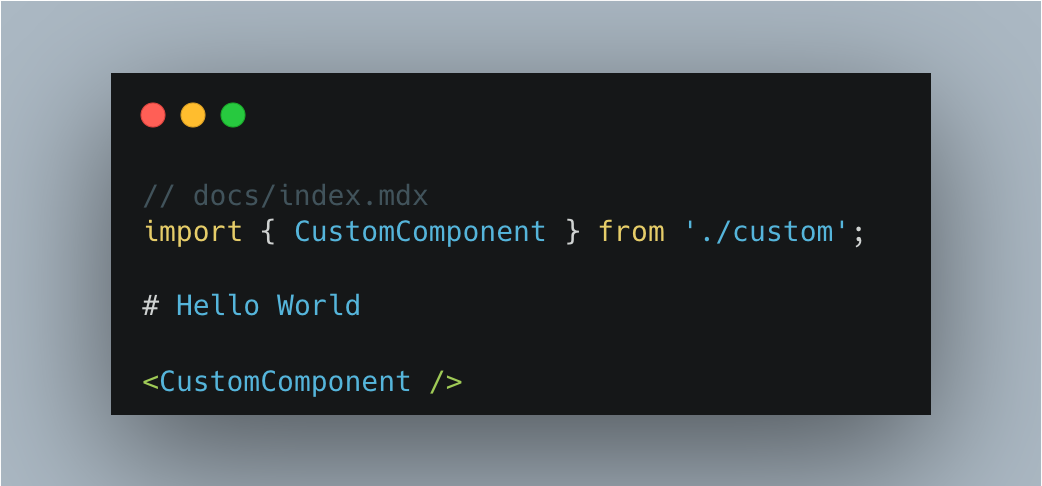
In addition, Rspress also supports some specific syntax, such as:
- Custom container syntax.
- FrontMatter metadata definition.
- Code line highlighting syntax.
Details can be found in the [Use MDX Document](/guide/use-mdx/components.md).
### Code highlighting with [Shiki](https://shiki.style/)
Rspress V2 uses [Shiki](https://shiki.style/) by default for code highlighting. Compared to runtime highlighting solutions, Shiki performs highlighting at compile time, achieving accurate syntax highlighting consistent with VS Code based on TextMate grammar, without adding runtime overhead or bundle size.
You can customize code block color schemes through CSS variables, and interactively switch and preview different Shiki themes on the [CSS Variables](/ui/vars.md) page. Shiki also allows extensions through custom [transformers](https://shiki.style/guide/transformers) to enrich writing, such as [twoslash](https://twoslash.netlify.app/).
### SSG
Rspress is a SSG framework. In the build process in the production environment, it will automatically help you generate static sites, that is, generate HTML content for each page. After the build process is completed, HTML will appear in the default output directory.
Then, you can deploy the contents of this product directory to any static site hosting service, such as GitHub Pages, Netlify, Vercel, etc.
At the same time, we also provide config to easily customize the HTML content generated by SSG. For details, please refer to the [Static Site Generation Document](/guide/basic/ssg.md "Static Site Generation Document").
### Internationalization (I18n)
Internationalization is a common requirement in a document-type site, and Rspress encapsulates the ability of internationalization to be simple and easy to use. In Rspress, we abstract internationalization into the following requirements:
- How to define I18n data source?
- How to configure the site under different languages?
- How to organize the document directory of different language versions?
- How to use I18n data source in custom components?
Rspress V2 includes translations for Chinese, English, Japanese, Korean, and more languages built-in, with more to come. The system automatically performs "Tree Shaking" based on language configuration and usage, bundling only the text you need. You can also easily extend or override translations through the [`i18nSource`](/api/config/config-basic.md#i18nsource) configuration option.
You can follow the [I18n Tutorial](/guide/basic/i18n.md "I18n Tutorial") to step by step to implement internationalization for your site.
### Multi-version Documents
In some scenarios, we need to manage multi-version documents, and Rspress has built-in support for multi-version documents. On the one hand, you can enable this capability through simple config. On the other hand, you only need to organize the directory as usual, without introducing unnecessary directories and concepts, minimizing the mental burden:
```ts
// config file
import { defineConfig } from '@rspress/core';
export default defineConfig({
multiVersion: {
default: 'v1',
versions: ['v1', 'v2'],
},
});
```
```tree
// Directory structure
docs
├── v1
│ ├── README.md
│ └── guide
│ └── README.md
└── v2
├── README.md
└── guide
```
### Full text search
Rspress provides out-of-the-box full-text search capabilities, which you can access without any config. It is based on the open-source FlexSearch engine, with the following effect:
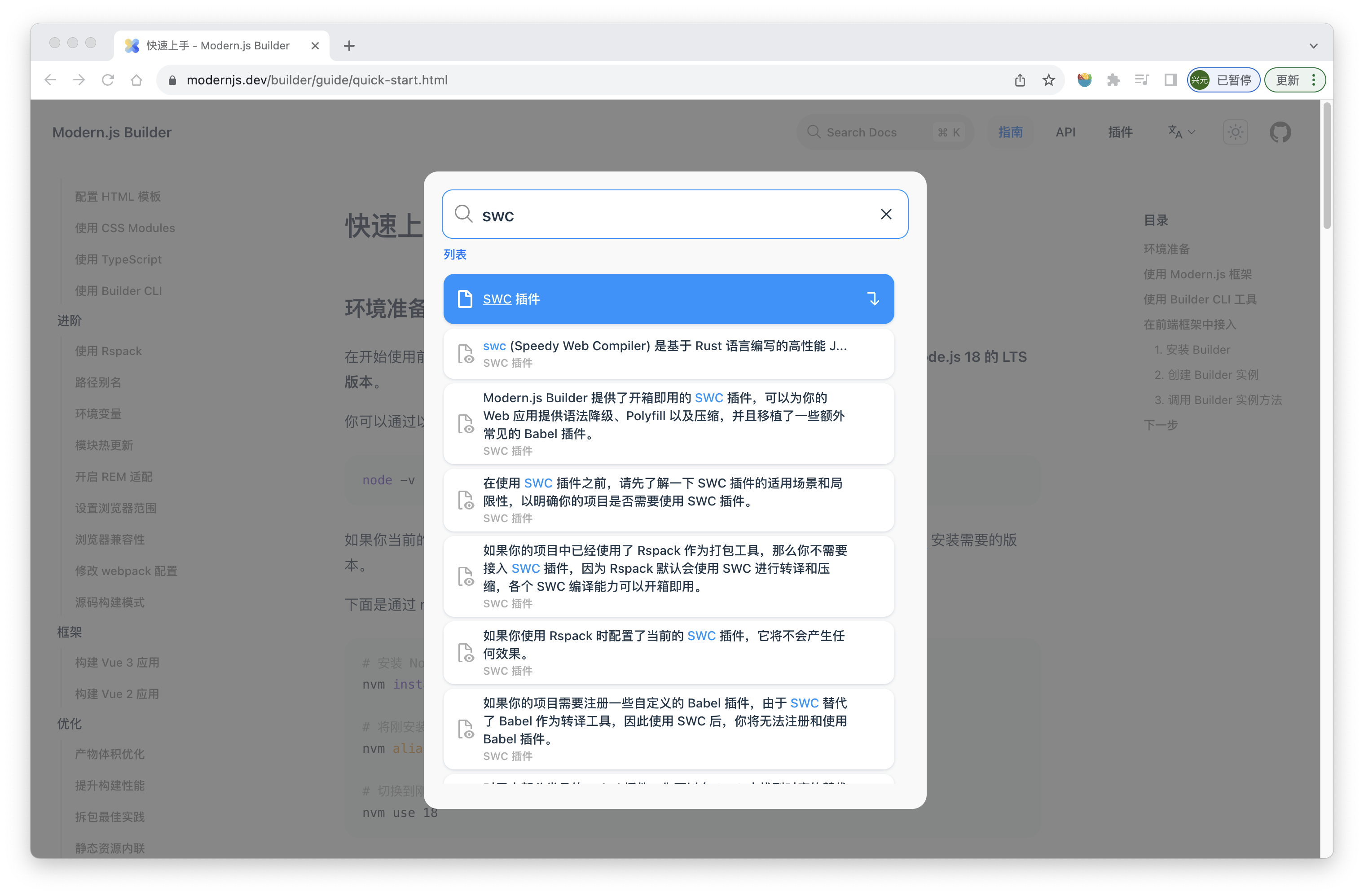
### Custom theme
Rspress supports two ways to customize themes:
1. Extend from the default theme. In each component of the default theme, many slots are provided for you to add custom layout content, for example:
```tsx
// theme/index.tsx
import { Layout as BasicLayout } from '@rspress/core/theme-original';
const Layout = () => Custom Block} />;
export { Layout };
export * from '@rspress/core/theme-original';
```
2. Fully customized theme. If you want to develop a custom theme from scratch, you can customize the content of Layout and use various Runtime APIs provided by Rspress (such as `usePageData`) to obtain compile-time data, routing information, etc.
For details about custom themes, you can refer to the [Custom Theme Documentation](/guide/basic/custom-theme.md "Custom Theme Documentation").
### Plugin system
The plugin system is a crucial part of Rspress, which can help you conveniently extend Rspress's functionality during site construction. Details can be found in the [Plugin Introduction Documentation](/plugin/system/introduction.md "Introduction Documentation").
### Component documentation
#### Demo preview
Rspress provides a [preview plugin](/plugin/official-plugins/preview.md "preview plugin"), which can automatically generate component previews for you. After you register the preview plugin, declare the following code block in the mdx file:
```tsx
import React from 'react';
import { Tag, Space } from '@arco-design/web-react';
import '@arco-design/web-react/dist/css/arco.css';
const COLORS = [
'red',
'orangered',
'orange',
'gold',
'lime',
'green',
'cyan',
'blue',
'arcoblue',
'purple',
'pinkpurple',
'magenta',
'gray',
];
export default () => {
return (
{COLORS.map((color, i) => (
{color}
))}
);
};
```
Then you can see the following preview effect:
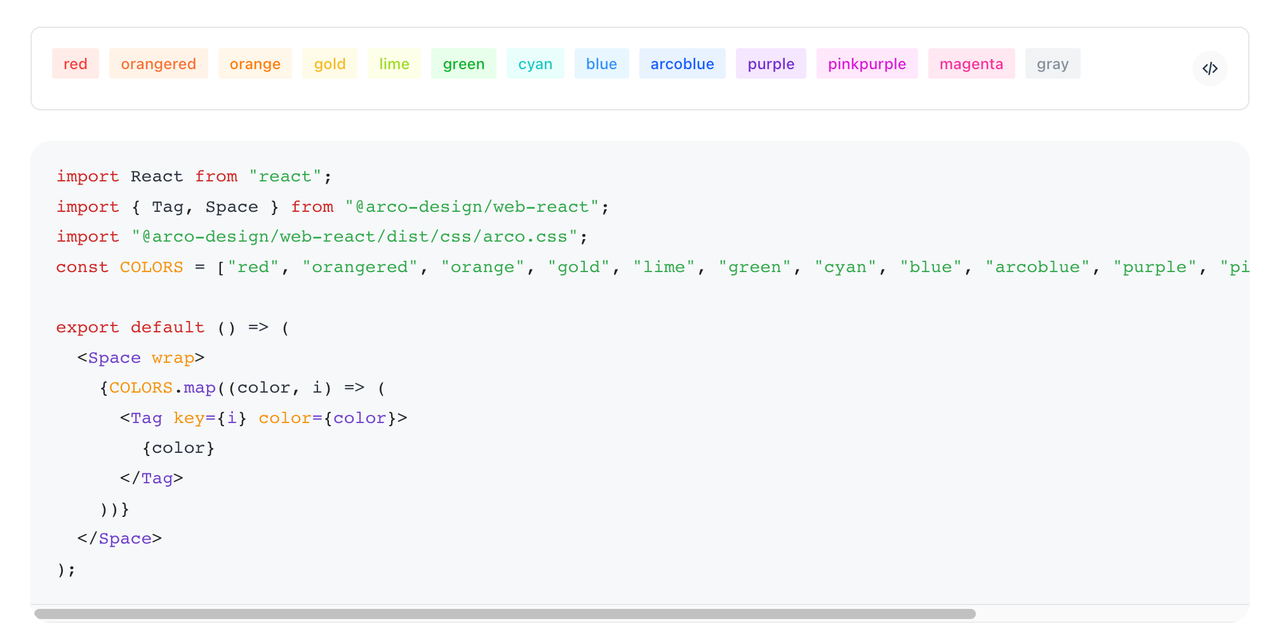
Of course, the plugin also supports mobile preview mode, which you can enable through plugin config:
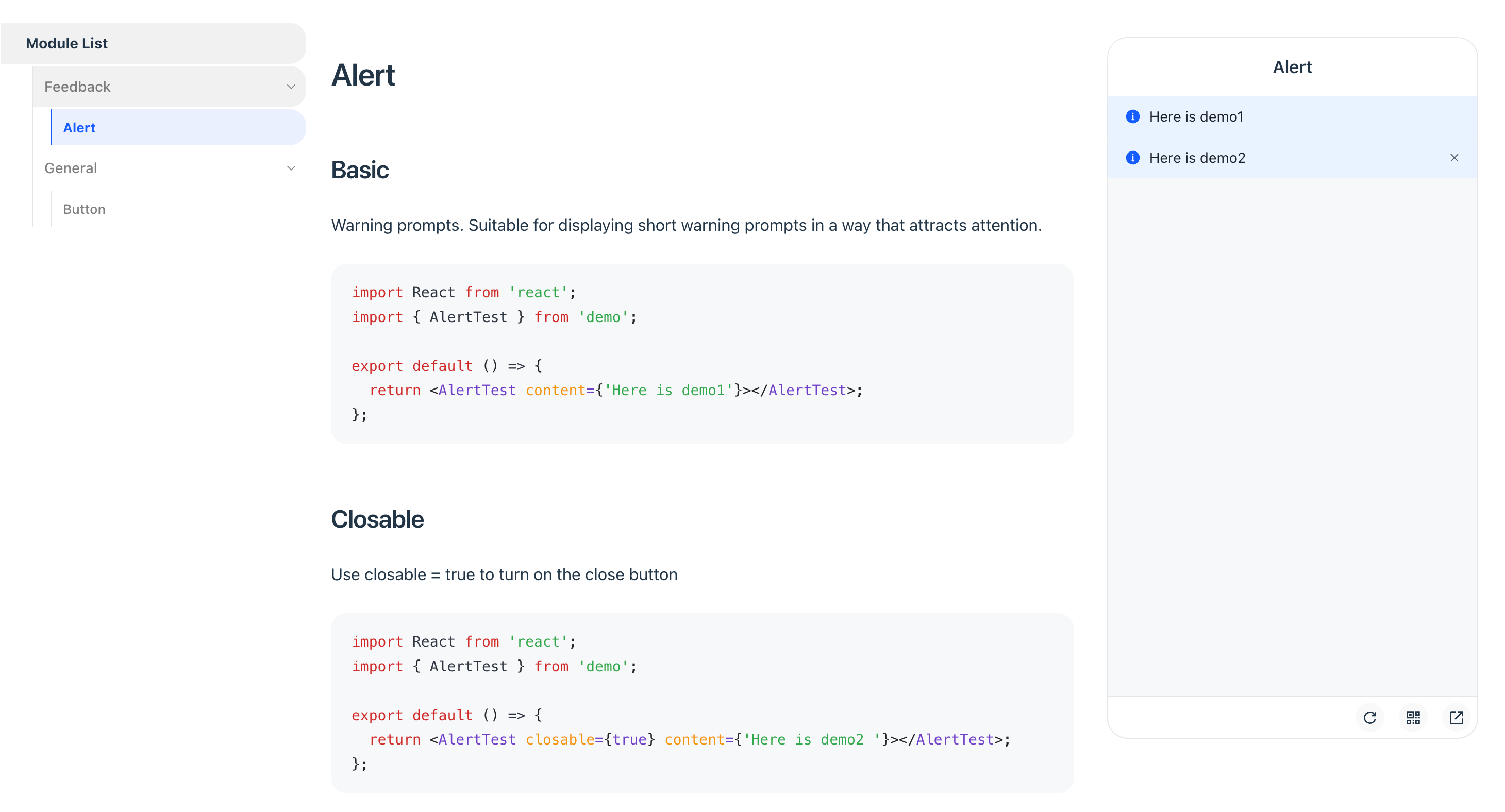
#### Demo real-time playground
For component documentation, if real-time editing capabilities can be provided for components, it will greatly enhance the interactive experience of the documentation.
To achieve this feature, you only need to register the official [playground plugin](/plugin/official-plugins/playground.md "playground plugin"), and then declare your code block in the .mdx file. (Take the above code block as an example)
Next, you will see the following playground effect in the documentation:
### Built-in smooth transition animation
[View Transition API](https://developer.mozilla.org/zh-CN/docs/Web/API/View_Transitions_API "View Transition API") is a set of APIs natively provided by modern browsers for implementing transition effects during page jumps. In Rspress, we also followed up on this feature, implemented document transition animations based on View Transition, and did not use any third-party SPA animation schemes. In the future, we will explore more animation effects to further enhance the experience.
```ts
export default defineConfig({
themeConfig: {
// Enable View Transition transition
enableContentAnimation: true,
enableAppearanceAnimation: true,
},
});
```
## Differences from other SSG frameworks
### Differences from Docusaurus
[Docusaurus](https://docusaurus.io/ "Docusaurus") is an open-source SSG framework by Meta. Like Rspress, it uses React as the rendering framework and supports MDX. However, the main differences between Rspress and Docusaurus are:
1. Rspress provides better build performance through lazyCompilation and persistent cache, achieving millisecond-level cold starts. For details, see [Build Performance](#build-performance).
2. Rspress has simpler config and lower learning curve. Rspress's config is simpler, does not introduce too many concepts, and reduces cognitive load as much as possible. For example, it provides out-of-the-box search functionality, intuitive multi-version document management, etc.
3. Rspress provides a higher level of abstraction for Bundler in its architecture. For low-level Bundlers like webpack and Rspack, their config items are complex and not easy to get started with. Docusaurus chooses to directly expose the config items of the underlying Bundler, while Rspress provides a higher level of abstraction for Bundler, offering simpler and more user-friendly config items. For instance, you can easily add tags in `` through `builderConfig.html.tags`, without having to register related plugins via Bundler like `html-webpack-plugin`.
### Differences from Nextra
[Nextra](https://nextra.vercel.app/ "Nextra") is an open-source SSG framework by Vercel. Like Rspress, it also uses React as the rendering framework and supports MDX. The main differences between Rspress and Nextra are:
1. Rspress has better build performance. This point can be referred to "Differences from Docusaurus".
2. Rspress is overall lighter. Nextra relies on Next.js, and its SSG process is also based on Next.js. Therefore, the SSG output is not purely HTML files, but includes some runtime code from Next.js. On one hand, this leads to a larger size of Nextra's output. On the other hand, it needs to be deployed as an application (using the `next start` command) rather than being deployed as a pure static site. But Rspress is not bound to any application framework, so its output is lighter and can be conveniently deployed as a pure static site.
### Differences from VitePress
[VitePress](https://vitepress.dev/ "VitePress") is a static site generator based on Vite. It is characterized by using Vue as the rendering framework and has excellent performance. The main differences between Rspress and VitePress are:
1. Rspress uses React as the rendering framework, while VitePress uses Vue.
2. Rspress uses MDX for content development, while VitePress uses Markdown and supports Vue components in Markdown, which also leads to differences in the implementation of the underlying compilation toolchain.
3. In terms of build performance, during the development phase, both Rspress and VitePress can quickly start a project. However, in the production environment, VitePress needs to bundle the project based on Rollup, so it will face similar performance issues with other JavaScript-based toolchains. At this time, Rspress will have faster build speed.
## Try Rspress
Go to [Quick start](/guide/start/getting-started.md) to learn how to use Rspress to quickly build a documentation site.
---
url: /guide/use-mdx/code-blocks.md
---
# Code blocks
Rspress V2 uses [Shiki](https://shiki.style) for syntax highlighting at compile time, which means better runtime performance.
When using code blocks in multiple languages, the corresponding language is automatically detected at compile time, and the runtime bundle size does not increase. For supported programming languages, refer to the [Shiki supported languages list](https://shiki.style/languages).
## Basic usage
You can use the \`\`\` syntax to create code blocks. For example:
````mdx
```js
console.log('Hello World');
```
````
It will be rendered as:
```js
console.log('Hello World');
```
## Code block title
You can use the `title="..."` attribute to add a title to a code block.
````mdx
```jsx title="src/components/HelloCodeBlockTitle.tsx"
const HelloCodeBlockTitle = (props) => {
return
Hello CodeBlock Title
;
};
```
````
It will be rendered as:
```jsx title="src/components/HelloCodeBlockTitle.tsx"
const HelloCodeBlockTitle = (props) => {
return
Hello CodeBlock Title
;
};
```
## File code block \{#file-code-block}
You can use the `file="./path/to/file"` attribute without writing any code block content to reference the text from an external file.
### Relative paths
Use relative paths starting with `./` or `../` to reference files relative to the current MDX file:
**foo.mdx**
````mdx
```tsx file="./_tsx-component.tsx"
```
````
**_tsx-component.tsx**
```tsx file="./_tsx-component.tsx"
import { useState } from 'react';
export default () => {
const [count, setCount] = useState(0);
return (
This is a component from tsx{' '}
);
};
```
It will be rendered as:
```tsx file="./_tsx-component.tsx"
import { useState } from 'react';
export default () => {
const [count, setCount] = useState(0);
return (
This is a component from tsx{' '}
);
};
```
### Absolute paths with `/` prefix
Use the `/` prefix to reference files using absolute paths relative to the project root directory. This is useful when you need to reference shared code files from different locations in your documentation:
````mdx
```tsx file="/src/components/Button.tsx"
```
````
For example, if your project root is `/project`, then `/src/components/Button.tsx` will resolve to `/project/src/components/Button.tsx`.
:::tip
When using external file code blocks, it's common to use them together with [route conventions](/guide/use-mdx/components.md#route-convention). Name files starting with `_`.
:::
## Notation line highlight
You can use [Shiki transformers](#shiki-transformers) with the `transformerNotationHighlight` and `// [!code highlight]` comments to highlight code lines.
**Code**
````mdx
```ts
console.log('Highlighted'); // [\!code highlight]
console.log('Not highlighted');
// [\!code highlight:2]
console.log('Highlighted');
console.log('Highlighted');
```
````
**rspress.config.ts**
```ts
import { defineConfig } from '@rspress/core';
import { transformerNotationHighlight } from '@shikijs/transformers';
export default defineConfig({
markdown: {
shiki: {
transformers: [transformerNotationHighlight()],
},
},
});
```
It will be rendered as:
```ts title="highlight.ts"
console.log('Highlighted'); // [!code highlight]
console.log('Not highlighted');
// [!code highlight:2]
console.log('Highlighted');
console.log('Highlighted');
```
## Meta line highlight
:::warning
When using meta info for line highlighting, be aware that formatting tools may change line numbers. For maintainability, [Notation Line Highlight](#notation-line-highlight) is recommended.
:::
You can use `@rspress/core/shiki-transformers` with `transformerCompatibleMetaHighlight` and meta info comments to highlight code lines.
**Code**
````mdx
```ts {1,3-4}
console.log('Highlighted');
console.log('Not highlighted');
console.log('Highlighted');
console.log('Highlighted');
```
````
**rspress.config.ts**
```ts
import { defineConfig } from '@rspress/core';
import { transformerCompatibleMetaHighlight } from '@rspress/core/shiki-transformers';
export default defineConfig({
markdown: {
shiki: {
transformers: [transformerCompatibleMetaHighlight()],
},
},
});
```
It will be rendered as:
```ts {1,3-4}
console.log('Highlighted');
console.log('Not highlighted');
console.log('Highlighted');
console.log('Highlighted');
```
## Show code line numbers
You can show line numbers for individual code blocks using the `lineNumbers` meta attribute:
````mdx
```ts lineNumbers
function hello() {
console.log('Line numbers enabled for this block');
}
```
````
It will be rendered as:
```ts lineNumbers
function hello() {
console.log('Line numbers enabled for this block');
}
```
You can also enable line numbers globally by setting the `showLineNumbers` option in the config file:
```ts title="rspress.config.ts"
export default {
// ...
markdown: {
showLineNumbers: true,
},
};
```
When `showLineNumbers` is enabled globally, all code blocks will show line numbers by default.
## Wrap code
You can enable code wrapping for individual code blocks using the `wrapCode` meta attribute:
{/* prettier-ignore */}
````mdx
```ts wrapCode
const longLine = 'This is a very long line of code that will wrap when the wrapCode meta attribute is present';
```
````
It will be rendered as:
{/* prettier-ignore */}
```ts wrapCode
const longLine = 'This is a very long line of code that will wrap when the wrapCode meta attribute is present';
```
You can also enable code wrapping globally by setting the `defaultWrapCode` option in the config file:
```ts title="rspress.config.ts"
export default {
// ...
markdown: {
defaultWrapCode: true,
},
};
```
When `defaultWrapCode` is enabled globally, all code blocks will wrap long lines by default.
## Combining meta attributes
You can combine multiple meta attributes together:
````mdx
```ts lineNumbers wrapCode title="example.ts"
const longLine = 'This code block has line numbers, code wrapping, and a title';
```
````
It will be rendered as:
```ts lineNumbers wrapCode title="example.ts"
const longLine = 'This code block has line numbers, code wrapping, and a title';
```
## Diff code block
````mdx
```diff
function test() {
- console.log('deleted');
+ console.log('added');
console.log('unchanged');
}
```
````
It will be rendered as:
```diff
function test() {
- console.log('deleted');
+ console.log('added');
console.log('unchanged');
}
```
## Shiki transformers
Rspress V2 uses [Shiki](https://shiki.style) for compile-time code highlighting, providing flexible code block capabilities.
You can add custom [shiki transformers](https://shiki.style/guide/transformers.html) via [`markdown.shiki.transformers`](/api/config/config-build.md#markdownshiki) for richer code block effects.
In addition to the [transformerNotationHighlight](#notation-line-highlight) mentioned above, Rspress defaults to supporting the following transformers from [@shikijs/transformers](https://shiki.style/packages/transformers).
### transformerNotationDiff
**Syntax**
````mdx
```ts
console.log('deleted'); // [\!code --]
console.log('added'); // [\!code ++]
console.log('unchanged');
```
````
**rspress.config.ts**
```ts
import { defineConfig } from '@rspress/core';
import { transformerNotationDiff } from '@shikijs/transformers';
export default defineConfig({
markdown: {
shiki: {
transformers: [transformerNotationDiff()],
},
},
});
```
It will be rendered as:
```ts
console.log('deleted'); // [!code --]
console.log('added'); // [!code ++]
console.log('unchanged');
```
### transformerNotationErrorLevel
**Syntax**
````mdx
```ts
console.log('No errors or warnings');
console.error('Error'); // [\!code error]
console.warn('Warning'); // [\!code warning]
```
````
**rspress.config.ts**
```ts
import { defineConfig } from '@rspress/core';
import { transformerNotationErrorLevel } from '@shikijs/transformers';
export default defineConfig({
markdown: {
shiki: {
transformers: [transformerNotationErrorLevel()],
},
},
});
```
It will be rendered as:
```ts
console.log('No errors or warnings');
console.error('Error'); // [!code error]
console.warn('Warning'); // [!code warning]
```
### transformerNotationFocus
**Syntax**
````mdx
```ts
console.log('Not focused');
console.log('Focused'); // [\!code focus]
console.log('Not focused');
```
````
**rspress.config.ts**
```ts
import { defineConfig } from '@rspress/core';
import { transformerNotationFocus } from '@shikijs/transformers';
export default defineConfig({
markdown: {
shiki: {
transformers: [transformerNotationFocus()],
},
},
});
```
It will be rendered as:
```ts
console.log('Not focused');
console.log('Focused'); // [!code focus]
console.log('Not focused');
```
## Twoslash
> [Twoslash](https://twoslash.netlify.app/guide/) is a markup format for TypeScript code, suitable for creating self-contained code samples and letting the TypeScript compiler automatically supplement type information and hints. It is widely used on the official TypeScript website.
Rspress provides the `@rspress/plugin-twoslash` plugin, which enables Twoslash features in Rspress. See [@rspress/plugin-twoslash documentation](/plugin/official-plugins/twoslash.md) for details.
```ts twoslash
// @noErrorValidation
const str: string = 1;
```
## Runtime syntax highlighting
When you need to render code blocks dynamically at runtime, such as in interactive docs or fetching code remotely, Rspress provides the `CodeBlockRuntime` component.
Here is an example:
```mdx title="foo.mdx"
import { CodeBlockRuntime } from '@rspress/core/theme';
import { transformerNotationHighlight } from '@shikijs/transformers';
```
```ts title=highlight.ts
console.log('Highlighted'); // [!code highlight]
// [!code highlight:1]
console.log('Highlighted');
console.log('Not highlighted');
```
:::warning
It is recommended to use `CodeBlockRuntime` only when necessary, as it increases runtime bundle size and cannot benefit from compile-time highlighting performance.
:::
---
url: /guide/use-mdx/components.md
---
# MDX and React components
Rspress supports [MDX](https://mdxjs.com/), a content authoring format that seamlessly combines Markdown with JSX. MDX allows you to use React components directly in your documentation, combining Markdown's concise syntax with the power of the React ecosystem, making it ideal for building interactive, component-based technical documentation.
## What is MDX
MDX is a combination of Markdown and JSX syntax, allowing you to write and use React components directly in Markdown documents.
We recommend using `.mdx` for all documentation files, which enables you to write content just like regular Markdown and also import and utilize the [built-in components](/ui/components/index.md) provided by Rspress.
```mdx title="docs/index.mdx"
# Hello, world!
import { PackageManagerTabs } from '@rspress/core/theme';
```
## MDX fragments \{#fragments}
In MDX, every `.mdx` file is compiled into a React component, which means it can be imported like any component and can freely render React components. For example:
**docs/index.mdx**
```mdx
import MdxFragment from './_mdx-fragment.mdx';
import TsxComponent from './_tsx-component';
Testing the use of MDX fragments and React components.
```
**docs/_mdx-fragment.mdx**
```mdx file="./_mdx-fragment.mdx"
This is **mdx fragment**.
```
**docs/_tsx-component.tsx**
```tsx file="./_tsx-component.tsx"
import { useState } from 'react';
export default () => {
const [count, setCount] = useState(0);
return (
This is a component from tsx{' '}
);
};
```
It will be rendered as:
Testing the use of MDX fragments and React components.
This is **mdx fragment**.
This is a component from tsx 0
You can use [built-in components](/ui/components/index.md) provided by Rspress or install some React component libraries to enrich your documentation in `.mdx` files.
## Routing convention
In the [docs directory](/api/config/config-basic.md#root), MDX fragments or React components need to be excluded from routing through the [route.exclude](/api/config/config-basic.md#routeexclude) configuration. For convenience, files starting with "\_" are excluded by default via [route.excludeConvention](/api/config/config-basic.md#routeexcludeconvention).
You can also place components in adjacent directories outside the docs directory, for example:
```tree
docs
├── _button.mdx
└── index.mdx
components
└── button.tsx
```
**docs/index.mdx**
```mdx
import ButtonFragment from './_button.mdx';
import Button from '../../components/button';
```
**docs/_button.mdx**
```mdx file="./_button.mdx"
#### button
This is text from MDX
```
**components/button.tsx**
```tsx
const Button = () => ;
export default Button;
```
It will be rendered as:
#### button
This is text from MDX
This is a button from tsx
## Escape Hatch: writing document content in tsx
```tsx file="./_escape-hatch.tsx" title="_escape-hatch.tsx"
import { getCustomMDXComponent } from '@rspress/core/theme';
export default () => {
const { p: P, code: Code } = getCustomMDXComponent();
return (
This is content in tsx, but the styles are the same as in the
documentation, such as @rspress/core. However, this text with
className="rp-not-doc"
@rspress/core will not take effect
);
};
```
It will be rendered as:
This is content in tsx, but the styles are the same as in the documentation, such as `@rspress/core`. However, this text with className="rp-not-doc"`@rspress/core` will not take effect
:::warning
tsx and html syntax can make it difficult to extract static information, such as local search indexes.
It is more recommended to use `.mdx` files to write document content and use `.tsx` files to write interactive dynamic content.
:::
## React version requirements
| Dependency | Allowed Range | Default Version | Notes |
| ------------------ | ---------------------- | --------------- | ----------------------------------------- |
| `react` | `^18.0.0 \|\| ^19.0.0` | 19 | React 17 is no longer supported |
| `react-dom` | `^18.0.0 \|\| ^19.0.0` | 19 | Keep consistent with react version |
| `react-router-dom` | `^6.0.0 \|\| ^7.0.0` | 7 | Uses project version if already installed |
:::tip
If `react`, `react-dom`, or `react-router-dom` is already installed in your project, Rspress will prioritize using the version installed in your project rather than the built-in default version.
:::
---
url: /guide/use-mdx/container.md
---
# Container
Containers are a great way to mark important information and provide hints to users.
:::tip
Rspress provides two styles of syntax, [`:::` syntax](#three-colon-syntax) and [GitHub Markdown Alerts syntax](#github-markdown-alerts-syntax).
:::
## `:::` Syntax \{#three-colon-syntax}
You can use the `:::` syntax to create custom containers and support custom titles. For example:
**Rendered Result**
:::note
This is a `note` callout
:::
:::tip
This is a `tip` callout
:::
:::info
This is an `info` callout
:::
:::warning
This is a `warning` callout
:::
:::danger
This is a `danger` callout
:::
:::details
This is a `details` callout
:::
:::tip Custom Title
This is a callout with a custom title
:::
:::tip\{title="Custom Title"}
This is a callout with a custom title
:::
**Syntax**
```markdown
:::note
This is a `note` callout
:::
:::tip
This is a `tip` callout
:::
:::info
This is an `info` callout
:::
:::warning
This is a `warning` callout
:::
:::danger
This is a `danger` callout
:::
:::details
This is a `details` callout
:::
:::tip Custom Title
This is a callout with a custom title
:::
:::tip{title="Custom Title"}
This is a callout with a custom title
:::
```
:::warning Notes
- Container types must be lowercase. Use `:::tip`, `:::warning`, `:::caution`, etc. Capitalized types like `:::Tip` or `:::Warning` will not be recognized.
- When using the `:::` syntax in `.mdx` files and customizing headings with curly braces syntax, remember to escape the braces. We therefore recommend using the syntax `:::tip Custom Title` directly.
```mdx
:::tip\{title="Custom Title"}
This is a `block` of `Custom Title`
:::
```
:::
## GitHub Markdown alerts syntax \{#github-markdown-alerts-syntax}
You can use [GitHub Markdown Alerts Syntax](https://docs.github.com/en/get-started/writing-on-github/getting-started-with-writing-and-formatting-on-github/basic-writing-and-formatting-syntax#alerts) to create custom containers.
**Rendered Result**
> \[!NOTE]
> This is a `block` of type `note`
> \[!TIP]
> This is a `block` of type `tip`
> \[!INFO]
> This is a `block` of type `info`
> \[!WARNING]
> This is a `block` of type `warning`
> \[!DANGER]
> This is a `block` of type `danger`
> \[!DETAILS]
> This is a `block` of type `details`
**Syntax**
```markdown
> [!NOTE]
> This is a `block` of type `note`
> [!TIP]
> This is a `block` of type `tip`
> [!INFO]
> This is a `block` of type `info`
> [!WARNING]
> This is a `block` of type `warning`
> [!DANGER]
> This is a `block` of type `danger`
> [!DETAILS]
> This is a `block` of type `details`
```
---
url: /guide/use-mdx/frontmatter.md
---
# Frontmatter
You can add front matter at the beginning of your Markdown file. It is a [YAML](https://yaml.org/) block wrapped by the three dashes `---` and is used to define metadata.
For example, use [title](/api/config/config-frontmatter.md#title) to specify the title of the page. By default, the page's h1 heading will be used as the title of the HTML document. If you want to use a different title, you can use front matter to specify the title of the page:
```mdx
---
title: My Home Page
---
This is my **home page content**.
```
For example, you can use [head](/api/config/config-frontmatter.md#head) to specify custom meta tags for [Open Graph](https://ogp.me/).
```yaml
---
head:
- - meta
- property: og:url
content: https://example.com/foo/
- - meta
- property: og:image
content: https://example.com/bar.jpg
# - - [htmlTag]
# - [attributeName]: [attributeValue]
# [attributeName]: [attributeValue]
---
```
:::tip
See [Front matter config](/api/config/config-frontmatter.md) for available front matter configurations, and see [useFrontmatter](/ui/hooks/use-frontmatter.md) for how to access front matter in code.
:::
---
url: /guide/use-mdx/link.md
---
# Links
## Link format
Rspress supports two formats of links: **file path format** and **URL format**. They render exactly the same results, differing only in code style.
**Syntax**
```mdx
[File path format - ../start/getting-started.mdx](../start/getting-started.mdx)
[URL format - /guide/start/getting-started](/guide/start/getting-started)
```
**Rendered result**
[File path format - ../start/getting-started.mdx](/guide/start/getting-started.md)
[URL format - /guide/start/getting-started](/guide/start/getting-started.md)
:::tip
Within the same Rspress project, it is recommended to use only one type of link format to maintain consistent code style.
:::
## File path format
The file path format uses **absolute file paths** or **relative file paths** to reference specific `.md` or `.mdx` files.
Here are examples from this website:
**Syntax**
```mdx
[Relative path - ../start/getting-started.mdx](../start/getting-started.mdx)
[Absolute path - /guide/start/getting-started.mdx](/guide/start/getting-started.mdx)
[Absolute path with language - /zh/guide/start/getting-started.mdx](/zh/guide/start/getting-started.mdx)
[Absolute path to another language page - /en/guide/start/getting-started.mdx](/en/guide/start/getting-started.mdx)
```
**Rendered result**
[Relative path - ../start/getting-started.mdx](/guide/start/getting-started.md)
[Absolute path - /guide/start/getting-started.mdx](/guide/start/getting-started.md)
[Absolute path with language - /zh/guide/start/getting-started.mdx](/zh/guide/start/getting-started.md)
[Absolute path to another language page - /en/guide/start/getting-started.mdx](/guide/start/getting-started.md)
:::tip
When using absolute paths, the root path is the [`docs`](/api/config/config-basic.md#root) directory. If the project uses [internationalization](/guide/basic/i18n.md) or [multi-version](/guide/basic/multi-version.md), the [`markdown.link.autoPrefix`](/api/config/config-build.md#markdownlinkautoPrefix) configuration will automatically add prefixes, so you can omit the language directory in links.
For example:
[Absolute path - /guide/start/getting-started.mdx](/guide/start/getting-started.md)
[Absolute path with language - /zh/guide/start/getting-started.mdx](/zh/guide/start/getting-started.md)
Both will point to the same page.
:::
We recommend using relative file paths as they have the following advantages:
1. IDE support: hint, jump to the corresponding file, auto-update file links when moving files, etc.
2. Supported by GitHub interface and other Markdown editors.
3. Compared to URL format, you don't need to consider the impact of the [`cleanUrls`](/api/config/config-basic.md#routecleanurls) configuration.
## URL format
The URL format uses complete URL addresses to reference specific pages.
Here are examples from this website:
**Syntax**
```mdx
[Relative path - ../start/getting-started](../start/getting-started)
[Absolute path - /guide/start/getting-started](/guide/start/getting-started)
[Absolute path - /guide/start/getting-started.html](/guide/start/getting-started.html)
[Absolute path with language - /zh/guide/start/getting-started.html](/zh/guide/start/getting-started.html)
[Absolute path to another language page - /en/guide/start/getting-started.html](/en/guide/start/getting-started.html)
```
**Rendered result**
[Relative path - ../start/getting-started](/guide/start/getting-started.md)
[Relative path - ../start/getting-started.html](/guide/start/getting-started.md)
[Absolute path - /guide/start/getting-started](/guide/start/getting-started.md)
[Absolute path - /guide/start/getting-started.html](/guide/start/getting-started.md)
[Absolute path with language - /zh/guide/start/getting-started.html](/zh/guide/start/getting-started.md)
[Absolute path to another language page - /en/guide/start/getting-started.html](/guide/start/getting-started.md)
:::tip
When using absolute paths, the root path is the [`docs`](/api/config/config-basic.md#root) directory. If the project uses [internationalization](/guide/basic/i18n.md) or [multi-version](/guide/basic/multi-version.md), the [`markdown.link.autoPrefix`](/api/config/config-build.md#markdownlinkautoPrefix) configuration will automatically add prefixes, so you can omit the language directory in links.
For example:
[Absolute path - /guide/start/getting-started](/guide/start/getting-started.md)
[Absolute path with language - /zh/guide/start/getting-started](/zh/guide/start/getting-started.md)
Both will point to the same page.
:::
The difference between URL format and file path format is that Rspress will automatically add the `.html` suffix based on the [`cleanUrls`](/api/config/config-basic.md#routecleanurls) configuration, so you don't need to consider the `.html` suffix in links - both with and without it will have consistent rendering results.
## External links
External links that are not in this docsite will automatically add `target="_blank" rel="noreferrer"`:
- [Rspack Documentation](https://rspack.rs/)
- [Rsbuild Documentation](https://rsbuild.rs/)
## Assets links
Links to static resources in the documentation site will be kept as is:
- Static assets in public folder - [/og-image.png](/og-image.png)
- Generated by @rspress/plugin-llms - [/llms-full.txt](/llms-full.txt)
:::tip
You need to exclude these links from [dead link checking](#dead-links-checking).
```ts title="rspress.config.ts"
import { defineConfig } from '@rspress/core';
export default defineConfig({
markdown: {
link: {
checkDeadLinks: {
excludes: ['/og-image.png', '/llms-full.txt'],
},
},
},
});
```
:::
## Link definition syntax
Rspress also supports markdown's alternative `definition` syntax for links, which can simplify link writing when there are many links.
**Syntax**
```mdx
Rspress supports [relative file paths] and [absolute file paths].
[relative file paths]: ../start/getting-started.mdx
[absolute file paths]: /guide/start/getting-started.mdx
```
**Rendered result**
Rspress supports [relative file paths] and [absolute file paths].
[relative file paths]: /guide/start/getting-started.md
[absolute file paths]: /guide/start/getting-started.md
## Anchor links
Rspress supports adding anchor navigation in links, using the `#` symbol to specify jumping to a specific position on the page.
**Syntax**
```mdx
[Jump to #File Path Format](#file-path-format)
[Jump to Getting Started#1-Initialize Project](../start/getting-started.mdx#1-initialize-project)
```
**Rendered result**
[Jump to #file-path-format](#file-path-format)
[Jump to Getting Started#1-initialize-the-project](/guide/start/getting-started.md#1-initialize-the-project)
### Customizing anchor id
By default, Rspress will automatically generate ids based on the content of each title. This id will also serve as the content of the anchor. You can use the following syntax to customize the id of the header:
```md
## Hello world \{#custom-id}
```
Where `custom-id` is your custom id.
## Dead links checking
During the maintenance of documentation sites, broken links often occur. Rspress provides a dead link checking feature to specifically address this troublesome maintenance issue.
Configure through [markdown.link.checkDeadLinks](/api/config/config-build.md#markdownlinkcheckdeadlinks) to automatically check for invalid links.
```ts title="rspress.config.ts"
import { defineConfig } from '@rspress/core';
export default defineConfig({
markdown: {
link: {
checkDeadLinks: true,
},
},
});
```
---
url: /plugin/community-plugins/overview.md
---
# Overview
## Community plugins
Community plugins include:
- [rspress-plugin-translate](https://github.com/byteHulk/rspress-plugin-translate): A plugin that integrates LLM for document translation.
- [rspress-plugin-font-open-sans](https://github.com/rstackjs/rspress-plugin-font-open-sans): Use Open Sans as the default font in your Rspress website.
Rspress website.
- [rspress-plugin-align-image](https://github.com/rstackjs/rspress-plugins/tree/main/packages/rspress-plugin-align-image): Rspress plugin to align images in markdown.
- [rspress-plugin-directives](https://github.com/rstackjs/rspress-plugins/tree/main/packages/rspress-plugin-directives): Rspress plugin for custom directives support.
- [rspress-plugin-file-tree](https://github.com/rstackjs/rspress-plugins/tree/main/packages/rspress-plugin-file-tree): Rspress plugin that add tree view for file structure display.
- [rspress-plugin-gh-pages](https://github.com/rstackjs/rspress-plugins/tree/main/packages/rspress-plugin-gh-pages): Rspress plugin to add support for automatic deployment to GitHub Pages.
- [rspress-plugin-google-analytics](https://github.com/rstackjs/rspress-plugins/tree/main/packages/rspress-plugin-google-analytics): Rspress plugin for Google Analytics integration.
- [rspress-plugin-vercel-analytics](https://github.com/rstackjs/rspress-plugins/tree/main/packages/rspress-plugin-vercel-analytics): Rspress plugin for Vercel Analytics integration.
- [rspress-plugin-katex](https://github.com/rstackjs/rspress-plugins/tree/main/packages/rspress-plugin-katex): Rspress plugin to add support for rendering math equations using [KaTeX](https://katex.org/).
- [rspress-plugin-live2d](https://github.com/rstackjs/rspress-plugins/tree/main/packages/rspress-plugin-live2d): Rspress plugin for live2d, powered by [on-my-live2d](https://oml2d.com/).
- [rspress-plugin-mermaid](https://github.com/rstackjs/rspress-plugins/tree/main/packages/rspress-plugin-mermaid): Rspress plugin to render [Mermaid](https://mermaid.js.org/#/) diagrams in markdown files.
- [rspress-plugin-reading-time](https://github.com/rstackjs/rspress-plugins/tree/main/packages/rspress-plugin-reading-time): Rspress plugin to display reading time for your document pages.
- [rspress-plugin-supersub](https://github.com/rstackjs/rspress-plugins/tree/main/packages/rspress-plugin-supersub): Rspress plugin to add superscript(``) and subscript(``) support.
- [rspress-plugin-toc](https://github.com/rstackjs/rspress-plugins/tree/main/packages/rspress-plugin-toc): Rspress plugin that injects a table of contents into the page.
You can check out the Rspress plugins provided by the community at [awesome-rstack - Rspress Plugins](https://github.com/rstackjs/awesome-rstack?tab=readme-ov-file#rspress-plugins).
You can also discover more Rspress plugins on npm by searching for the keyword [rspress-plugin](https://www.npmjs.com/search?q=rspress-plugin\&ranking=popularity).
---
url: /plugin/official-plugins/algolia.md
---
# @rspress/plugin-algolia [Source Code](https://github.com/web-infra-dev/rspress/tree/main/packages/plugin-algolia)
Based on [docsearch](https://docsearch.algolia.com), this plugin replaces Rspress's built-in search with [algolia](https://www.algolia.com/).
## Installation
```sh [npm]
npm add @rspress/plugin-algolia -D
```
```sh [yarn]
yarn add @rspress/plugin-algolia -D
```
```sh [pnpm]
pnpm add @rspress/plugin-algolia -D
```
```sh [bun]
bun add @rspress/plugin-algolia -D
```
```sh [deno]
deno add npm:@rspress/plugin-algolia -D
```
## Usage
First, add the following configuration to `rspress.config.ts`:
```ts
// rspress.config.ts
import path from 'path';
import { defineConfig } from '@rspress/core';
import { pluginAlgolia } from '@rspress/plugin-algolia';
export default defineConfig({
plugins: [pluginAlgolia()],
});
```
Then override the `Search` component with an algolia-supported search box via [Custom Theme](/guide/basic/custom-theme.md).
```tsx
// theme/index.tsx
import { Search as PluginAlgoliaSearch } from '@rspress/plugin-algolia/runtime';
const Search = () => {
return (
);
};
export { Search };
export * from '@rspress/core/theme-original';
```
## Configuration
The plugin accepts an options object with the following type:
```ts
interface Options {
verificationContent?: string;
}
```
### verificationContent
- **Type**: `string | undefined`
- **Default**: `undefined`
Used for meta tag verification when creating algolia crawler. Format: ``. Refer to [Create a new crawler - algolia](https://www.algolia.com/doc/tools/crawler/getting-started/create-crawler/#dns)
## SearchProps
The `SearchProps` type from `@rspress/plugin-algolia/runtime` is as follows:
```ts
import type { DocSearchProps } from '@docsearch/react';
type Locales = Record<
string,
{ translations: DocSearchProps['translations']; placeholder: string }
>;
type SearchProps = {
/**
* @link https://docsearch.algolia.com/docs/api
*/
docSearchProps?: DocSearchProps;
locales?: Locales;
};
```
### docSearchProps
- **Type**: `import('@docsearch/react').DocSearchProps`
- **Default**: `undefined`
`docSearchProps` will be directly passed to the `` component in `@docsearch/react`. For specific types, please refer to [docsearch documentation](https://docsearch.algolia.com/docs/api).
### locales
- **Type**:
```ts
type Locales = Record<
string,
{ translations: DocSearchProps['translations']; placeholder: string }
>;
```
- **Default**: `{}`
For customizing translated text in different languages, Rspress provides the following translated text, which can be imported through import.
```ts file="/../packages/plugin-algolia/src/runtime/locales.ts"
import type { DocSearchProps } from '@docsearch/react';
export type Locales = Record<
string,
{ translations: DocSearchProps['translations']; placeholder: string }
>;
// cspell:disable
export const ZH_LOCALES: Locales = {
zh: {
placeholder: '搜索文档',
translations: {
button: {
buttonText: '搜索',
buttonAriaLabel: '搜索',
},
modal: {
searchBox: {
clearButtonTitle: '清除查询条件',
clearButtonAriaLabel: '清除查询条件',
closeButtonText: '取消',
closeButtonAriaLabel: '取消',
},
startScreen: {
recentSearchesTitle: '搜索历史',
noRecentSearchesText: '没有搜索历史',
saveRecentSearchButtonTitle: '保存至搜索历史',
removeRecentSearchButtonTitle: '从搜索历史中移除',
favoriteSearchesTitle: '收藏',
removeFavoriteSearchButtonTitle: '从收藏中移除',
},
errorScreen: {
titleText: '无法获取结果',
helpText: '你可能需要检查你的网络连接',
},
footer: {
selectText: '选择',
navigateText: '切换',
closeText: '关闭',
poweredByText: '搜索提供者',
},
noResultsScreen: {
noResultsText: '无法找到相关结果',
suggestedQueryText: '你可以尝试查询',
reportMissingResultsText: '你认为该查询应该有结果?',
reportMissingResultsLinkText: '点击反馈',
},
},
},
},
} as const;
export const RU_LOCALES: Locales = {
ru: {
placeholder: 'Поиск в документации',
translations: {
button: {
buttonText: 'Поиск',
buttonAriaLabel: 'Поиск',
},
modal: {
searchBox: {
clearButtonTitle: 'Очистить поиск',
clearButtonAriaLabel: 'Очистить поиск',
closeButtonText: 'Закрыть',
closeButtonAriaLabel: 'Закрыть',
},
startScreen: {
recentSearchesTitle: 'История поиска',
noRecentSearchesText: 'Нет истории поиска',
saveRecentSearchButtonTitle: 'Сохранить в истории поиска',
removeRecentSearchButtonTitle: 'Удалить из истории поиска',
favoriteSearchesTitle: 'Избранное',
removeFavoriteSearchButtonTitle: 'Удалить из избранного',
},
errorScreen: {
titleText: 'Невозможно получить результаты',
helpText: 'Проверьте подключение к Интернету',
},
footer: {
selectText: 'выбрать',
navigateText: 'перейти',
closeText: 'закрыть',
poweredByText: 'поиск от',
},
noResultsScreen: {
noResultsText: 'Ничего не найдено',
suggestedQueryText: 'Попробуйте изменить запрос',
reportMissingResultsText: 'Считаете, что результаты должны быть?',
reportMissingResultsLinkText: 'Сообщите об этом',
},
},
},
},
} as const;
// cspell:enable
```
Rspress provides Chinese translation by default, and you can customize translated text in different languages through `locales`.
- Example:
```tsx
import { Search as PluginAlgoliaSearch, ZH_LOCALES } from '@rspress/plugin-algolia/runtime';
// or
```
## Algolia crawler config
Here is an example config based on what this site uses:
```tsx
new Crawler({
appId: 'YOUR_APP_ID',
apiKey: 'YOUR_API_KEY',
rateLimit: 8,
maxDepth: 10,
startUrls: ['https://rspress.rs'],
sitemaps: ['https://rspress.rs/sitemap.xml'],
discoveryPatterns: ['https://rspress.rs/**'],
actions: [
{
indexName: 'doc_search_rspress_pages',
pathsToMatch: ['https://rspress.rs/**'],
recordExtractor: ({ $, helpers }) => {
const $activeNavItem = $('.rp-nav-menu__item.rp-nav-menu__item--active')
.first()
.clone();
$activeNavItem.find('.rp-badge').remove();
const lvl0 = $activeNavItem.text().trim() || 'Documentation';
return helpers.docsearch({
recordProps: {
lvl0: {
selectors: '',
defaultValue: lvl0,
},
lvl1: '.rspress-doc h1',
lvl2: '.rspress-doc h2',
lvl3: '.rspress-doc h3',
lvl4: '.rspress-doc h4',
lvl5: '.rspress-doc h5',
lvl6: '.rspress-doc pre > code', // if you want to search code blocks, add this line
content: '.rspress-doc p, .rspress-doc li',
},
indexHeadings: true,
aggregateContent: true,
recordVersion: 'v3',
});
},
},
],
initialIndexSettings: {
doc_search_rspress_pages: {
attributesForFaceting: ['type', 'lang'],
attributesToRetrieve: [
'hierarchy',
'content',
'anchor',
'url',
'url_without_anchor',
'type',
],
attributesToHighlight: ['hierarchy', 'content'],
attributesToSnippet: ['content:10'],
camelCaseAttributes: ['hierarchy', 'content'],
searchableAttributes: [
'unordered(hierarchy.lvl0)',
'unordered(hierarchy.lvl1)',
'unordered(hierarchy.lvl2)',
'unordered(hierarchy.lvl3)',
'unordered(hierarchy.lvl4)',
'unordered(hierarchy.lvl5)',
'unordered(hierarchy.lvl6)',
'content',
],
distinct: true,
attributeForDistinct: 'url',
customRanking: [
'desc(weight.pageRank)',
'desc(weight.level)',
'asc(weight.position)',
],
ranking: [
'words',
'filters',
'typo',
'attribute',
'proximity',
'exact',
'custom',
],
highlightPreTag: '',
highlightPostTag: '',
minWordSizefor1Typo: 3,
minWordSizefor2Typos: 7,
allowTyposOnNumericTokens: false,
minProximity: 1,
ignorePlurals: true,
advancedSyntax: true,
attributeCriteriaComputedByMinProximity: true,
removeWordsIfNoResults: 'allOptional',
},
},
});
```
## Distinguish search results based on i18n
You can achieve internationalized search results by combining [Runtime API](/ui/hooks/index.md) with `docSearchProps`.
Here's an example using `docSearchProps.searchParameters`:
```tsx
// theme/index.tsx
import { useLang } from '@rspress/core/runtime';
import { Search as PluginAlgoliaSearch } from '@rspress/plugin-algolia/runtime';
const Search = () => {
const lang = useLang();
return (
);
};
export { Search };
export * from '@rspress/core/theme-original';
```
---
url: /plugin/official-plugins/api-docgen.md
---
# @rspress/plugin-api-docgen [Source Code](https://github.com/web-infra-dev/rspress/tree/main/packages/plugin-api-docgen)
The plugin is used to generate api document description automatically, powered by [react-docgen-typescript](https://github.com/styleguidist/react-docgen-typescript) and [documentation](https://github.com/documentationjs/documentation).
## Install
```sh [npm]
npm add @rspress/plugin-api-docgen -D
```
```sh [yarn]
yarn add @rspress/plugin-api-docgen -D
```
```sh [pnpm]
pnpm add @rspress/plugin-api-docgen -D
```
```sh [bun]
bun add @rspress/plugin-api-docgen -D
```
```sh [deno]
deno add npm:@rspress/plugin-api-docgen -D
```
## Usage
First of all, you need to add following config:
```ts
// rspress.config.ts
import path from 'path';
import { defineConfig } from '@rspress/core';
import { pluginApiDocgen } from '@rspress/plugin-api-docgen';
export default defineConfig({
plugins: [
pluginApiDocgen({
entries: {
button: './src/index.ts',
},
apiParseTool: 'react-docgen-typescript',
}),
],
});
```
Then you can use API component to inject api documentation to your mdx file:
```mdx
## API
This is API Table
```
## Config
The plugin accepts an object, which has the following types:
```ts
interface Options {
entries?: Record;
apiParseTool?: 'react-docgen-typescript' | 'documentation';
appDir?: string;
parseToolOptions?: ParseToolOptions;
}
```
### appDir
`appDir` is used to configure the base directory for parsing,default `process.cwd()`.
### entries
`entries` is used to configure the basic info for parsing.
- key is an identifier that serves as the `moduleName` attribute of the API component.
- value is the relative path to the parsed file.
### apiParseTool
`apiParseTool` is used to choose the tool for parsing,default `react-docgen-typescript`:
- `react-docgen-typescript`is used for component library scenarios, only props will be parsed to generate tables.
```tsx
export type ButtonProps = {
/**
* Whether to disable the button
*/
disabled?: boolean;
/**
* Type of Button
* @default 'default'
*/
size?: 'mini' | 'small' | 'default' | 'large';
};
export const Button = (props?: ButtonProps) => {};
```
The above is a standard writeup where `ButtonProps` will be extracted into the form and `Button` will be used as the form title.
If you use the default export, the filename will be used as the form title.
Notice that export features declared elsewhere are not available.
```tsx
const A = () => {};
export { A }; // wrong
export default A; // wrong
export const B = () => {}; // right
export default () => {}; // right
```
The generated content is as follows:
```mdx
### ButtonTest
| Props | Description | Type | Default |
| :------: | :---------------------------: | :-----------------------------------------: | :---------: |
| disabled | Whether to disable the button | `boolean` | `-` |
| size | Type of Button | `"mini" \| "small" \| "default" \| "large"` | `'default'` |
```
:::warning
If React types are used in Props, you need to add the types in tsconfig.json, otherwise the types will not be resolved under the React namespace.
```json
{
"compilerOptions": {
"types": ["react"]
}
}
```
The best way is that you import the type directly:
```tsx
import { FC } from 'react';
```
:::
- `documentation` is used in tool library scenarios to parse JSDoc annotations.
Here is a greet function with JSDoc annotations.
```ts
/**
* Greet function that returns a greeting message.
* @param {string} name - The name of the person to greet.
* @param {string} [greeting='Hello'] - The greeting to use.
* @returns {string} The greeting message.
*/
function greet(name: string, greeting = 'Hello') {
return `${greeting}, ${name}!`;
}
```
The generated content is as follows:
```md
## greet
Greet function that returns a greeting message.
### Parameters
- `name` **[string][1]** The name of the person to greet.
- `greeting` **[string][1]** The greeting to use. (optional, default `'Hello'`)
Returns **[string][1]** The greeting message.
[1]: https://developer.mozilla.org/docs/Web/JavaScript/Reference/Global_Objects/String
```
### parseToolOptions
`parseToolOptions` is used to pass options to the corresponding parse tool, whose types are as follows:
```ts
type ParseToolOptions = {
'react-docgen-typescript'?: ParserOptions & {
tsconfigPath?: Record;
compilerOptions?: Record;
};
documentation?: DocumentationArgs;
};
```
Please refer to [ParserOptions](https://github.com/styleguidist/react-docgen-typescript/blob/b7ea0a235efb7c78a1158ca12d864de2bc2ee30e/src/parser.ts#L84-L95) and [DocumentationArgs](https://github.com/documentationjs/documentation/blob/master/docs/NODE_API.md#parameters-1) to learn about available options.
If the parser is `react-docgen-typescript`, the `withDefaultConfig` method is used by default to create a parser instance. If `tsconfigPath` or `compilerOptions` is configured, `tsconfigPath` and `compilerOptions` can be set separately for each `entry`, the `withCompilerOptions` and `withCustomConfig` methods are used to create the parser instance respectively. See [Custom Parsers](https://github.com/styleguidist/react-docgen-typescript/blob/b7ea0a235efb7c78a1158ca12d864de2bc2ee30e/README.md#usage) for details.
---
url: /plugin/official-plugins/client-redirects.md
---
# @rspress/plugin-client-redirects [Source Code](https://github.com/web-infra-dev/rspress/tree/main/packages/plugin-client-redirects)
Used for client redirects.
## Precautions
To ensure that the plugin works correctly, you need to set the fallback path in the server's deployment configuration to the `404.html` page generated by Rspress.
For example:
```js title="nginx"
location / {
error_page 404 /404.html;
}
```
```toml title="netlify.toml"
[[redirects]]
from = "/*"
to = "/404.html"
status = 404
```
## Installation
```sh [npm]
npm add @rspress/plugin-client-redirects -D
```
```sh [yarn]
yarn add @rspress/plugin-client-redirects -D
```
```sh [pnpm]
pnpm add @rspress/plugin-client-redirects -D
```
```sh [bun]
bun add @rspress/plugin-client-redirects -D
```
```sh [deno]
deno add npm:@rspress/plugin-client-redirects -D
```
## Usage
Write the following configuration in the configuration file:
```ts title="rspress.config.ts"
import { pluginClientRedirects } from '@rspress/plugin-client-redirects';
import { defineConfig } from '@rspress/core';
export default defineConfig({
pluginClientRedirects({
redirects: [
{
from: '/docs/old1',
to: '/docs/new1',
},
],
}),
});
```
## Configuration
This plugin supports passing in an object configuration. The properties of this object configuration are as follows:
```ts
type RedirectRule = {
from: string | string[];
to: string;
};
type RedirectsOptions = {
redirects?: RedirectRule[];
};
```
`from` represents the matching path, `to` represents the path to be redirected, and using regular expression strings is supported.
:::note
One `to` supports matching multiple `from`: they will redirect to a single path.
One `from` cannot correspond to multiple `to`: there needs to be a unique and clear redirection path.
:::
## Example
```ts
import path from 'node:path';
import { defineConfig } from '@rspress/core';
import { pluginClientRedirects } from '@rspress/plugin-client-redirects';
export default defineConfig({
root: path.join(__dirname, 'doc'),
plugins: [
pluginClientRedirects({
redirects: [
// /docs/old1 -> /docs/new1
{
from: '/docs/old1',
to: '/docs/new1',
},
// redirect from multiple old paths to the new path
{
from: ['/docs/2022', '/docs/2023'],
to: '/docs/2024',
},
// redirect using regular expressions
{
from: '^/docs/old2',
to: '/docs/new2',
},
{
from: '/docs/old3$',
to: '/docs/new3',
},
// redirect to an external URL
{
from: '/docs/old4',
to: 'https://example.com',
},
],
}),
],
});
```
---
url: /plugin/official-plugins/llms.md
---
# @rspress/plugin-llms [Source Code](https://github.com/web-infra-dev/rspress/tree/main/packages/plugin-llms)
Generate [llms.txt](https://llmstxt.org/) related files for your Rspress site, allowing large language models to better understand your documentation site.
:::warning
`@rspress/plugin-llms` uses remark to process MDX source files, so it does not support rendering dynamic content such as React Hooks or custom components.
This plugin is only intended as a fallback solution when SSG and SSG-MD features cannot be enabled due to code incompatibility with SSR. It is recommended to prioritize using the [SSG-MD](/guide/basic/ssg-md.md) feature.
:::
## Installation
```sh [npm]
npm add @rspress/plugin-llms -D
```
```sh [yarn]
yarn add @rspress/plugin-llms -D
```
```sh [pnpm]
pnpm add @rspress/plugin-llms -D
```
```sh [bun]
bun add @rspress/plugin-llms -D
```
```sh [deno]
deno add npm:@rspress/plugin-llms -D
```
## Usage
### 1. Install plugin
Add the following configuration to your configuration file:
```ts
// rspress.config.ts
import { defineConfig } from '@rspress/core';
import { pluginLlms } from '@rspress/plugin-llms';
export default defineConfig({
plugins: [pluginLlms()],
});
```
Then execute the `rspress build` command. While generating the output, the plugin will also generate `llms.txt`, `llms-full.txt`, and corresponding markdown files for each route in the output directory based on the navigation bar and sidebar.
### 2. UI display
If you want users reading your documentation site to better utilize large language models to read the documentation, you can add a copy Markdown button at the top of the page with the same effect as this website.
#### Using themeConfig (Recommended)
The simplest way is to enable `llmsUI` in `themeConfig`. This will automatically add `LlmsCopyButton` and `LlmsViewOptions` components below all H1 headers without requiring custom theme code:
```ts title="rspress.config.ts"
import { defineConfig } from '@rspress/core';
import { pluginLlms } from '@rspress/plugin-llms';
export default defineConfig({
plugins: [pluginLlms()],
themeConfig: {
llmsUI: true,
// Or with custom options:
// llmsUI: {
// viewOptions: ['markdownLink', 'chatgpt', 'claude'],
// },
},
});
```
#### Using custom theme
If you need more control, you can use [custom theme](/guide/basic/custom-theme.md) to add a copy Markdown button.
Add a copy button to all pages, example:
```tsx title="theme/index.tsx"
import { getCustomMDXComponent as basicGetCustomMDXComponent } from '@rspress/core/theme-original';
import {
LlmsContainer,
LlmsCopyButton,
LlmsViewOptions,
} from '@rspress/plugin-llms/runtime';
function getCustomMDXComponent() {
const { h1: H1, ...mdxComponents } = basicGetCustomMDXComponent();
const MyH1 = ({ ...props }) => {
return (
<>
{/* [!code highlight:5] */}
{/* LlmsViewOptions component can be added as needed */}
);
};
return {
...mdxComponents,
h1: MyH1,
};
}
export { getCustomMDXComponent };
export * from '@rspress/core/theme-original';
```
Add a copy button to specific pages, example:
```mdx title="docs/hello-world.mdx"
# Hello world
{/* LlmsViewOptions component can be added as needed */}
This is a sample document.
```
## Configuration
This plugin accepts an object parameter with the following type:
- **Type**:
```ts
interface LlmsTxt {
name: string;
onTitleGenerate?: (context: {
title: string | undefined;
description: string | undefined;
}) => string;
onLineGenerate?: (page: PageIndexInfo) => string;
onAfterLlmsTxtGenerate?: (llmsTxtContent: string) => string;
}
interface MdFiles {
mdxToMd?: boolean;
remarkPlugins?: PluggableList;
}
interface LlmsFullTxt {
name: string;
}
export interface Options {
llmsTxt?: false | LlmsTxt;
mdFiles?: false | MdFiles;
llmsFullTxt?: false | LlmsFullTxt;
include?: (context: { page: PageIndexInfo }) => boolean;
exclude?: (context: { page: PageIndexInfo }) => boolean;
}
```
- **Default**:
When [internationalization](/guide/basic/i18n.md) is not enabled, the default value is:
```ts
{
llmsTxt: { name: 'llms.txt' },
llmsFullTxt: { name: 'llms-full.txt' },
mdFiles: true
}
```
When [internationalization](/guide/basic/i18n.md) is enabled, it will use [multiple configurations](#group), with the default value being:
```ts
[
{
llmsTxt: { name: 'llms.txt' },
llmsFullTxt: { name: 'llms-full.txt' },
mdFiles: true,
include: ({ page }) => page.lang === config.lang,
},
// Automatically generate other languages based on locales configuration
{
llmsTxt: { name: `${lang}/llms.txt` },
llmsFullTxt: { name: `${lang}/llms-full.txt` },
mdFiles: true,
include: ({ page }) => page.lang === lang,
},
// ...
];
```
### llmsTxt
- **Type**: `false | LlmsTxt`
```ts
import type { PageIndexInfo } from '@rspress/core';
export interface LlmsTxt {
name: string;
onTitleGenerate?: (context: {
title: string | undefined;
description: string | undefined;
}) => string;
onLineGenerate?: (page: PageIndexInfo) => string;
onAfterLlmsTxtGenerate?: (llmsTxtContent: string) => string;
}
```
- **Default**: `{ name: 'llms.txt' }`
Whether to generate the llms.txt file, or to customize the llms.txt file through hooks.
The default format of an llms.txt file is as follows:
```markdown
# {title}
> {description}
## {nav1.title}
- [{page.title}]({ page.routePath }): {page.frontmatter.description}
## {nav2.title}
- [{page.title}]({ page.routePath }): {page.frontmatter.description}
```
You can modify the specified part through hook.
- `onTitleGenerate`: Customize the generated title and description sections.
- `onLineGenerate`: Customize each line of the md file.
- `onAfterLlmsTxtGenerate`: Finally modify the contents of the llms.txt file.
For example:
```ts
pluginLlms({
llmsTxt: {
onTitleGenerate: ({ title, description }) => {
return `# ${title} - llms.txt
> ${description}
Rspress is a static site generator based on Rsbuild and it can generate llms.txt with @rspress/plugin-llms.
`;
},
},
});
```
The corresponding generation results are:
```markdown
# Rspress - llms.txt
> Rsbuild based static site generator
Rspress is a static site generator based on Rsbuild and it can generate llms.txt with @rspress/plugin-llms.
## guide
- [foo](/foo.md)
```
### mdFiles
- **Type**: `false | MdFiles`
```ts
export interface MdFiles {
mdxToMd?: boolean;
remarkPlugins?: PluggableList;
}
```
- **Default**: `{ mdxToMd: false, remarkPlugins: [] }`
Whether to generate a markdown file for the corresponding route. When set to `false`, the markdown file for the corresponding route will not be generated.
#### mdxToMd
- **Type**: `boolean`
- **Default**: `false`
Whether to convert mdx content to md content. If enabled, mdx files will be converted to md files through a set of default strategies, but there may be some information loss.
#### remarkPlugins
- **Type**: `PluggableList`
- **Default**: `[]`
You can pass in custom remark plugins to modify the Markdown content.
### llmsFullTxt
- **Type**: `false | LlmsFullTxt`
```ts
export interface LlmsFullTxt {
name: string;
}
```
- **Default**: `{ name: 'llms-full.txt' }`
Whether to generate the llms-full.txt file, the `llms-full.txt` file will not be generated when set to `false`.
### include
- **Type**: `(context: { page: PageIndexInfo }) => boolean`
Whether to include certain pages when generated, generally used to simplify llms.txt.
- Example:
Generate `llms.txt` and other related files for pages whose language is English only:
```ts
pluginLlms({
llmsTxt: {
name: 'llms.txt',
},
llmsFullTxt: {
name: 'llms-full.txt',
},
include: ({ page }) => {
return page.lang === 'en';
},
});
```
### exclude
- **Type**: `(context: { page: PageIndexInfo }) => boolean`
Whether to exclude certain pages, it will be executed after `include`.
- Example:
Exclude a single page under the `/foo` route:
```ts
pluginLlms({
llmsTxt: {
name: 'llms.txt',
},
llmsFullTxt: {
name: 'llms-full.txt',
},
exclude: ({ page }) => {
return page.routePath === '/foo';
},
});
```
## UI component props
### LlmsCopyButtonProps
- **Type**: `LlmsCopyButtonProps`
```ts
interface LlmsCopyButtonProps extends React.ButtonHTMLAttributes {}
```
### LlmsViewOptionsProps
- **Type**: `LlmsViewOptionsProps`
```ts
type Option =
| {
title: string;
icon?: React.ReactNode;
onClick?: () => void;
}
| {
title: string;
href: string;
icon?: React.ReactNode;
}
| 'markdownLink'
| 'chatgpt'
| 'claude';
interface LlmsViewOptionsProps extends React.ButtonHTMLAttributes {
options?: Option[];
}
```
#### options
- **Type**: `Option[]`
```ts
type Option =
| {
title: string;
icon?: React.ReactNode;
onClick?: () => void;
}
| {
title: string;
href: string;
icon?: React.ReactNode;
}
| 'markdownLink'
| 'chatgpt'
| 'claude';
```
- **Default**: `['markdownLink', 'chatgpt', 'claude']`
Customize the options in the dropdown menu. By default, supports "Copy Markdown Link", [ChatGPT](https://chatgpt.com/) and [Claude](https://claude.ai).
## Generate multiple groups of `llms.txt` at the same time \{#group}
In some cases, you may generate multiple groups of `llms.txt`, such as i18n sites. At this point, you can do it by passing in an array.
- Example:
```ts
// rspress.config.ts
import { defineConfig } from '@rspress/core';
defineConfig({
lang: 'en',
plugins: [
pluginLlms([
{
llmsTxt: {
name: 'llms.txt',
},
llmsFullTxt: {
name: 'llms-full.txt',
},
include: ({ page }) => page.lang === 'en',
},
{
llmsTxt: {
name: 'zh/llms.txt',
},
llmsFullTxt: {
name: 'zh/llms-full.txt',
},
include: ({ page }) => page.lang === 'zh',
},
]),
],
});
```
---
url: /plugin/official-plugins/overview.md
---
# Overview
## Official plugins
Official plugins include:
- [@rspress/plugin-algolia](/plugin/official-plugins/algolia.md): Replace Rspress built-in search with [Algolia](https://www.algolia.com/) based on [DocSearch](https://docsearch.algolia.com).
- [@rspress/plugin-api-docgen](/plugin/official-plugins/api-docgen.md): Integrate [react-docgen-typescript](https://github.com/styleguidist/react-docgen-typescript) and [documentation](https://github.com/documentationjs/documentation), used to generate API document description automatically.
- [@rspress/plugin-client-redirects](/plugin/official-plugins/client-redirects.md): Support client redirects.
- [@rspress/plugin-llms](/plugin/official-plugins/llms.md): Generate [llms.txt](https://llmstxt.org/) related files for your Rspress site, allowing large language models to better understand your documentation site.
- [@rspress/plugin-playground](/plugin/official-plugins/playground.md): Provide a real-time playground to preview the code blocks in Markdown/MDX files.
- [@rspress/plugin-preview](/plugin/official-plugins/preview.md): Support preview of code blocks in Markdown/MDX.
- [@rspress/plugin-rss](/plugin/official-plugins/rss.md): Generate RSS files with [feed](https://github.com/jpmonette/feed) for the document site.
- [@rspress/plugin-sitemap](/plugin/official-plugins/sitemap.md): Automatically generate [sitemap](https://developers.google.com/search/docs/crawling-indexing/sitemaps/overview) for SEO, making it easier for search engines to crawl.
- [@rspress/plugin-twoslash](/plugin/official-plugins/twoslash.md): Integrate [Twoslash](https://github.com/twoslashes/twoslash) to automatically generate rich code blocks with type information.
- [@rspress/plugin-typedoc](/plugin/official-plugins/typedoc.md): Integrate [TypeDoc](https://github.com/TypeStrong/typedoc), used to generate API documentation of TS module automatically.
---
url: /plugin/official-plugins/playground.md
---
# @rspress/plugin-playground [Source Code](https://github.com/web-infra-dev/rspress/tree/main/packages/plugin-playground)
Provide a real-time editable Playground to preview components in MDX file code blocks.
:::tip
This plugin can be used together with [@rspress/plugin-preview](/plugin/official-plugins/preview.md). Unlike plugin-preview, plugin-playground compiles code in the browser, so it has more usage limitations (e.g., it does not support importing modules from local files). It is recommended to use plugin-playground as a supplement to plugin-preview for scenarios that require real-time code editing.
:::
## Installation
```sh [npm]
npm add @rspress/plugin-playground -D
```
```sh [yarn]
yarn add @rspress/plugin-playground -D
```
```sh [pnpm]
pnpm add @rspress/plugin-playground -D
```
```sh [bun]
bun add @rspress/plugin-playground -D
```
```sh [deno]
deno add npm:@rspress/plugin-playground -D
```
## Usage
### 1. Register the plugin
First, write the following config in the config file:
```ts title="rspress.config.ts" twoslash
import { defineConfig } from '@rspress/core';
import { pluginPlayground } from '@rspress/plugin-playground';
export default defineConfig({
plugins: [pluginPlayground()],
});
```
### 2. Use in mdx files
Use the ` ```tsx playground ` syntax in mdx files:
````mdx title="example.mdx"
```tsx playground
import { useState } from 'react';
function App() {
const [count, setCount] = useState(0);
return (
Current count: {count}
);
}
export default App;
```
````
The rendering result is as follows:
```tsx playground
import { useState } from 'react';
function App() {
const [count, setCount] = useState(0);
return (
Current count: {count}
);
}
export default App;
```
:::tip
1. Currently only works in `.mdx` files.
2. You need to export the component as default, and Rspress will automatically render this component.
3. If you use tsx, type checking is currently not performed.
:::
### 3. Write component code in other files (optional)
In addition to writing component code in the code block of the mdx file, you can also use it with [File Code Block](/guide/use-mdx/code-blocks.md#file-code-block) to write the example code in other files.
````mdx title="example.mdx"
```tsx file="./_playgroundDemo.jsx" playground
```
````
```tsx title="_playgroundDemo.jsx" file="./_playgroundDemo.jsx"
import { useState } from 'react';
function App() {
const [count, setCount] = useState(0);
return (
Counter from external file: {count}
);
}
export default App;
```
The rendering result is as follows:
```tsx file="./_playgroundDemo.jsx" playground
import { useState } from 'react';
function App() {
const [count, setCount] = useState(0);
return (
Counter from external file: {count}
);
}
export default App;
```
## Adjusting layout direction \{#direction}
You can use the `direction` parameter to specify the layout direction of the editor and preview area. It supports `horizontal` or `vertical`.
### `direction="horizontal"`
Horizontal layout is the default mode, with the editor and preview area arranged side by side.
Syntax:
````mdx title="example.mdx"
```tsx playground direction=horizontal
```
````
### `direction="vertical"`
Vertical layout mode, with the editor and preview area arranged top to bottom.
Syntax:
````mdx title="example.mdx"
```tsx playground direction=vertical
```
````
Rendering result:
```tsx playground direction=vertical
import { useState } from 'react';
function App() {
const [text, setText] = useState('Hello');
return (
setText(e.target.value)} />
You entered: {text}
);
}
export default App;
```
### Define the layout of the entire page
You can write `playgroundDirection` in frontmatter to define the layout of the editor and preview area for the entire page.
```md title="example.mdx"
---
title: Title
playgroundDirection: vertical
---
```
Priority: Defined directly on the code block > Page frontmatter definition > Plugin configuration.
## Options
This plugin accepts a configuration object with the following type definition:
```ts
interface PlaygroundOptions {
defaultRenderMode?: 'pure' | 'playground';
defaultDirection?: 'horizontal' | 'vertical';
editorPosition?: 'left' | 'right';
babelUrl?: string;
monacoLoader?: Parameters[0];
monacoOptions?: MonacoEditorProps['options'];
include?: Array;
render?: string;
}
```
### defaultRenderMode
- **Type:** `'pure' | 'playground'`
- **Default:** `'pure'`
Configures the default rendering behavior for code blocks that don't explicitly declare `pure` or `playground`.
- ` ```tsx pure`: Render as a regular code block
- ` ```tsx `: Render based on `defaultRenderMode` configuration
- ` ```tsx playground`: Render as an editable Playground component
:::warning
It is not recommended to modify the default value, as it may affect the combined usage with `@rspress/plugin-preview`.
:::
### defaultDirection
- **Type:** `'horizontal' | 'vertical'`
- **Default:** `'horizontal'`
Configures the default [layout direction](#direction) of the editor and preview area.
### editorPosition
- **Type:** `'left' | 'right'`
- **Default:** `'left'`
Configures the position of the editor in horizontal layout (left/right).
### babelUrl
- **Type:** `string`
- **Default:** `'https://cdnjs.cloudflare.com/ajax/libs/babel-standalone/7.22.20/babel.min.js'`
Playground uses `@babel/standalone` to compile demo code. You can modify it to a URL provided by other CDNs, such as unpkg, jsdelivr, etc.
### monacoLoader
Configures monaco-loader behaviors. Loaded from [cdnjs.com](https://cdnjs.com/libraries/monaco-editor) by default.
You can modify it to a URL provided by other CDNs, such as unpkg, jsdelivr, etc.
The full documentation can be found at [suren-atoyan/monaco-loader](https://github.com/suren-atoyan/monaco-loader#config)
### monacoOptions
- **Type:** [IStandaloneEditorConstructionOptions](https://microsoft.github.io/monaco-editor/typedoc/interfaces/editor.IStandaloneEditorConstructionOptions.html)
Configures Monaco Editor options.
:::warning Note
`monacoLoader` and `monacoOptions` will be serialized to JSON, so some data types, such as functions and circularly referenced objects, are not supported.
:::
### include
- **Type:** `Array`
By default, this plugin will automatically scan all import statements in demos; packages not used in demos cannot be used in the Playground. If you want to add other packages to the Playground, you can use the `include` parameter:
```ts
pluginPlayground({
include: [
// Add dayjs package
'dayjs',
// Add a package named "my-package", actually pointing to "/path/to/package/index.js"
['my-package', '/path/to/package/index.js'],
],
});
```
### render
- **Type:** `string`
You can customize the render file for rendering Playground. Please note that the file name must be `Playground.(jsx?|tsx?)`.
```ts
pluginPlayground({
render: '/path/to/render/Playground.tsx',
});
```
In the custom Playground, you can directly import the original editor and renderer, and import pre-packaged dependencies through `_rspress_playground_imports`:
```ts
import getImport from '_rspress_playground_imports';
import { Runner, Editor } from '@rspress/plugin-playground/web';
```
You can refer to the built-in [Playground.tsx](https://github.com/web-infra-dev/rspress/tree/main/packages/plugin-playground/static/global-components/Playground.tsx) for customization.
---
url: /plugin/official-plugins/preview.md
---
# @rspress/plugin-preview [Source Code](https://github.com/web-infra-dev/rspress/tree/main/packages/plugin-preview)
Used to preview components in the code block of md(x) files, suitable for writing component library documentation.
## Installation
```sh [npm]
npm add @rspress/plugin-preview -D
```
```sh [yarn]
yarn add @rspress/plugin-preview -D
```
```sh [pnpm]
pnpm add @rspress/plugin-preview -D
```
```sh [bun]
bun add @rspress/plugin-preview -D
```
```sh [deno]
deno add npm:@rspress/plugin-preview -D
```
## Usage
### 1. Install the plugin
First, write the following config in the config file:
```ts title="rspress.config.ts" twoslash
import { defineConfig } from '@rspress/core';
import { pluginPreview } from '@rspress/plugin-preview';
export default defineConfig({
plugins: [pluginPreview()],
});
```
### 2. Use in mdx files
Use the ` ```tsx preview ` syntax in mdx files:
````mdx title="example.mdx"
```tsx preview
import { useState } from 'react';
function App() {
const [count, setCount] = useState(0);
return (
Current count: {count}
);
}
export default App;
```
````
The rendering result is as follows:
```tsx preview
import { useState } from 'react';
function App() {
const [count, setCount] = useState(0);
return (
Current count: {count}
);
}
export default App;
```
:::tip
1. Currently only works in `.mdx` files.
2. You need to export the component as default, and Rspress will automatically render this component.
:::
### 3. Write component code in other files (optional)
In addition to writing component code in the code block of the mdx file, you can also use it with [File Code Block](/guide/use-mdx/code-blocks.md#file-code-block) to write the example code in other files.
````mdx title="example.mdx"
```tsx file="./_demo.tsx" preview
```
````
```tsx title="_demo.tsx" file="./_demo.tsx"
import { useState } from 'react';
function App() {
const [count, setCount] = useState(0);
return (
Current count: {count}
);
}
export default App;
```
The rendering result is as follows:
```tsx file="./_demo.tsx" preview
import { useState } from 'react';
function App() {
const [count, setCount] = useState(0);
return (
Current count: {count}
);
}
export default App;
```
## Using iframe preview mode \{#preview-mode}
This plugin supports multiple preview modes. You can switch between them by adjusting the `preview="..."` meta information. For example, you can use ` ```tsx preview="iframe-follow" ` to switch to [iframe-follow](#previewiframe-follow) mode.
` ```tsx preview` is equivalent to ` ```tsx preview="{defaultPreviewMode}"`, which is determined by the [defaultPreviewMode](#defaultPreviewMode) configuration.
:::tip
iframe preview mode has a separate compilation and runtime environment.
1. Separate compilation environment, the example code in the code block will be compiled as an entry by a separate Rsbuild instance, allowing injection of sass or less variables, etc.
2. Separate runtime environment, effectively avoiding style conflicts with the documentation site, and can load the component library's own `base.css`.
:::
### `preview="internal"`
`"internal"` is the default preview mode, where the component is rendered directly within the document.
Syntax:
````mdx title="example.mdx"
```tsx file="./_demo.tsx" preview
```
````
or
````mdx title="example.mdx"
```tsx file="./_demo.tsx" preview="internal"
```
````
Rendering result:
```tsx file="./_demo.tsx" preview="internal"
import { useState } from 'react';
function App() {
const [count, setCount] = useState(0);
return (
Current count: {count}
);
}
export default App;
```
### `preview="iframe-follow"`
This mode displays an iframe preview area on the right side of the code block that follows the content flow.
Syntax:
````mdx title="example.mdx"
```tsx file="./_demo.tsx" preview="iframe-follow"
```
````
Rendering result:
```tsx file="./_demo.tsx" preview="iframe-follow"
import { useState } from 'react';
function App() {
const [count, setCount] = useState(0);
return (
Current count: {count}
);
}
export default App;
```
### `preview="iframe-fixed"`
This mode displays a fixed iframe preview area on the right side of the page, ideal for mobile component library documentation.
Syntax:
````mdx title="example.mdx"
```tsx file="./_demo.tsx" preview="iframe-fixed"
```
````
Rendering result:
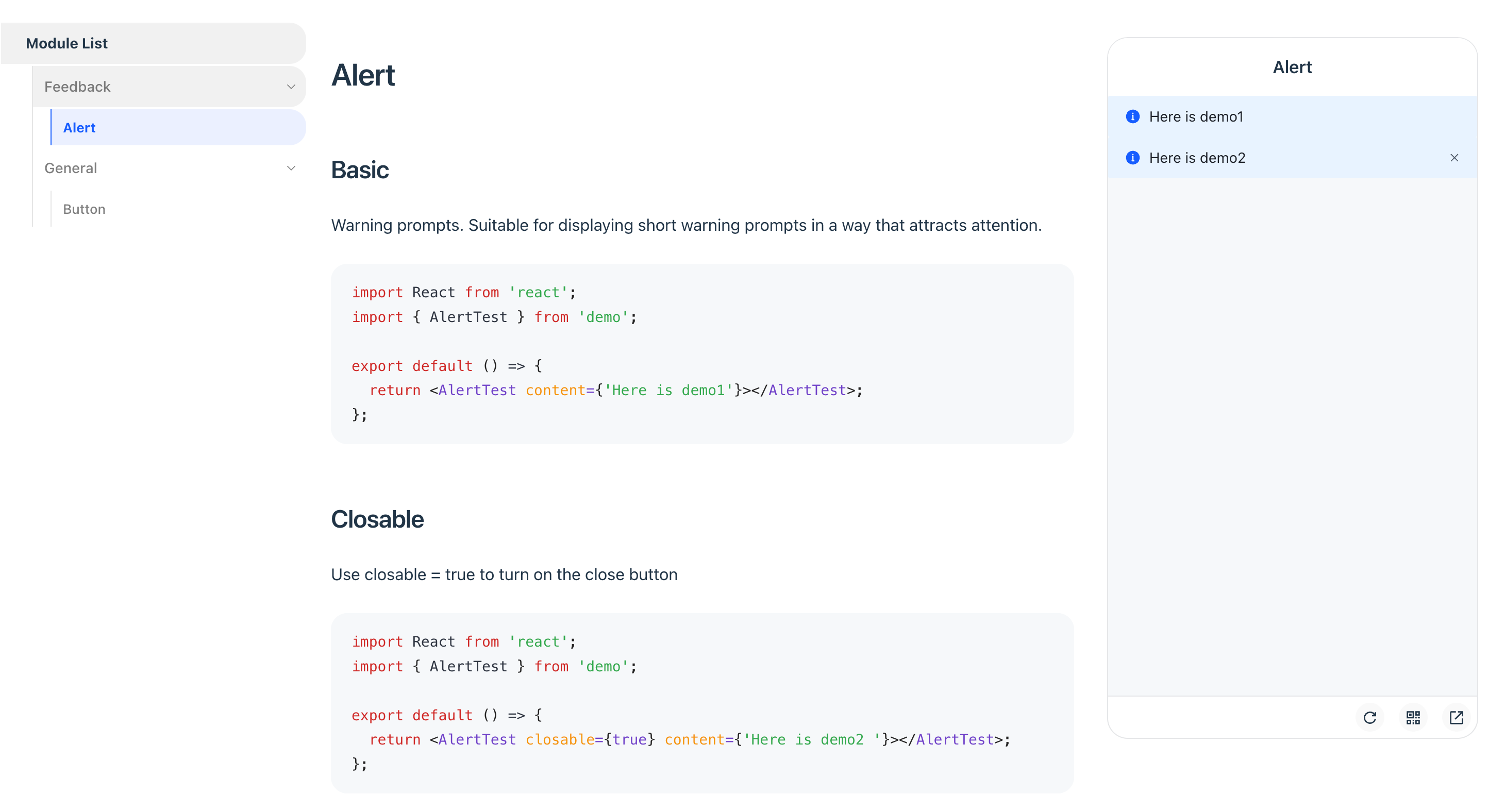
:::tip preEntry Tips
You can inject global scripts or styles into the iframe preview environment using `iframeOptions.builderConfig.source.preEntry`. Here are some common use cases:
- **Mobile touch event emulation**: Emulate mobile touch events on PC by importing [@vant/touch-emulator](https://www.npmjs.com/package/@vant/touch-emulator).
- **Dark mode handling**: Inject a `MutationObserver` to watch for `html.dark` class changes, then sync to `body.dark` or perform other dark mode processing.
```ts title="rspress.config.ts"
pluginPreview({
iframeOptions: {
builderConfig: {
source: {
preEntry: ['@vant/touch-emulator', './src/dark-mode-observer.js'],
},
},
},
});
```
:::
## Options
This plugin accepts a configuration object with the following type definition:
```ts
interface PreviewOptions {
defaultRenderMode?: 'pure' | 'preview';
defaultPreviewMode?: 'internal' | 'iframe-fixed' | 'iframe-follow';
iframeOptions?: IframeOptions;
previewLanguages?: string[];
previewCodeTransform?: (codeInfo: {
language: string;
code: string;
}) => string;
}
interface IframeOptions {
devPort?: number;
builderConfig?: RsbuildConfig;
customEntry?: (meta: CustomEntry) => string;;
}
```
### defaultRenderMode
- **Type:** `'pure' | 'preview'`
- **Default:** `'pure'`
Configures the default rendering behavior for code blocks that don't explicitly declare `pure` or `preview`.
:::warning
It is not recommended to modify the default value, as it may affect the combined usage with `@rspress/plugin-playground`.
:::
- ` ```tsx pure`: Render as a regular code block
- ` ```tsx `: Render based on `defaultRenderMode` configuration
- ` ```tsx preview`: Render as a code block with preview component
### defaultPreviewMode
- **Type:** `'internal' | 'iframe-follow' | 'iframe-fixed'`
- **Default:** `'internal'`
Configures the default [preview mode](#preview-mode) for ` ```tsx preview`.
- ` ```tsx preview`: Render based on `defaultPreviewMode` configuration
- ` ```tsx preview="internal"`: Render using internal mode
- ` ```tsx preview="iframe-follow"`: Render using follow iframe mode
- ` ```tsx preview="iframe-fixed"`: Render using fixed iframe mode
### iframeOptions
This plugin starts a separate Rsbuild instance for the iframe mode's dev server and build process, completely isolated from the Rspress documentation compilation.
#### iframeOptions.devPort
- **Type:** `number`
- **Default:** `7890`
Configures the dev server port for iframe preview. Use this when the default port is occupied.
#### iframeOptions.builderConfig
Configures Rsbuild build options for the iframe, such as adding global styles or scripts.
#### iframeOptions.customEntry
Configures a custom entry to support other frameworks like Vue.
:::warning Note
Only available in `preview="iframe-follow"` mode.
:::
Here is an example for the Vue framework:
```ts
import { defineConfig } from '@rspress/core';
import { pluginPreview } from '@rspress/plugin-preview';
import { pluginVue } from '@rsbuild/plugin-vue';
export default defineConfig({
// ...
plugins: [
pluginPreview({
previewMode: 'iframe',
previewLanguages: ['vue'],
iframeOptions: {
position: 'follow',
customEntry: ({ demoPath }) => {
return `
import { createApp } from 'vue';
import App from ${JSON.stringify(demoPath)};
createApp(App).mount('#root');
`;
},
builderConfig: {
plugins: [pluginVue()],
},
},
}),
],
});
```
### previewLanguages
- **Type:** `string[]`
- **Default:** `['jsx', 'tsx']`
Configures the code languages that support preview. To support other formats like JSON or YAML, use this in conjunction with `previewCodeTransform`.
### previewCodeTransform
- **Type:** `(codeInfo: { language: string; code: string }) => string`
- **Default:** `({ code }) => code`
Performs custom transformation on code before preview.
The following example shows how to transform JSON Schema into a renderable React component:
```json
{
"type": "div",
"children": "Render from JSON"
}
```
You can configure it as follows:
```ts
pluginPreview({
previewLanguages: ['jsx', 'tsx', 'json'],
previewCodeTransform(codeInfo) {
if (codeInfo.language === 'json') {
return `
import React from 'react';
const json = ${codeInfo.code};
export default function() {
return React.createElement(json.type, null, json.children);
}
`;
} else {
return codeInfo.code;
}
},
});
```
## Migrating from V1
When migrating from Rspress V1, the plugin functionality remains unchanged. Only the MDX source code syntax has the following adjustments:
- `` should be migrated to [File Code Block](/guide/use-mdx/code-blocks.md#file-code-block) ` ```tsx file="./foo.tsx"`
- The `defaultPreviewMode` option replaces `iframeOptions.position` and `previewMode`
- The default value of `defaultRenderMode` changed from `'preview'` to `'pure'`
:::tip Migration Examples
**Example 1**:
Before: Required declarations in both config file and MDX file.
```ts
pluginPreview({
previewMode: 'iframe',
iframeOptions: { position: 'fixed' },
});
```
````mdx
```tsx preview
```
````
After: Only declare in the MDX file.
````mdx
```tsx preview="iframe-fixed"
```
````
**Example 2**:
Before: Using `iframe` or `previewMode="iframe"` attribute.
````mdx
```tsx iframe
```
{/* or */}
````
After: Use the unified `preview="..."` attribute.
````mdx
```tsx preview="iframe-follow"
```
```tsx file="./_demo.tsx" preview="iframe-follow"
```
````
:::
---
url: /plugin/official-plugins/rss.md
---
# @rspress/plugin-rss [Source Code](https://github.com/web-infra-dev/rspress/tree/main/packages/plugin-rss)
Generates RSS files for specific document pages with [feed](https://github.com/jpmonette/feed).
## Installation
```sh [npm]
npm add @rspress/plugin-rss -D
```
```sh [yarn]
yarn add @rspress/plugin-rss -D
```
```sh [pnpm]
pnpm add @rspress/plugin-rss -D
```
```sh [bun]
bun add @rspress/plugin-rss -D
```
```sh [deno]
deno add npm:@rspress/plugin-rss -D
```
### Update Rspress config
```ts title="rspress.config.ts"
import { defineConfig } from '@rspress/core';
import { pluginRss } from '@rspress/plugin-rss';
export default defineConfig({
plugins: [
pluginRss({
// The URL of your document site
siteUrl: 'https://example.com',
// ...more configurations below
}),
],
});
```
By default, this plugin generates a `blog.xml` file in the `doc_build/rss/` folder for all pages starting with `/blog/`.
The RSS file can be accessed via `/rss/blog.xml`.
:::tip
This plugin only works with `rspress build` and does not generate RSS files on `rspress dev`.
:::
## Usage
### Selecting pages to be included in RSS
Use the `feed.test` option to select which pages to be included in the RSS file.
```ts
pluginRss({
// ...
feed: { test: '/zh/blog' },
});
```
### Requirements
All documents included in the RSS must have either `date` or `published_at` in their frontmatter to ensure that the RSS updates are stable on the user side.
```md
---
published_at: 2024-01-10 08:00:00
---
Or frontmatter `date`.
```
### Generating multiple RSS files
Sometimes, you may need to generate multiple RSS files for, e.g., different languages or categories.
You can provide a list of RSS options to the `feed` option. For instance:
```ts
pluginRss({
feed: [
{ id: 'blog', test: '/blog/', title: 'Rspress Blog', language: 'en-US' },
{
id: 'blog-zh',
test: '/zh/blog/',
title: 'Rspress 博客',
language: 'zh-CN',
},
{
id: 'rspack',
test: ({ frontmatter }) => frontmatter.categories.includes('rspack'),
title: 'Rspack Releases',
language: 'en-US',
},
{
id: 'rsbuild',
test: ({ frontmatter }) => frontmatter.categories.includes('rsbuild'),
title: 'Rsbuild Releases',
language: 'en-US',
},
],
});
```
The options above will generate four RSS files: `blog.xml`, `blog-zh.xml`, `rspack.xml`, `rsbuild.xml`, all located in the `rss` folder.
### Modifying the output path
You can customize the output path using the `output` and `feed.output` parameters.
Please refer to the [FeedOutputOptions](#feedoutputoptions) below.
### Linking RSS to document pages
By default, this plugin will insert a `` tag in the selected pages that are included in the RSS, linking to the URL of the RSS file. RSS readers can automatically detect the RSS URL.
If you want to insert this tag in pages that are not included in the RSS (such as the homepage), you can add the `link-rss` frontmatter to the document, with the value being the feed id. For example:
```markdown
---
link-rss: blog
---
This frontmatter will insert a `` tag in the page of this document, pointing to the RSS URL of the `blog` feed.
However, this page itself will not be included in that RSS.
```
`link-rss` also supports inserting multiple `` tags associated with feed ids on a single page:
```markdown
---
link-rss:
- blog
- releases
---
```
### Cook the RSS content
The RSS file consists of two parts: the RSS basic information, known as the `channel` in the RSS format, and the list of articles, known as the `item` in the RSS format.
Here's how you can cook each part:
- The `channel` can be fully modified through the `feed` parameter. Please refer to the [Other Options](#other-options) below.
- The `item` can be fully modified through the `feed.item` parameter. Please refer to the [item](#item) section below.
## Options
### PluginRssOptions
Options of the plugin.
```ts
export interface PluginRssOptions {
siteUrl: string;
feed?: Partial | FeedChannel[];
output?: Omit;
}
```
#### `siteUrl`
- **Type**: `string`
- **Required**
The site URL of the current document site. It will be used in the RSS file.
When there is a `base` configuration, `siteUrl` needs to include the `base` path. For example:
```ts
// rspress.config.ts
import path from 'path';
import { defineConfig } from '@rspress/core';
import { pluginRss } from '@rspress/plugin-rss';
export default defineConfig({
base: '/base/',
plugins: [
pluginRss({
siteUrl: 'https://example.com/base/',
}),
],
});
```
#### `feed`
- **Type**: `FeedChannel | FeedChannel[]`
- **Default**: `{ id: 'blog', test: '/blog/' }`
RSS configuration, multiple value array can generate multiple RSS files.
See [FeedChannel](#feedchannel) for more information.
#### `output`
- **Type**: `Omit`
- **Default**: `{ dir: 'rss', type: 'atom' }`
Options for document output. Please refer to [FeedOutputOptions](#feedoutputoptions) below.
### FeedChannel
Options for RSS file.
```ts
export interface FeedChannel extends Partial {
id: string;
test:
| RegExp
| string
| (RegExp | string)[]
| ((item: PageIndexInfo, base: string) => boolean);
item?: (
item: FeedItem,
page: PageIndexInfo,
siteUrl: string,
) => FeedItem | PromiseLike;
output?: FeedOutputOptions;
}
```
#### `id`
- **Type**: `string`
- **Required**
The ID of an RSS, unique among multiple RSS options. It is also the default file basename for the RSS file.
#### `test`
- **Type**: `RegExp | string | (RegExp | string)[] | ((item: PageIndexInfo, base: string) => boolean)`
- **Required**
Used to select documents to be included in the RSS. The types are as follows:
- `RegExp`: Regular expression to match the document's route. When the rspress site has `base` configured, it will match both routes with and without the `base` path.
- `string`: Prefix-based matching to the document's route. When the rspress site has `base` configured, it will match both routes with and without the `base` path.
- `(item: PageIndexInfo, base: string) => boolean`: Match pages based on page data and frontmatter.
#### `item`
- **Type**: `(item: FeedItem, page: PageIndexInfo, siteUrl: string) => FeedItem | PromiseLike`
- **Default**: Elaborated below
Generates structured data for each article in the RSS file.
Refer to the type of structured data: [Source Code](https://github.com/jpmonette/feed/blob/8ca7f3e4e8e421e2a2632bb9524385e86f30744c/src/typings/index.ts#L1-L25)
The plugin has a built-in generator that utilizes the document's frontmatter and page data.
For example, the `content` in the RSS will prioritize the `summary` from frontmatter, and then try the document content.
You can provide the `item` function to modify the generated data which will be passed as the first parameter to the function you provided.
For example, the following configuration truncates the content of articles in the RSS:
```ts
const item: FeedChannel['item'] = (item) => ({
...item,
content: item.content.slice(0, 1000),
});
```
For details on the logic of the built-in generator, please refer to: [Source Code](https://github.com/web-infra-dev/rspress/tree/main/packages/plugin-rss/src/feed.ts)
#### `output`
- **Type**: `FeedOutputOptions`
- **Default**: Uses the plugin's `output` option by default
In addition to the plugin's `output` option, there is an additional `filename` to modify the output filename.
Please refer to [FeedOutputOptions](#feedoutputoptions) below.
#### Other options
`FeedChannel`
also inherits the `FeedOptions`
from the feed package. Please refer to [Source Code](https://github.com/jpmonette/feed/blob/8ca7f3e4e8e421e2a2632bb9524385e86f30744c/src/typings/index.ts#L48-L67) for parameters that are not listed.
### FeedOutputOptions
Output options for RSS files, available at both the top level of the plugin options and the `feed` level. Using the following type:
```ts
interface FeedOutputOptions {
dir?: string;
type?: 'atom' | 'rss' | 'json';
filename?: string;
publicPath?: string;
sorting?: (left: FeedItem, right: FeedItem) => number;
}
```
Example:
```ts
pluginRss({
// Applied to all RSS outputs
output: {
// Change the output folder for RSS files to 'feeds', relative to `doc_build`
dir: 'feeds',
// Output in RSS 2.0 format, use `.rss` extension by default.
type: 'rss',
},
feed: [
{
id: 'blog',
test: '/blog/',
title: 'My Blog',
output: {
type: 'atom' /* default to using `id` as the base file name */,
},
},
{
id: 'releases',
test: '/releases/',
title: 'Releases',
output: { dir: 'releases', filename: 'feed.rss' },
},
],
});
```
Building with the options above will output two files: `feeds/blog.xml` and `releases/feed.rss`.
#### `dir`
- **Type**: `string`
- **Default**: `rss`
Output folder for RSS files, relative to `doc_build`.
#### `type`
- **Type**: `"atom" | "rss" | "json"`
- **Default**: `atom`
Output format of the RSS file, `atom` by default. Details of these types:
| Value | Format | Default Extension | MIME Type |
| ------ | ------------------------------------------------------ | ----------------- | ---------------------- |
| `atom` | [Atom 1.0](https://www.ietf.org/rfc/rfc4287.txt) | `.xml` | `application/atom+xml` |
| `rss` | [RSS 2.0](https://www.rssboard.org/rss-specification) | `.rss` | `application/rss+xml` |
| `json` | [JSON Feed 1.1](https://www.jsonfeed.org/version/1.1/) | `.json` | `application/json` |
#### `filename`
- **Type**: `string`
- **Default**: ID as the file basename; extension by RSS output format
Modify the full filename of the RSS file.
#### `publicPath`
- **Type**: `string`
- **Default**: the value of `siteUrl`
URL Prefix for the RSS file. An RSS URL is composed of `publicPath`, `dir`, and `filename`.
#### `sorting`
- **Type**:`sorting?: (left: FeedItem, right: FeedItem) => number;`
Used for sorting the articles. By default, the newest articles go first, followed by the older ones.
---
url: /plugin/official-plugins/sitemap.md
---
# @rspress/plugin-sitemap [Source Code](https://github.com/web-infra-dev/rspress/tree/main/packages/plugin-sitemap)
Automatically generate [sitemap](https://developers.google.com/search/docs/crawling-indexing/sitemaps/overview) for SEO, which helps search engines crawl your site.
## Installation
```sh [npm]
npm add @rspress/plugin-sitemap -D
```
```sh [yarn]
yarn add @rspress/plugin-sitemap -D
```
```sh [pnpm]
pnpm add @rspress/plugin-sitemap -D
```
```sh [bun]
bun add @rspress/plugin-sitemap -D
```
```sh [deno]
deno add npm:@rspress/plugin-sitemap -D
```
## Usage
Add the following configuration in `rspress.config.ts`:
```ts
// rspress.config.ts
import path from 'path';
import { defineConfig } from '@rspress/core';
import { pluginSitemap } from '@rspress/plugin-sitemap';
export default defineConfig({
plugins: [
pluginSitemap({
siteUrl: 'https://example.com', // Replace with your site URL
}),
],
});
```
## Configuration
This plugin accepts an object parameter with the following type:
```ts
type ChangeFreq =
| 'always'
| 'hourly'
| 'daily'
| 'weekly'
| 'monthly'
| 'yearly'
| 'never';
type Priority =
| '0.0'
| '0.1'
| '0.2'
| '0.3'
| '0.4'
| '0.5'
| '0.6'
| '0.7'
| '0.8'
| '0.9'
| '1.0';
// https://www.sitemaps.org/protocol.html
interface Sitemap {
loc: string;
lastmod?: string;
changefreq?: ChangeFreq;
priority?: Priority;
}
interface CustomMaps {
[routePath: string]: Sitemap;
}
export interface PluginSitemapOptions {
siteUrl?: string;
customMaps?: CustomMaps;
defaultPriority?: Priority;
defaultChangeFreq?: ChangeFreq;
}
```
### siteUrl
- **Type**: `string`
- **Required**
The site URL for deployment access, for example `https://example.com`.
When there is a `base` configuration, `siteUrl` needs to include the `base` path. For example:
```ts
// rspress.config.ts
import path from 'path';
import { defineConfig } from '@rspress/core';
import { pluginSitemap } from '@rspress/plugin-sitemap';
export default defineConfig({
base: '/base/',
plugins: [
pluginSitemap({
siteUrl: 'https://example.com/base/',
}),
],
});
```
### customMaps
- **Type**:
```ts
interface Sitemap {
loc: string;
lastmod?: string;
changefreq?: ChangeFreq;
priority?: Priority;
}
interface CustomMaps {
[routePath: string]: Sitemap;
}
```
- **Default**: `{}`
Used to set custom sitemap values for certain important pages individually.
### defaultChangeFreq
- **Type**: `ChangeFreq`
- **Default**: `'monthly'`
- **Options**: `"always" | "hourly" | "daily" | "weekly" | "monthly" | "yearly" | "never"`
> changefreq: How frequently the page is likely to change. This value provides general information to search engines and may not correlate exactly to how often they crawl the page.
Sets the default [changefreq](https://www.sitemaps.org/protocol.html) value for each page in the generated sitemap file.
### defaultPriority
- **Type**: `Priority`
- **Default**: `'0.5'`
- **Options**: `"0.0" | "0.1" | "0.2" | "0.3" | "0.4" | "0.5" | "0.6" | "0.7" | "0.8" | "0.9" | "1.0"`
> priority: The priority of this URL relative to other URLs on your site.
Sets the default [priority](https://www.sitemaps.org/protocol.html) value for each page in the generated sitemap file.
---
url: /plugin/official-plugins/twoslash.md
---
# @rspress/plugin-twoslash [Source Code](https://github.com/web-infra-dev/rspress/tree/main/packages/plugin-twoslash)
Integration of [Twoslash](https://github.com/twoslashes/twoslash)'s Rspress Plugin for automatically generating rich code blocks with type information.
## Installation
```sh [npm]
npm add @rspress/plugin-twoslash -D
```
```sh [yarn]
yarn add @rspress/plugin-twoslash -D
```
```sh [pnpm]
pnpm add @rspress/plugin-twoslash -D
```
```sh [bun]
bun add @rspress/plugin-twoslash -D
```
```sh [deno]
deno add npm:@rspress/plugin-twoslash -D
```
## Usage
### 1. Register the plugin
```ts twoslash title="rspress.config.ts"
import { defineConfig } from '@rspress/core';
import { pluginTwoslash } from '@rspress/plugin-twoslash';
export default defineConfig({
plugins: [pluginTwoslash()],
});
```
### 2. Write code blocks with twoslash
Use special comments within TypeScript code blocks to enable Twoslash features.
For more detailed usage, please refer to the [Twoslash documentation](https://twoslash.netlify.app/guide/).
#### Extract type
**Rendered**
```ts twoslash
const hi = 'Hello';
const msg = `${hi}, world`;
// ^?
```
**Syntax**
````mdx
```ts twoslash
const hi = 'Hello';
const msg = `${hi}, world`;
// ^?
```
````
#### Completions
**Rendered**
```ts twoslash
// @noErrors
console.e;
// ^|
```
**Syntax**
````mdx
```ts twoslash
// @noErrors
console.e;
// ^|
```
````
#### Highlighting
**Rendered**
```ts twoslash
function add(a: number, b: number) {
// ^^^
return a + b;
}
```
**Syntax**
````mdx
```ts twoslash
function add(a: number, b: number) {
// ^^^
return a + b;
}
```
````
#### Error
**Rendered**
```ts twoslash
// @noErrorValidation
const str: string = 1;
```
**Syntax**
````mdx
```ts twoslash
// @noErrorValidation
const str: string = 1;
```
````
## Config
The plugin accepts an object with the following type:
```ts twoslash
import { TwoslashOptions } from 'twoslash';
// ---cut-before---
export interface PluginTwoslashOptions {
explicitTrigger?: boolean;
cache?: boolean;
twoslashOptions?: TwoslashOptions;
}
```
### explicitTrigger
`explicitTrigger` is used to configure whether to explicitly trigger the Twoslash feature. Default is `true`.
- If set to `false`, all TypeScript code blocks will be processed by default.
- If set to `true`, only code blocks with the `twoslash` tag will be processed.
### cache
`cache` is used to cache the TypeScript language servers based on compiler options when calling [createTwoslasher](https://twoslash.netlify.app/refs/api#createtwoslasher). Default is `true`.
### twoslashOptions
`twoslashOptions` is used to pass options to Twoslash.
This allows you to customize the Twoslash behavior, including TypeScript compiler options and other settings.
---
url: /plugin/official-plugins/typedoc.md
---
# @rspress/plugin-typedoc [Source Code](https://github.com/web-infra-dev/rspress/tree/main/packages/plugin-typedoc)
Integration of [TypeDoc](https://github.com/TypeStrong/typedoc)'s Rspress Plugin for Automatically Generating API Documentation for TS Modules.
## Installation
```sh [npm]
npm add @rspress/plugin-typedoc -D
```
```sh [yarn]
yarn add @rspress/plugin-typedoc -D
```
```sh [pnpm]
pnpm add @rspress/plugin-typedoc -D
```
```sh [bun]
bun add @rspress/plugin-typedoc -D
```
```sh [deno]
deno add npm:@rspress/plugin-typedoc -D
```
## Usage
```ts
import { defineConfig } from '@rspress/core';
import { pluginTypeDoc } from '@rspress/plugin-typedoc';
import path from 'path';
export default defineConfig({
plugins: [
pluginTypeDoc({
entryPoints: [
path.join(__dirname, 'src', 'foo.ts'),
path.join(__dirname, 'src', 'bar.ts'),
],
}),
],
});
```
```ts title="src/foo.ts"
/**
* This is an add function.
*/
export function add(
/**
* This is param1.
*/
param1: string,
/**
* This is param2.
*/
param2: number,
) {
return 1;
}
```
```ts title="src/bar.ts"
/**
* This is a multi function.
*/
export function multi(
/**
* This is param1.
*/
param1?: string,
/**
* This is param2.
*/
param2?: number,
) {
return 1;
}
```
When you start/build the project, the plugin will automatically generate an `api` directory in your document root directory. The directory structure is as follows:
```tree
api
├── _meta.json
├── index.md
├── functions
│ ├── bar.multi.md
│ └── foo.add.md
├── interfaces
│ ├── foo.RunTestsOptions.md
│ └── foo.TestMessage.md
└── modules
├── bar.md
└── foo.md
```
This means that the plugin will internally call TypeDoc to automatically generate API documentation for your modules, including module lists, `Interface` details, function details (parameters, return values, description), etc.
Note that the `.md` documentation files are regenerated every time you start the project to reflect the latest module content. Therefore, we recommend adding the `.md` files in the `api` directory to `.gitignore`, for example `docs/api/**/*.md`. If you customize the output directory with the `outDir` parameter below, you should also add the corresponding `.md` files to `.gitignore`.
The `_meta.json` file is only automatically generated on the first run and will not be overwritten afterwards. This means you can manually edit it to customize the sidebar structure (e.g., add dividers, adjust order, etc.) and commit it to git.
We do not recommend modifying the generated `.md` documents in the `api` directory because these documents will be overwritten each time the project is started due to changes in module content.
## Parameter description
### entryPoints
- **Type**: `string[]`
- **Default**: `[]`
Specifies the absolute path of the TS modules for which documentation should be generated.
### outDir
- **Type**: `string`
- **Default**: `api`
Customize the output directory for the documentation. You need to provide a relative path, such as `api/custom`.
### setup
- **Type**: `(app: Application) => Promise | Promise | void`
- **Default**: `() => {}`
A function to setup the TypeDoc Application. You can use this to customize the TypeDoc configuration before it generates the documentation.
---
url: /plugin/system/introduction.md
---
# Introduction
The plugin system is a crucial part of Rspress, which allows you to easily extend the abilities of Rspress during the process of building a site. So, what ability can you extend with plugins? Let's take a look at the overall architecture of Rspress first.
The overall architecture of Rspress is shown in the figure below:
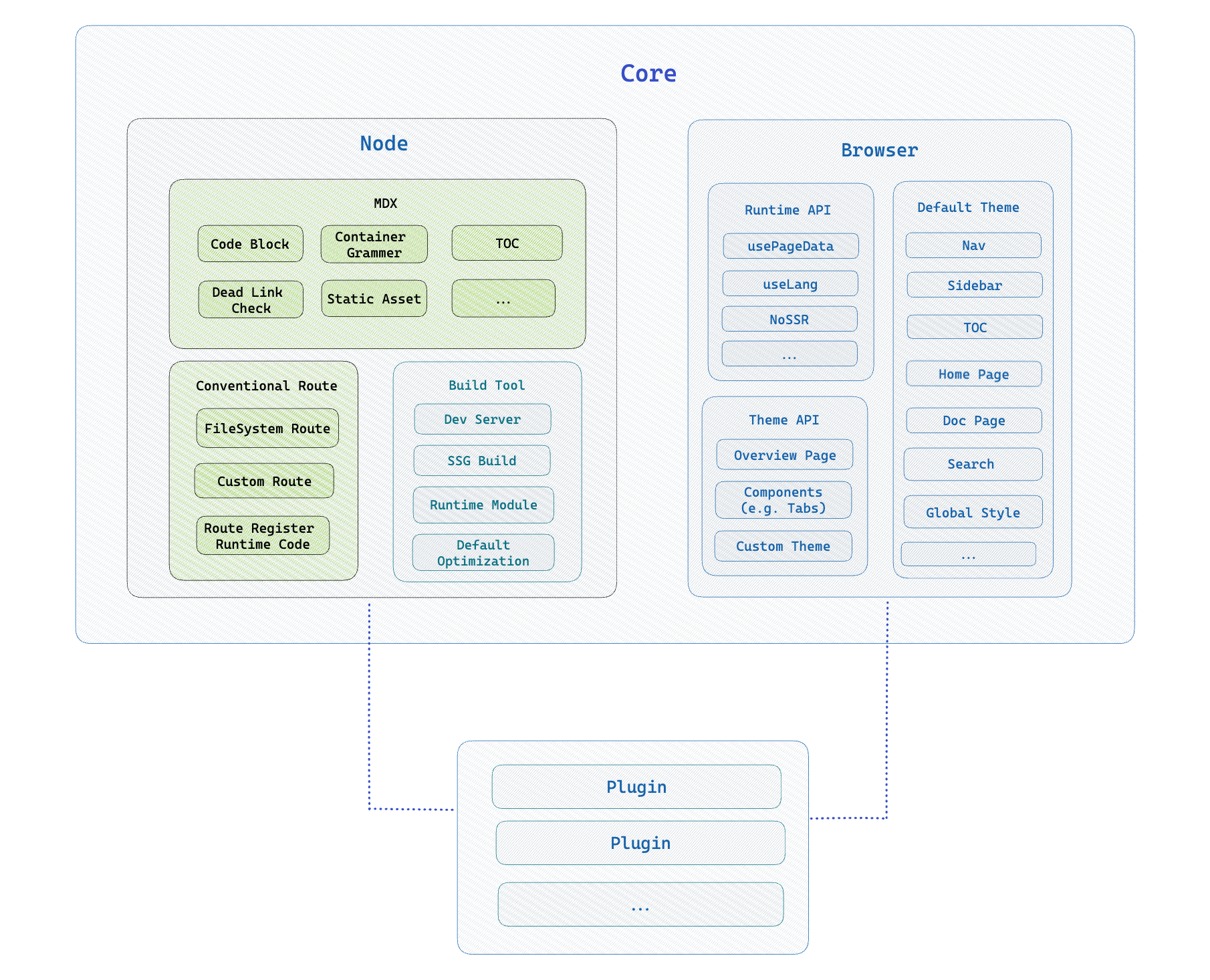
Rspress is divided into two parts: **Node Side** and **Browser Runtime**. Through the plugin system, you can easily extend the abilities of these two parts. Specifically, you can extend the ability to:
- [**Markdown/MDX compilation**](/plugin/system/plugin-api.md#markdown)。You can add [`remark`](https://github.com/remarkjs/remark)/[`rehype`](https://github.com/rehypejs/rehype) plugins to extend the compilation ability of Markdown/MDX.
- [**Add custom page**](/plugin/system/plugin-api.md#addpages). On the basis of Rspress's conventional routing, you can also add new routes through plugins, such as adding a `/blog` route to display a list of blogs, and the content is defined by yourself.
- [**Custom build tool behavior**](/plugin/system/plugin-api.md#builderconfig).In Rspress plugin, you can customize the config of the underlying build tool [Rsbuild](https://rsbuild.rs), and you can also add some Rspack or Rsbuild plugins.
- [**Extend page metadata**](/plugin/system/plugin-api.md#extendpagedata). For each page, some metadata will be calculated inside Rspress, such as `title`, `description`, etc. You can extend the calculation logic of these metadata through plugins, and pass [usePageData](/ui/hooks/use-page-data.md) hook access.
- Insert some [**custom logic**](/plugin/system/plugin-api.md#beforebuild/afterbuild) before and after the build process. Such as closing some event listeners after the build process ends.
- [**Add global components**](/plugin/system/plugin-api.md#globaluicomponents). Rspress internally uses React for rendering. You can flexibly extend the runtime page by defining global React components, such as `adding a global BackToTop (return to top) component`, `adding a global side effect logic`.
---
url: /plugin/system/plugin-api.md
---
# Plugin API
In the previous section, we introduced the basic structure of the plugin. In this section, we will introduce the API of the plugin to help you understand the abilities of the plugin in more detail.
### globalStyles
- **Type**:`string`
It is used to add a global style, and the absolute path of a style file is passed in, and the usage is as follows:
```tsx title="plugin.ts"
import type { RspressPlugin } from '@rspress/core';
import path from 'path';
export function pluginForDoc(): RspressPlugin {
// style path
const stylePath = path.join(__dirname, 'some-style.css');
return {
// plugin name
name: 'plugin-name',
globalStyles: path.join(__dirname, 'global.css'),
};
}
```
For example, if you want to modify the theme color, you can do so by adding a global style:
```css title="global.css"
:root {
--rp-c-brand: #ffa500;
--rp-c-brand-dark: #ffa500;
--rp-c-brand-darker: #c26c1d;
--rp-c-brand-light: #f2a65a;
--rp-c-brand-lighter: #f2a65a;
}
```
### globalUIComponents
- **Type**:`(string | [string, object])[]`
It is used to add global components, passing in an array, each item in the array is the absolute path of a component, the usage is as follows:
```tsx title="plugin.ts"
import type { RspressPlugin } from '@rspress/core';
export function pluginForDoc(): RspressPlugin {
// component path
const componentPath = path.join(__dirname, 'foo.tsx');
return {
// plugin name
name: 'plugin-comp',
// Path to global components
globalUIComponents: [componentPath],
};
}
```
The item of `globalUIComponents` can be a string, which is the path of the component file, or an array, the first item is the path of the component file, and the second item is the component props, for example:
```ts title="rspress.config.ts"
import { defineConfig } from '@rspress/core';
import type { RspressPlugin } from '@rspress/core';
export function pluginForDoc(): RspressPlugin {
// component path
const componentPath = path.join(__dirname, 'foo.tsx');
return {
// plugin name
name: 'plugin-comp',
globalUIComponents: [
[
path.join(__dirname, 'components', 'MyComponent.tsx'),
{
foo: 'bar',
},
],
],
};
}
```
When you register global components, Rspress will automatically render these React components in the theme without manually importing and using them.
Through global components, you can complete many custom functions, such as:
```tsx title="compUi.tsx"
import React from 'react';
// Need a default export
// The props comes from your config
export default function PluginUI(props?: { foo: string }) {
return
This is a global layout component
;
}
```
In this way, the content of the component will be rendered in the theme page, such as adding **BackToTop** button.
In the meanwhile, you can also use the global component to register some side effects, such as:
```tsx title="compSideEffect.tsx"
import { useEffect } from 'react';
import { useLocation } from '@rspress/core/runtime';
// Need a default export
export default function PluginSideEffect() {
const { pathname } = useLocation();
useEffect(() => {
// Executed when the component renders for the first time
}, []);
useEffect(() => {
// Executed when the route changes
}, [pathname]);
return null;
}
```
This way, side effects of components are executed in the theme page. For example, some of the following scenarios require side effects:
- Redirect for certain page routes.
- Bind click event on the img tag of the page to implement the image zoom function.
- When the route changes, the PV data of different pages are reported.
- ......
### builderConfig
- **Type**:`RsbuildConfig`
Rspress uses [Rsbuild](https://github.com/web-infra-dev/rsbuild) as the build tool. Rsbuild can be configured through `builderConfig`. For specific configuration options, please refer to \[Rsbuild([https://rsbuild.rs/config/](https://rsbuild.rs/config/)).
> Of course, if you want to configure Rspack directly, you can also configure it through `builderConfig.tools.rspack`.
```tsx title="plugin.ts"
import type { RspressPlugin } from '@rspress/core';
export function pluginForDoc(slug: string): RspressPlugin {
return {
name: 'plugin-name',
// Global variable definitions for build phase
builderConfig: {
source: {
define: {
SLUG: JSON.stringify(slug),
},
},
tools: {
rspack(options) {
// Modify rspack config
},
},
},
};
}
```
> See [Build Config](/api/config/config-build.md) for more details.
### config
- **Type**:`(config: DocConfig, utils: ConfigUtils) => DocConfig | Promise`
The type of `ConfigUtils` is as follows:
```ts
interface ConfigUtils {
addPlugin: (plugin: RspressPlugin) => void;
removePlugin: (pluginName: string) => void;
}
```
It is used to modify/extend the configuration of Rspress itself. For example, if you want to modify the title of the document, you can do it through `config`:
```tsx title="plugin.ts"
import type { RspressPlugin } from '@rspress/core';
export function pluginForDoc(): RspressPlugin {
return {
// Plugin name
name: 'plugin-name',
// Extend the config of the Rspress itself
config(config) {
return {
...config,
title: 'New Document Title',
};
},
};
}
```
If it involves adding and removing a plugin, you need to implement it through `addPlugin` and `removePlugin`:
```tsx title="plugin.ts"
import type { RspressPlugin } from '@rspress/core';
export function pluginForDoc(): RspressPlugin {
return {
// Plugin name
name: 'plugin-name',
// Extend the config of Rspress itself
config(config, utils) {
// Add a plugin
utils.addPlugin({
name: 'plugin-name',
// ... other config of the plugin
});
// Remove a plugin, pass in the name of the plugin
utils.removePlugin('plugin-name');
return config;
},
};
}
```
### beforeBuild/afterBuild
- **Type**:`(config: DocConfig, isProd: boolean) => void | Promise`
It is used to perform some operations before/after the document is built. The first parameter is the config of the document, and the second parameter is whether it is currently a production environment. The usage is as follows:
```tsx title="plugin.ts"
import type { RspressPlugin } from '@rspress/core';
export function pluginForDoc(): RspressPlugin {
return {
name: 'plugin-name',
// Hook to execute before build
async beforeBuild(config, isProd) {
// Do something here
},
// Hook to execute after build
async afterBuild(config, isProd) {
// Do something here
},
};
}
```
:::tip
When the `beforeBuild` hook is executed, the `config` plugins of all plugins have been processed, so the config parameter already represents the final document configuration.
:::
### markdown
- **Type**:`{ remarkPlugins?: Plugin[]; rehypePlugins?: Plugin[] }`
It is used to extend the compilation ability of Markdown/MDX. If you want to add custom remark/rehype plugins or MDX globalComponents, you can use `markdown` options to achieve:
```tsx title="plugin.ts"
import type { RspressPlugin } from '@rspress/core';
export function pluginForDoc(): RspressPlugin {
return {
name: 'plugin-name',
markdown: {
remarkPlugins: [
// Add custom remark plugin
],
rehypePlugins: [
// Add custom rehype plugin
],
globalComponents: [
// Register global components for MDX
],
},
};
}
```
### extendPageData
- **Type**: `(pageData: PageData) => void | Promise`
```tsx title="plugin.ts"
import type { RspressPlugin } from '@rspress/core';
export function pluginForDoc(): RspressPlugin {
return {
name: 'plugin-name',
// Extend the page data
extendPageData(pageData, isProd) {
// You can add or modify properties on the pageData object
pageData.a = 1;
},
};
}
```
After extending the page data, you can access the page data through the `usePageData` hook in the theme.
```tsx
import { usePageData } from '@rspress/core/runtime';
export function MyComponent() {
const { page } = usePageData();
// page.a === 1
return
{page.a}
;
}
```
### addPages
- **Type**: `(config: UserConfig) => AdditionalPage[] | Promise`
The `config` parameter is the `doc` config of `rspress.config.ts`, and the `AdditionalPage` type is defined as follows:
```tsx
interface AdditionalPage {
routePath: string;
filepath?: string;
content?: string;
}
```
Used to add additional pages, you can return an array in the `addPages` function, each item in the array is a page config, you can specify the route of the page through `routePath`, through `filepath` or `content` to specify the content of the page. For example:
```tsx
import path from 'path';
import type { RspressPlugin } from '@rspress/core';
export function docPluginDemo(): RspressPlugin {
return {
name: 'add-pages',
addPages(config, isProd) {
return [
// Support the absolute path of the real file (filepath), which will read the content of md(x) in the disk
{
routePath: '/filepath-route',
filepath: path.join(__dirname, 'blog', 'index.md'),
},
// Support to directly pass in the content of md(x) through the content parameter
{
routePath: '/content-route',
content: '# Demo2',
},
];
},
};
}
```
`addPages` accepts two parameters, `config` is the config of the current document site, `isProd` indicates whether it is a production environment.
### routeGenerated
- **Type**:`(routeMeta: RouteMeta[]) => void | Promise`
In this hook, you can get all the route meta information. The structure of each route meta information is as follows
```ts
export interface RouteMeta {
// route path
routePath: string;
// file absolute path
absolutePath: string;
// The page name, as part of the chunk filename
pageName: string;
// language of current route
lang: string;
}
```
Example:
```tsx title="plugin.ts"
import type { RspressPlugin } from '@rspress/core';
export function pluginForDoc(): RspressPlugin {
return {
// plugin name
name: 'plugin-routes',
// Hook to execute after route generated
async routeGenerated(routes, isProd) {
// Do something here
},
};
}
```
### addRuntimeModules
- **Type**: `(config: UserConfig, isProd: boolean) => Record | Promise>;`
Used to add additional runtime modules. For example, if you want to use some compile-time information in the document, you can achieve this through `addRuntimeModules`:
```tsx title="plugin.ts"
import type { RspressPlugin } from '@rspress/core';
export function pluginForDoc(): RspressPlugin {
return {
// Plugin name
name: 'plugin-name',
// Add additional runtime modules
async addRuntimeModules(config, isProd) {
const fetchSomeData = async () => {
// Mock asynchronous request
return { a: 1 };
};
const data = await fetchSomeData();
return {
'virtual-foo': `export default ${JSON.stringify(data)}`,
};
},
};
}
```
In this way, you can use the `virtual-foo` module in the runtime component:
```jsx
import myData from 'virtual-foo';
export function MyComponent() {
return
{myData.a}
;
}
```
:::tip TIP
This hook is executed after the `routeGenerated` hook.
:::
### i18nSource
- **Type**: `(source: Record>) => Record> | Promise>>`
Used to add or modify internationalization (i18n) text data. You can use this hook to extend or modify the theme's i18n text.
The `source` parameter is an object with the following structure:
```ts
{
[textKey: string]: {
[locale: string]: string;
}
}
```
Where the first-level `textKey` is the text key name, the second-level `locale` is the language code (e.g., `zh`, `en`), and the value is the translated text for the corresponding language.
Usage example:
```tsx title="plugin.ts"
import type { RspressPlugin } from '@rspress/core';
export function pluginForDoc(): RspressPlugin {
return {
// Plugin name
name: 'plugin-name',
// Add or modify i18n text
i18nSource(source) {
// Add new text
return {
...source,
customKey: {
zh: '自定义文案',
en: 'Custom Text',
},
anotherKey: {
zh: '另一个文案',
en: 'Another Text',
},
};
},
};
}
```
If your plugin provides runtime components at the same time, you can use these texts via the `useI18n` hook:
```tsx
import { useI18n } from '@rspress/core/runtime';
export function MyComponent() {
const t = useI18n();
return
{t('customKey')}
;
}
```
---
url: /plugin/system/write-a-plugin.md
---
# Write a plugin
Let's inject a global component as an example to see how to define and use plugins.
### 1. Define a plugin
```tsx title="plugin.ts"
import type { RspressPlugin } from '@rspress/core';
export function pluginExample(slug: string): RspressPlugin {
// Component path, you need to implement the content of the component yourself
const componentPath = path.join(__dirname, 'Example.tsx');
return {
name: 'plugin-example',
// Path to global components
globalUIComponents: [componentPath],
// Global variable definitions for build phase
builderConfig: {
source: {
define: {
'process.env.SLUG': JSON.stringify(slug),
},
},
},
};
}
```
```tsx title="Example.tsx"
import React from 'react';
const Example = () => {
console.log(process.env.SLUG);
return
Example
;
};
export default Example;
```
A plugin is generally a function that receives some plugin params (optional) and returns an object that contains the name of the plugin and other config.
In the above example, we define a plugin named `plugin-example`, which will define a global environment variable `process.env.SLUG` during the build phase, and inject a global component `Example.tsx` in the document.
### 2. Use a plugin
Register plugins via `plugins` in `rspress.config.ts`:
```tsx title="rspress.config.ts"
import { pluginExample } from './plugin';
export default {
plugins: [pluginExample('test')],
};
```
Then the `Example` component will be injected into the page and we can access the `process.env.SLUG` variable in the component.
---
url: /ui/components/badge.md
---
# Badge
The Badge component is used to display a small inline badge.
## Usage
```mdx title="index.mdx"
import { Badge } from '@rspress/core/theme';
```
NEW
## Types
The Badge component supports four types, each with a different color:
```mdx preview title="index.mdx"
import { Badge } from '@rspress/core/theme';
```
## Outline style
```mdx preview title="index.mdx"
import { Badge } from '@rspress/core/theme';
```
## Custom children
You can use the `children` prop to render custom content inside the badge:
```mdx preview title="index.mdx"
import { Badge, IconSearch, SvgWrapper } from '@rspress/core/theme';
RspressSearch
```
## Inline with text
Badge can be used inline with text:
```mdx preview title="index.mdx"
import { Badge } from '@rspress/core/theme';
Inlined with text
```
## In headings
Badge can be used in headings:
```mdx
##### H5 Heading
#### H4 Heading
### H3 Heading
```
##### H5 Heading Info
#### H4 Heading Warning
### H3 Heading Danger
## Props
```ts
interface BadgeProps {
/**
* The content to display inside the badge. Can be a string or React nodes.
*/
children?: React.ReactNode;
/**
* The type of badge, which determines its color and style.
* @default 'tip'
*/
type?: 'tip' | 'info' | 'warning' | 'danger';
/**
* The text content to display inside the badge (for backwards compatibility).
*/
text?: string;
/**
* Whether to display the badge with an outline style.
* @default false
*/
outline?: boolean;
}
```
---
url: /ui/components/callout.md
---
# Callout
The Callout component is used to display highlighted information blocks such as tips, warnings, and notes.
:::tip
We recommend using [container syntax](/guide/use-mdx/container.md) which works in both Markdown and MDX files.
:::
## Container syntax
In most cases, use the container syntax to create callouts:
**Rendered Result**
:::note
This is a `note` callout
:::
:::tip
This is a `tip` callout
:::
:::info
This is an `info` callout
:::
:::warning
This is a `warning` callout
:::
:::danger
This is a `danger` callout
:::
:::details
This is a `details` callout
:::
:::tip Custom Title
This is a callout with a custom title
:::
:::tip\{title="Custom Title"}
This is a callout with a custom title
:::
**Syntax**
```markdown
:::note
This is a `note` callout
:::
:::tip
This is a `tip` callout
:::
:::info
This is an `info` callout
:::
:::warning
This is a `warning` callout
:::
:::danger
This is a `danger` callout
:::
:::details
This is a `details` callout
:::
:::tip Custom Title
This is a callout with a custom title
:::
:::tip{title="Custom Title"}
This is a callout with a custom title
:::
```
For more container syntax details, see [Container](/guide/use-mdx/container.md).
## Component usage
You can also use the Callout component directly in MDX files:
```mdx title="index.mdx"
import { Callout } from '@rspress/core/theme-original';
This is a tip callout
This is a warning with custom title
```
TipThis is a tip callout
WarningThis is a warning with custom title
## Customization
You can eject the Callout component to customize its styles and behavior:
```bash
npx rspress eject Callout
```
This will copy the component to `theme/components/Callout`. After customization, re-export it in your `theme/index.tsx`:
```tsx title="theme/index.tsx"
export { Callout } from './components/Callout';
export * from '@rspress/core/theme-original';
```
## Props
```ts
interface CalloutProps {
/**
* The type of callout, which determines its color and icon.
*/
type: 'tip' | 'note' | 'warning' | 'caution' | 'danger' | 'info' | 'details';
/**
* Custom title for the callout. If not provided, the capitalized type will be used.
*/
title?: string;
/**
* The content to display inside the callout.
*/
children: React.ReactNode;
}
```
---
url: /ui/components/code-block-runtime.md
---
# CodeBlockRuntime
`CodeBlockRuntime` renders runnable [code blocks](/guide/use-mdx/code-blocks.md) at runtime.
## Usage
```tsx title="index.mdx"
import { CodeBlockRuntime } from '@rspress/core/theme';
export default function Page() {
return (
);
}
```
```js title=index.js
console.log('Hello World!')
```
Pass `lang`, `title`, and `code` to render the block; `shikiOptions` customizes highlighting and also supports transformers.
:::warning
It is recommended to use `CodeBlockRuntime` only when necessary, as it increases runtime bundle size, especially when multiple languages need to be included, and cannot benefit from compile-time highlighting performance.
:::
## Using shiki options
Here is an example using a transformer for line highlighting:
```mdx title="foo.mdx"
import { CodeBlockRuntime } from '@rspress/core/theme';
import { transformerNotationHighlight } from '@shikijs/transformers';
```
```ts title=highlight.ts
console.log('Highlighted'); // [!code highlight]
// [!code highlight:1]
console.log('Highlighted');
console.log('Not highlighted');
```
## Importing file content
You can use the `?raw` query to import file content as a string and pass it to the `code` prop. See [Rsbuild - Static Assets](https://rsbuild.rs/guide/basic/static-assets) for details.
```mdx title="foo.mdx"
import { CodeBlockRuntime } from '@rspress/core/theme';
import codeContent from './example.ts?raw';
```
This approach is suitable for scenarios where you need to dynamically display external file content, such as showing example code files.
:::warning
If you just need to reference external files as code blocks, it is recommended to use the static [file code block](/guide/use-mdx/code-blocks.md#file-code-block) syntax, which is processed at compile time with better performance and smaller bundle size.
:::
---
url: /ui/components/index.md
---
# Doc Components
## Doc Components
### [Badge](/ui/components/badge.md)
### [Callout](/ui/components/callout.md)
### [CodeBlockRuntime](/ui/components/code-block-runtime.md)
### [PackageManagerTabs](/ui/components/package-manager-tabs.md)
### [PageTabs](/ui/components/page-tabs.md)
### [SourceCode](/ui/components/source-code.md)
### [Steps](/ui/components/steps.md)
### [Tabs/Tab](/ui/components/tabs.md)
---
url: /ui/components/package-manager-tabs.md
---
# PackageManagerTabs
PackageManagerTabs displays commands for different package managers.
## Basic usage
```mdx title="index.mdx"
import { PackageManagerTabs } from '@rspress/core/theme';
```
```sh [npm]
npm install -D @rspress/core
```
```sh [yarn]
yarn add -D @rspress/core
```
```sh [pnpm]
pnpm add -D @rspress/core
```
```sh [bun]
bun add -D @rspress/core
```
```sh [deno]
deno add -D npm:@rspress/core
```
## Set commands per package manager
You can pass an object to define the command for each package manager:
```mdx preview title="index.mdx"
import { PackageManagerTabs } from '@rspress/core/theme';
```
## Add extra tabs
Use `additionalTabs` to add more package managers:
```mdx preview title="index.mdx"
import { PackageManagerTabs } from '@rspress/core/theme';
```
## Props
```ts
type PackageManagerTabProps = (
| {
command: string;
/**
* If true, use local package execution (npx , yarn , pnpm , bun , deno run ).
* For packages installed in node_modules.
*/
exec?: boolean;
/**
* If true, use remote package execution (npx, yarn dlx, pnpm dlx, bunx, deno run).
* For downloading and running packages directly without local install.
* Takes priority over exec.
*/
dlx?: boolean;
}
| {
command: {
// Set commands for different package managers
npm?: string;
yarn?: string;
pnpm?: string;
bun?: string;
deno?: string;
};
exec?: never;
dlx?: never;
}
) &
// Configure extra tabs
{
additionalTabs?: {
// Extra package manager name
tool: string;
// Icon for the extra package manager
icon?: React.ReactNode;
}[];
};
```
:::tip
- When `command` is a string, the component auto prefixes the correct package manager command and renders npm, yarn, pnpm, bun, and deno tabs by default.
- For install commands, yarn, pnpm, bun, and deno tabs automatically replace `install` with `add`.
- In the deno tab, packages without an explicit source automatically get the `npm:` prefix.
:::
---
url: /ui/components/page-tabs.md
---
# PageTabs
:::info
The PageTabs component creates sub-tabs within a page so a single page can be split into multiple views. To keep anchors and the TOC correct, each page may contain exactly one PageTabs.
:::
APIHow it works## Basic usage
```mdx title="docs/guide/getting-started.mdx"
# Getting started
import { PageTabs, PageTab } from '@rspress/core/theme';
## Foo
## Bar
```
## Using MDX fragments
It's recommended to use [MDX fragments](/guide/use-mdx/components.md) to split a page into multiple sub-pages.
```mdx title="docs/guide/getting-started.mdx"
# Getting started
import { PageTabs, PageTab } from '@rspress/core/theme';
import Foo from './fragments/_foo.mdx';
import Bar from './fragments/_bar.mdx';
```
## Dynamic TOC
Based on extensive feedback from V1 users, we found that static TOC extraction often failed when using [MDX fragments](/guide/use-mdx/components.md) that include headers.
Rspress V2 introduces Dynamic TOC, which generates the TOC at runtime by monitoring DOM changes through [MutationObserver](https://developer.mozilla.org/en-US/docs/Web/API/MutationObserver). This keeps the TOC accurate while letting you fully leverage [MDX fragments](/guide/use-mdx/components.md), making the `` component possible.
```ts
import { useDynamicTOC } from '@rspress/core/theme';
```
---
url: /ui/components/source-code.md
---
# SourceCode
`SourceCode` renders a link to repository source code.
## Usage
```mdx title="index.mdx" preview
import { SourceCode } from '@rspress/core/theme';
```
## Props
```ts
interface SourceCodeProps {
/** Source code link */
href: string;
/** Code hosting platform, determines which icon to display */
platform?: 'github' | 'gitlab';
}
```
Use `platform` to switch the icon between GitHub and GitLab. Defaults to `'github'`.
---
url: /ui/components/steps.md
---
# Steps
`Steps` turns markdown content into step-by-step blocks.
## Usage
```tsx title="index.mdx"
import { Steps } from '@rspress/core/theme';
export default function Page() {
return (
### Step 1
Body for Step 1.
### Step 2
> Body for Step 2.
);
}
```
Write headings inside ``; each heading starts a new step. Markdown under a heading becomes that step’s body.
---
url: /ui/components/tabs.md
---
# Tabs/Tab
`Tabs` and `Tab` switch between multiple content panes.
## Usage
```mdx title="index.mdx" preview
import { Tab, Tabs } from '@rspress/core/theme';
Tab 1 contentTab 2 content
```
### Code blocks
````mdx title="index.mdx" preview
import { Tab, Tabs } from '@rspress/core/theme';
```tsx title="src/index.mjs"
import foo from 'foo';
import bar from 'bar';
```
```tsx title="src/index.cjs"
const foo = require('foo');
const bar = require('bar');
```
````
### Props
```ts
interface TabsProps {
children: React.ReactNode;
defaultValue?: string;
groupId?: string;
tabPosition?: 'left' | 'center';
}
interface TabProps {
label: string;
value?: string;
children: React.ReactNode;
}
```
Use `defaultValue` to preselect a tab (matches `value`); `groupId` syncs selection across multiple `Tabs`; `tabPosition` sets list alignment.
---
url: /ui/custom-page.md
---
# Customizing page
Rspress provides several ways for you to customize the content of your pages, including:
- Adding custom global components.
- Adding custom global styles.
- Customizing page layout structure.
## Custom global components
In some scenarios, you may need to add some custom global components to the page. Rspress provides a config item `globalUIComponents` to achieve this function.
### How to use
Add the following config in `rspress.config.ts`:
```ts title="rspress.config.ts"
import { defineConfig } from '@rspress/core';
import path from 'path';
export default defineConfig({
globalUIComponents: [path.join(__dirname, 'components', 'MyComponent.tsx')],
});
```
Each item of `globalUIComponents` can be a string, representing the file path of the component; or it can be an array, the first item is the file path of the component, and the second item is the props object of the component, such as:
```ts title="rspress.config.ts"
import { defineConfig } from '@rspress/core';
export default defineConfig({
globalUIComponents: [
[
path.join(__dirname, 'components', 'MyComponent.tsx'),
{
foo: 'bar',
},
],
],
});
```
When you register global components, Rspress will automatically render these React components in the theme without manually importing and using them.
Through global components, you can complete many custom functions, such as:
```tsx title="compUi.tsx"
import React from 'react';
// Need a default export
// The props comes from your config
export default function PluginUI(props?: { foo: string }) {
return
This is a global layout component
;
}
```
In this way, the content of the component will be rendered in the theme page, such as adding **BackToTop** button.
In the meanwhile, you can also use the global component to register some side effects, such as:
```tsx title="compSideEffect.tsx"
import { useEffect } from 'react';
import { useLocation } from '@rspress/core/runtime';
// Need a default export
export default function PluginSideEffect() {
const { pathname } = useLocation();
useEffect(() => {
// Executed when the component renders for the first time
}, []);
useEffect(() => {
// Executed when the route changes
}, [pathname]);
return null;
}
```
This way, side effects of components are executed in the theme page. For example, some of the following scenarios require side effects:
- Redirect for certain page routes.
- Bind click event on the img tag of the page to implement the image zoom function.
- When the route changes, the PV data of different pages are reported.
- ......
## Tailwind CSS
To use Tailwind CSS in Rspress, you can follow these steps:
1. Install Tailwind CSS:
```sh [npm]
npm install tailwindcss -D
```
```sh [yarn]
yarn add tailwindcss -D
```
```sh [pnpm]
pnpm add tailwindcss -D
```
```sh [bun]
bun add tailwindcss -D
```
```sh [deno]
deno add npm:tailwindcss -D
```
2. Create a `postcss.config.js` file containing `tailwindcss` plugin:
```js title="postcss.config.js"
module.exports = {
plugins: {
tailwindcss: {},
},
};
```
3. Create a `tailwind.config.js` file and make sure all the content files are included via `content`:
```js title="tailwind.config.js"
module.exports = {
content: ['./src/**/*.tsx', './docs/**/*.mdx'],
theme: {
extend: {},
},
plugins: [],
};
```
4. Include the Tailwind directives in your CSS styles file, refer to [globalStyles](/api/config/config-basic.md#globalstyles):
```css title=styles/index.css
@import 'tailwindcss/base';
@import 'tailwindcss/components';
@import 'tailwindcss/utilities';
```
> For most up to date configuration, please refer to the official [Tailwind CSS documentation](https://tailwindcss.com/docs/installation/using-postcss).
## Custom layout structure
Rspress provides a `pageType` configuration for you to customize the layout structure of the page.
### Using pageType
Rspress's convention-based routing supports two types of routes, one is document routing, that is, pages written with md(x) files, and the other is component routing, that is, pages written with `.jsx/.tsx` files.
For the former, you can add the `pageType` field in the frontmatter to specify the layout structure of the page, such as:
```mdx title="foo.mdx"
---
pageType: custom
---
```
For the latter, you can add the following export to specify `pageType`:
```tsx title="foo.tsx"
export const frontmatter = {
// Declare layout type
pageType: 'custom',
};
```
pageType can be configured as the following values:
- `home`: **Home page**, including the layout content of the top navigation bar and home page.
- `doc`: **Doc page**, including top navigation bar, left sidebar, body content, and outline bar on the right.
- `doc-wide`: **Wide doc page**, when using the `outline: false` and `sidebar: false` settings together, the main content will automatically occupy a wider screen space.
- `custom`: **Custom page**, including top navigation bar and custom content.
- `blank`: Also belongs to **custom page**, but does not include `Top Navigation Bar`.
- `404`: **Not found page**.
### Using fine-grained switches
In addition to the `pageType` page layout level configuration, Rspress also provides more fine-grained switches. You can configure other fields in the frontmatter. These fields and their meanings are as follows:
- `navbar`: Whether to display the top navigation bar. When you want to hide the top navigation bar, you can set it to `false`.
- `sidebar`: Whether to display the sidebar. When you want to hide the sidebar, you can set it to `false`.
- `outline`: Whether to display the outline column. When you want to hide the outline column, you can set it to `false`.
- `footer`: Whether to display the footer. When you want to hide the footer, you can set it to `false`.
- `globalComponents`: Whether to display global components. When you want to hide global components, you can set it to `false`.
Example:
```mdx title="foo.mdx"
---
navbar: false
sidebar: false
outline: false
footer: false
globalUIComponents: false
---
```
---
url: /ui/hooks/index.md
---
# Built-in hooks
## Built-in Hooks
### [Router hooks](/ui/hooks/router-hooks.md)
### [useDark](/ui/hooks/use-dark.md)
### [useFrontmatter](/ui/hooks/use-frontmatter.md)
### [useI18n](/ui/hooks/use-i18n.md)
### [useLang](/ui/hooks/use-lang.md)
### [~~usePageData~~](/ui/hooks/use-page-data.md)
### [usePage](/ui/hooks/use-page.md)
### [usePages](/ui/hooks/use-pages.md)
### [useSite](/ui/hooks/use-site.md)
### [useVersion](/ui/hooks/use-version.md)
---
url: /ui/hooks/router-hooks.md
---
# Router hooks
Rspress re-exports the routing utilities from `react-router-dom`, letting you access navigation and location data without adding extra dependencies.
- **Type:** the same signatures as the corresponding `react-router-dom` hooks
Commonly used hooks include `useLocation`, `useNavigate`, `useParams`, `useSearchParams`, and `useMatches`.
```tsx
import { useLocation, useNavigate } from '@rspress/core/runtime';
export default function LocationDebugger() {
const location = useLocation();
const navigate = useNavigate();
return (
Current path: {location.pathname}
);
}
```
---
url: /ui/hooks/use-dark.md
---
# useDark
`useDark` reports whether the current theme is dark mode.
- **Type:** `() => boolean`
```tsx preview
import { useDark } from '@rspress/core/runtime';
export default function ThemeSwitchHint() {
const isDark = useDark();
return
;
}
```
:::warning Note
During SSG, `useDark` cannot accurately reflect the user's browser theme setting because SSG is executed at build time. This hook will only return the correct theme value after client-side hydration is complete.
If you need to apply dark theme styles during SSG, it's recommended to use the CSS selector `.dark` for styling. Rspress adds the `dark` class name to the document root element, which works correctly in both SSG and client-side rendering:
```css
/* Light mode */
.my-component {
color: black;
background-color: white;
}
/* Dark mode */
.dark .my-component {
color: white;
background-color: #1a1a1a;
}
```
:::
```
```
---
url: /ui/hooks/use-frontmatter.md
---
# useFrontmatter
`useFrontmatter` returns the [frontmatter](/api/config/config-frontmatter.md) of the current page in a convenient object.
- **Type:** `() => { frontmatter: FrontMatterMeta }`
Example: render a custom badge when the page is marked as `beta` in frontmatter.
```tsx
import { useFrontmatter } from '@rspress/core/runtime';
export default function BetaBadge() {
const { frontmatter } = useFrontmatter();
return frontmatter.beta ? Beta : null;
}
```
> Combine with [`usePage`](/ui/hooks/use-page.md) when you also need other page metadata (title, route, toc, etc.).
---
url: /ui/hooks/use-i18n.md
---
# useI18n
`useI18n` lets you read localized text inside custom components using the configured source. For setup details, see [config.i18nSource](/api/config/config-basic.md#i18nsource).
Rspress provides the [`useI18n`](/ui/hooks/use-i18n.md) hook to get the internationalized text, the usage is as follows:
```tsx
import { useI18n } from '@rspress/core/runtime';
const MyComponent = () => {
const t = useI18n();
return
{t('gettingStarted')}
;
};
```
For better type hinting, you can configure `paths` in tsconfig.json:
```json
{
"compilerOptions": {
"paths": {
"i18n": ["./i18n.json"]
}
}
}
```
Then use it like this in the component:
```tsx
import { useI18n } from '@rspress/core/runtime';
const MyComponent = () => {
const t = useI18n();
return
{t('gettingStarted')}
;
};
```
This way you get type hints for all text keys defined in `i18n.json`.
---
url: /ui/hooks/use-lang.md
---
# useLang
`useLang` returns the current locale code so you can render language-specific content or route users accordingly.
- **Type:** `() => string`
The hook reads the active language from the runtime context and stays in sync when users switch locales.
```tsx preview
import { useLang } from '@rspress/core/runtime';
export default function Comp() {
const lang = useLang();
return Current language: {lang};
}
```
---
url: /ui/hooks/use-page-data.md
---
# ~~usePageData~~
`usePageData` exposes the metadata of the current page so you can render it inside custom components or utilities.
- **Type:** `() => PageData`
The returned `PageData` object includes information such as the page title, route path, frontmatter, and site-wide data. This hook is available on both the server and client, making it suitable for SSR and SSG-safe rendering.
> Capabilities have been split into [`usePage`](/ui/hooks/use-page.md), [`usePages`](/ui/hooks/use-pages.md), and [`useSite`](/ui/hooks/use-site.md); prefer these dedicated hooks as needed.
```tsx
import { usePageData } from '@rspress/core/runtime';
export default function PageTitle() {
const { page } = usePageData();
return
{page.title}
;
}
```
> Related: you can pair this hook with [`useLang`](/ui/hooks/use-lang.md) or [`useVersion`](/ui/hooks/use-version.md) to tailor content by locale or documentation version.
---
url: /ui/hooks/use-page.md
---
# usePage
`usePage` provides metadata extracted from the current Markdown or MDX page, and is a core hook of Rspress.
- **Type:** `() => { page: PageDataLegacy['page'] }`
The `page` object contains parsed frontmatter and runtime details such as `title`, `toc`, `lang`, `version`, `routePath`, `pagePath`, `description`, `pageType`, `lastUpdatedTime`, etc., making it easy to build contextual UI based on the current document.
Here is an example of getting the current page's title and description:
```tsx preview
import { usePage } from '@rspress/core/runtime';
export default function () {
const { page } = usePage();
return (
Current page title: {page.title}
Current page description: {page.description}
);
}
```
> When you need to get both page metadata and global site configuration, use together with [`useSite`](/ui/hooks/use-site.md).
---
url: /ui/hooks/use-pages.md
---
# usePages
`usePages` returns metadata for all pages in the site and is handy for building custom [overview pages](/guide/advanced/overview-page.md) such as a blog index.
- **Type:** `() => { pages: PageData['pages'] }`
Below is a real-world example showing how to retrieve blog posts located at `/blog/*` in the current language from the `/blog/index` page, sorted in descending order by the `date` field in Frontmatter:
```tsx
import { useLang, usePages } from '@rspress/core/runtime';
const useBlogPages = () => {
const { pages } = usePages();
const lang = useLang();
const defaultDate = new Date('1970-01-01');
const getDate = (page: (typeof pages)[number]) =>
page.frontmatter?.date
? new Date(page.frontmatter.date as string)
: defaultDate;
const blogPages = pages
.filter((page) => page.lang === lang)
.filter(
(page) =>
page.routePath.includes('/blog/') && !page.routePath.endsWith('/blog/'),
)
.sort((a, b) => {
return getDate(b).getTime() - getDate(a).getTime();
});
return blogPages;
};
```
> `usePages` does not support HMR; restart the dev server after adding or removing documents to update the list.
---
url: /ui/hooks/use-site.md
---
# useSite
`useSite` returns the serialized site configuration from `rspress.config.ts`.
- **Type:** `() => { site: SiteData }`
Here is an example of getting the [title](/api/config/config-basic.md#title) configuration from `rspress.config.ts`:
```tsx preview
import { useSite } from '@rspress/core/runtime';
export default function SiteTitle() {
const { site } = useSite();
return {site.title};
}
```
> Can be used together with [`usePage`](/ui/hooks/use-page.md) to get both global site configuration and current page metadata.
---
url: /ui/hooks/use-version.md
---
# useVersion
`useVersion` provides the current documentation version when multi-version docs are enabled.
- **Type:** `() => string`
Use it to display the current version in UI or to execute branch logic for different versions.
```tsx
import { useVersion } from '@rspress/core/runtime';
export default function VersionTag() {
const version = useVersion();
return
Current documentation version: {version}
;
}
```
---
url: /ui/icons/index.md
---
# Built-in icons
When Rspress uses icons, it uses a `SvgWrapper` component to render icons. It supports icon as a URL or an svgr React component:
```ts
type Icon = React.FC> | string;
```
The following code is an example of how Rspress uses `IconGithub`:
```mdx preview
import { SvgWrapper, IconGithub } from '@rspress/core/theme-original';
```
## Usage
When you want to replace Rspress built-in icons, use [Custom Theme - Re-export](/guide/basic/custom-theme.md#themeindextsx-override-built-in-components-using-esm-re-exports) for replacement.
```tsx title="theme/index.tsx"
export { IconGithub } from './my-icons';
export * from '@rspress/core/theme-original';
```
All icons used by Rspress are as follows:
[Source Code](https://github.com/web-infra-dev/rspress/blob/main/packages/core/src/theme/icons.ts)
```tsx preview
import {
SvgWrapper,
IconArrowDown,
IconArrowRight,
IconClose,
IconCopy,
IconDeprecated,
IconDown,
IconEmpty,
IconExperimental,
IconExternalLink,
IconFile,
IconGithub,
IconGitlab,
IconHeader,
IconJump,
IconLoading,
IconMenu,
IconMoon,
IconSearch,
IconSmallMenu,
IconSuccess,
IconSun,
IconTitle,
IconWrap,
IconWrapped,
IconLink,
} from '@rspress/core/theme';
export default () => {
return (
);
};
```
---
url: /ui/layout-components/banner.md
---
# Banner
`Banner` displays a notification banner at the top of the page, supporting link navigation and close functionality.
## Usage
Use the Banner component through custom Layout:
```tsx title="theme/index.tsx"
import { Layout as BasicLayout, Banner } from '@rspress/core/theme';
import { useLang } from '@rspress/core/runtime';
const Layout = () => {
const lang = useLang();
return (
}
/>
);
};
export { Layout };
```
## Props
```ts
type BannerProps = {
/** Whether to display the Banner, defaults to true */
display?: boolean;
/** Custom CSS class name */
className?: string;
} & (
| {
/** Storage method for closed state, defaults to 'localStorage' */
storage?: 'localStorage' | 'sessionStorage' | false;
/** Storage key for closed state, defaults to 'rp-banner-closed' */
storageKey?: string;
/** Link to navigate when clicked */
href: string;
/** Message content to display */
message: string | ReactNode;
}
| {
/** Fully customized content */
customChildren: ReactNode;
}
);
```
### display
- **Type:** `boolean`
- **Default:** `true`
Controls whether the Banner is displayed.
### storage
- **Type:** `'localStorage' | 'sessionStorage' | false`
- **Default:** `'localStorage'`
How to store the closed state after user closes the Banner. Set to `false` to disable storage.
### storageKey
- **Type:** `string`
- **Default:** `'rp-banner-closed'`
Storage key for the closed state.
### href
- **Type:** `string`
Link to navigate when clicking the Banner.
### message
- **Type:** `string | ReactNode`
Message content displayed in the Banner.
### customChildren
- **Type:** `ReactNode`
Fully customized Banner content. When using this property, `href` and `message` will be ignored.
---
url: /ui/layout-components/doc-footer.md
---
# DocFooter
`DocFooter` renders the footer area at the bottom of document pages, containing edit link, last updated time, and prev/next page navigation.
## Usage
This component is automatically rendered at the bottom of document pages and usually doesn't need manual usage. For customization, you can modify it through eject:
```tsx preview
import { DocFooter as BasicDocFooter } from '@rspress/core/theme-original';
export default function DocFooter() {
return ;
}
```
```tsx title="theme/components/DocFooter/index.tsx" file="/../packages/core/src/theme/components/DocFooter/index.tsx"
import { EditLink, LastUpdated, PrevNextPage } from '@theme';
import './index.scss';
export function DocFooter() {
return (
);
}
```
## Included components
`DocFooter` consists of the following components:
- [EditLink](/ui/layout-components/edit-link.md) - Displays "Edit this page" link
- [LastUpdated](/ui/layout-components/last-updated.md) - Displays page last updated time
- [PrevNextPage](/ui/layout-components/prev-next-page.md) - Displays prev/next page navigation
---
url: /ui/layout-components/edit-link.md
---
# EditLink
`EditLink` renders an "Edit this page" link that navigates to the document source file's editing page (e.g., GitHub).
## Usage
This component is usually rendered automatically as part of [DocFooter](/ui/layout-components/doc-footer.md) and doesn't need manual usage.
```tsx preview
import { EditLink as BasicEditLink } from '@rspress/core/theme-original';
export default function EditLink() {
return ;
}
```
## Related configuration
Configure `editLink` in `rspress.config.ts`:
```ts title="rspress.config.ts"
import { defineConfig } from '@rspress/core';
export default defineConfig({
themeConfig: {
editLink: {
docRepoBaseUrl:
'https://github.com/web-infra-dev/rspress/tree/main/website/docs',
text: '📝 Edit this page on GitHub',
},
},
});
```
- `docRepoBaseUrl` - Base URL of the documentation repository
- `text` - Text displayed on the link
If `editLink` is not configured, the component won't render anything.
---
url: /ui/layout-components/home-background.md
---
# HomeBackground
This component is part of the [homepage](/guide/basic/home-page.md). `HomeBackground` renders background effects on the homepage and automatically sets the navbar to transparent style.
## Usage
Modify or override through [custom theme](/guide/basic/custom-theme.md).
```tsx
import { HomeBackground as BasicHomeBackground } from '@rspress/core/theme-original';
export function HomeBackground() {
return ;
}
```
---
url: /ui/layout-components/home-feature.md
---
# HomeFeature
This component is part of the [homepage](/guide/basic/home-page.md). `HomeFeature` renders a feature grid below the Hero section on the homepage.
## Usage
Modify or override through [custom theme](/guide/basic/custom-theme.md).
You can configure `features` in the frontmatter of your mdx file, and the component will automatically read it through [`useFrontmatter`](/ui/hooks/use-frontmatter.md). For detailed configuration options, refer to [Frontmatter Configuration](/api/config/config-frontmatter.md#features).
```tsx preview
import { HomeFeature as BasicHomeFeature } from '@rspress/core/theme-original';
export default function HomeFeature() {
return ;
}
```
## Props
### features
- **Type:** `Feature[]`
- **Default:** Read from frontmatter
```ts
interface Feature {
/**
* Feature icon, supports:
* - Emoji: '🚀'
* - HTML string: '...'
* - SVG string: ''
* - Image URL: '/icons/feature.svg' or 'https://example.com/icon.png'
*/
icon: string;
/** Feature title */
title: string;
/** Feature description, supports HTML string */
details: string;
/** Grid column span, supports 2, 3, 4, 6, defaults to 4 */
span?: 2 | 3 | 4 | 6;
/** Link to navigate when clicking the card */
link?: string;
}
```
- `span` controls how many grid columns each card occupies, total 12 columns
- `icon` supports emoji, HTML strings, SVG strings, and image URLs
- `details` supports HTML strings
- Setting `link` makes the card clickable for navigation
---
url: /ui/layout-components/home-footer.md
---
# HomeFooter
This component is part of the [homepage](/guide/basic/home-page.md). `HomeFooter` renders footer information at the bottom of the homepage.
## Usage
Modify or override through [custom theme](/guide/basic/custom-theme.md).
```tsx preview
import { HomeFooter as BasicHomeFooter } from '@rspress/core/theme-original';
export default function HomeFooter() {
return ;
}
```
This component doesn't accept any props. It internally reads the [`themeConfig.footer`](/api/config/config-theme.md#footer) configuration through [`useSite`](/ui/hooks/use-site.md).
---
url: /ui/layout-components/home-hero.md
---
# HomeHero
This component is part of the [homepage](/guide/basic/home-page.md). `HomeHero` renders the Hero section on the homepage.
## Usage
Modify or override through [custom theme](/guide/basic/custom-theme.md).
```tsx
import { HomeHero as BasicHomeHero } from '@rspress/core/theme-original';
export default function HomeHero() {
return ;
}
```
The `HomeHero` component reads the `hero` configuration from frontmatter through [`useFrontmatter`](/ui/hooks/use-frontmatter.md). For detailed `hero` configuration options, refer to [Frontmatter Configuration](/api/config/config-frontmatter.md#hero).
### Custom slots
Use the `beforeHeroActions` and `afterHeroActions` props to insert custom content before and after the action buttons:
```tsx title="index.mdx"
import { HomeHero } from '@rspress/core/theme';
Content before buttons}
afterHeroActions={
Content after buttons
}
/>;
```
## Props
### beforeHeroActions
- **Type:** `React.ReactNode`
Custom content to insert before the Hero buttons.
### afterHeroActions
- **Type:** `React.ReactNode`
Custom content to insert after the Hero buttons.
---
url: /ui/layout-components/home-layout.md
---
# HomeLayout
`HomeLayout` is the layout component for the [homepage](/guide/basic/home-page.md), responsible for integrating and rendering the Hero, Features, and Footer sections.
## Usage
Modify or override through [custom theme](/guide/basic/custom-theme.md):
```tsx title="theme/index.tsx"
import { HomeLayout as BasicHomeLayout } from '@rspress/core/theme-original';
export default function HomeLayout() {
return ;
}
```
The `HomeLayout` component reads the `hero` and `features` configuration from frontmatter through [`useFrontmatter`](/ui/hooks/use-frontmatter.md). For detailed configuration options, refer to [Frontmatter Configuration](/api/config/config-frontmatter.md#hero).
### Custom slots
Use slot props to insert custom content before and after each section:
```tsx title="theme/index.tsx"
import { HomeLayout as BasicHomeLayout } from '@rspress/core/theme-original';
export default function HomeLayout() {
return (
Content before Hero}
afterHero={
Content after Hero
}
beforeFeatures={
Content before Features
}
afterFeatures={
Content after Features
}
beforeHeroActions={
Content before Hero buttons
}
afterHeroActions={
Content after Hero buttons
}
/>
);
}
```
## Props
### beforeHero
- **Type:** `React.ReactNode`
Custom content to insert before the Hero section.
### afterHero
- **Type:** `React.ReactNode`
Custom content to insert after the Hero section.
### beforeHeroActions
- **Type:** `React.ReactNode`
Custom content to insert before the Hero buttons, passed to the [HomeHero](/ui/layout-components/home-hero.md) component.
### afterHeroActions
- **Type:** `React.ReactNode`
Custom content to insert after the Hero buttons, passed to the [HomeHero](/ui/layout-components/home-hero.md) component.
### beforeFeatures
- **Type:** `React.ReactNode`
Custom content to insert before the Features section.
### afterFeatures
- **Type:** `React.ReactNode`
Custom content to insert after the Features section.
## Sub-components
`HomeLayout` uses the following components internally:
- [HomeBackground](/ui/layout-components/home-background.md) - Homepage background
- [HomeHero](/ui/layout-components/home-hero.md) - Hero section
- [HomeFeature](/ui/layout-components/home-feature.md) - Features section
- [HomeFooter](/ui/layout-components/home-footer.md) - Footer section
---
url: /ui/layout-components/index.md
---
# Layout Components
## Layout Components
### [Banner](/ui/layout-components/banner.md)
### [DocFooter](/ui/layout-components/doc-footer.md)
### [EditLink](/ui/layout-components/edit-link.md)
### [HomeBackground](/ui/layout-components/home-background.md)
### [HomeFeature](/ui/layout-components/home-feature.md)
### [HomeFooter](/ui/layout-components/home-footer.md)
### [HomeHero](/ui/layout-components/home-hero.md)
### [HomeLayout](/ui/layout-components/home-layout.md)
### [LastUpdated](/ui/layout-components/last-updated.md)
### [Layout](/ui/layout-components/layout.md)
### [NavTitle](/ui/layout-components/nav-title.md)
### [OverviewGroup](/ui/layout-components/overview-group.md)
### [PrevNextPage](/ui/layout-components/prev-next-page.md)
### [Root](/ui/layout-components/root.md)
### [Tag](/ui/layout-components/tag.md)
---
url: /ui/layout-components/last-updated.md
---
# LastUpdated
`LastUpdated` displays the page's last updated time. Typically used with the theme's `lastUpdated` configuration.
## Usage
```tsx preview
import { LastUpdated as BasicLastUpdated } from '@rspress/core/theme-original';
export default function LastUpdated() {
return ;
}
```
This component doesn't accept any props and automatically reads the last updated time from page metadata.
## Related configuration
Enable `lastUpdated` in `rspress.config.ts`:
```ts title="rspress.config.ts"
import { defineConfig } from '@rspress/core';
export default defineConfig({
themeConfig: {
lastUpdated: true,
},
});
```
When `lastUpdated` is enabled, the component automatically reads and formats the page metadata.
To customize the display text or time format, you can export and modify `theme/components/LastUpdated/index.tsx` using `rspress eject LastUpdated`.
---
url: /ui/layout-components/layout.md
---
# Layout
`Layout` is the core layout component of Rspress, serving as the layout container for the entire page. It provides rich slot props to extend the default theme layout without ejecting.
## Usage
Use the Layout component through [custom theme](/guide/basic/custom-theme.md):
```tsx title="theme/index.tsx"
import { Layout as BasicLayout } from '@rspress/core/theme-original';
const Layout = () => some content} />;
export { Layout };
export * from '@rspress/core/theme-original';
```
## Slot props
The `Layout` component provides a series of slot props for extending the default theme layout:
```tsx title="theme/index.tsx"
import {
Layout as BasicLayout,
getCustomMDXComponent as basicGetCustomMDXComponent,
} from '@rspress/core/theme-original';
const Layout = () => (
beforeHero}
/* After Home page Hero section */
afterHero={
afterHero
}
/* Before Home page Features section */
beforeFeatures={
beforeFeatures
}
/* After Home page Features section */
afterFeatures={
afterFeatures
}
/* Before Doc page Footer section */
beforeDocFooter={
beforeDocFooter
}
/* After Doc page Footer section */
afterDocFooter={
afterDocFooter
}
/* At the beginning of Doc page */
beforeDoc={
beforeDoc
}
/* At the end of Doc page */
afterDoc={
afterDoc
}
/* Before document content */
beforeDocContent={
beforeDocContent
}
/* After document content */
afterDocContent={
afterDocContent
}
/* Before navbar */
beforeNav={
beforeNav
}
/* After navbar */
afterNav={
afterNav
}
/* Before nav title in top-left corner */
beforeNavTitle={😄}
/* Nav title */
navTitle={
Custom Nav Title
}
/* After nav title in top-left corner */
afterNavTitle={
afterNavTitle
}
/* Before nav menu */
beforeNavMenu={
beforeNavMenu
}
/* After nav menu */
afterNavMenu={
afterNavMenu
}
/* Above left sidebar */
beforeSidebar={
beforeSidebar
}
/* Below left sidebar */
afterSidebar={
afterSidebar
}
/* Above right outline */
beforeOutline={
beforeOutline
}
/* Below right outline */
afterOutline={
afterOutline
}
/* At the very top of the page */
top={
top
}
/* At the very bottom of the page */
bottom={
bottom
}
/* Custom MDX components */
components={{
h1: (props) => {
const { h1: OriginalH1, p: OriginalP } = basicGetCustomMDXComponent();
return (
<>
This is a custom paragraph added after every H1 heading.
);
},
}}
/>
);
export { Layout };
export * from '@rspress/core/theme-original';
```
---
url: /ui/layout-components/nav-title.md
---
# NavTitle
This component is part of the navbar. `NavTitle` renders the site Logo and title in the top-left corner of the navbar.
## Usage
Use through [custom theme](/guide/basic/custom-theme.md). The component internally reads configuration from `rspress.config.ts` through [`useSite`](/ui/hooks/use-site.md):
```ts title="rspress.config.ts"
import { defineConfig } from 'rspress/config';
export default defineConfig({
title: 'My Site',
logo: '/logo.png',
// Or support dark/light mode:
logo: {
light: '/logo-light.png',
dark: '/logo-dark.png',
},
logoText: 'My Site',
});
```
### Custom NavTitle
You can customize NavTitle through the `navTitle` prop of the Layout component:
```tsx title="theme/index.tsx"
import { Layout as BasicLayout } from '@rspress/core/theme-original';
const Layout = () => } />;
export { Layout };
export * from '@rspress/core/theme-original';
```
Or use `beforeNavTitle` and `afterNavTitle` props to insert custom content:
```tsx title="theme/index.tsx"
import { Layout as BasicLayout } from '@rspress/core/theme-original';
const Layout = () => (
Before}
afterNavTitle={
After
}
/>
);
export { Layout };
export * from '@rspress/core/theme-original';
```
For more information about custom themes, see the [Custom Theme](/guide/basic/custom-theme.md) documentation.
## Configuration
### logo
- **Type:** `string | { light: string; dark: string }`
Site Logo. Can be a single image path, or separate images for light/dark mode.
### logoText
- **Type:** `string`
Text displayed next to the Logo.
### title
- **Type:** `string`
Site title. Displayed when `logo` and `logoText` are not configured.
## i18n Support
For multilingual sites, you can configure `title` in each locale:
```ts title="rspress.config.ts"
import { defineConfig } from 'rspress/config';
export default defineConfig({
title: 'My Site',
themeConfig: {
locales: [
{
lang: 'en',
title: 'My Site',
},
{
lang: 'zh',
title: '我的网站',
},
],
},
});
```
The NavTitle component will automatically display the corresponding title based on the current language.
---
url: /ui/layout-components/overview-group.md
---
# OverviewGroup
`OverviewGroup` renders group cards in overview pages, displaying page lists and their heading anchors. It's part of the [Overview page](/guide/advanced/overview-page.md).
## Usage
You can modify the component's styles through [custom theme](/guide/basic/custom-theme.md), or use `OverviewGroup` freely for UI display without relying on Rspress's built-in Overview page, for example:
```mdx title="index.mdx"
import { OverviewGroup } from '@rspress/core/theme';
```
## Usage Test
### [Introduction](/guide/introduction.md)
- [What is Rspress](/guide/introduction.md#what-is-rspress)
- [Features](/guide/introduction.md#features)
### [Installation](/guide/installation.md)
## Props
### group
- **Type:** `Group`
- **Required:** Yes
```ts
interface GroupItem {
/** Item title */
text: string;
/** Item link */
link: string;
/** List of heading anchors within the page */
headers?: Header[];
/** Custom sub-items list */
items?: { text: string; link: string }[];
}
interface Group {
/** Group name */
name: string;
/** List of items in the group */
items: GroupItem[];
}
interface Header {
id: string;
text: string;
depth: number;
}
```
- `name` - Group title, rendered as h2 heading
- `items` - List of pages in the group
- `headers` - Heading anchors within each page, clickable to jump to corresponding position
- `items` (within GroupItem) - Custom sub-items, used to replace auto-extracted headers
---
url: /ui/layout-components/prev-next-page.md
---
# PrevNextPage
`PrevNextPage` renders the prev/next page navigation links at the bottom of the page.
## Usage
```tsx preview
import { PrevNextPage as BasicPrevNextPage } from '@rspress/core/theme-original';
export default function PrevNextPage() {
return ;
}
```
This component doesn't accept any props and automatically calculates prev/next page links based on sidebar order.
## How it works
The component internally uses the `usePrevNextPage` hook to get prev and next page information:
```ts
import { usePrevNextPage } from '@rspress/core/theme';
const { prevPage, nextPage } = usePrevNextPage();
// prevPage: { text: string; link: string } | null
// nextPage: { text: string; link: string } | null
```
- Prev/next pages are automatically calculated based on the current page's position in the sidebar
- If the current page is the first page, `prevPage` will be `null`
- If the current page is the last page, `nextPage` will be `null`
---
url: /ui/layout-components/root.md
---
# Root
`Root` is the wrapper component for the entire application, wrapping all content (including Layout and global UI components).
Its source code is as follows:
```tsx
export function Root({ children }: RootProps) {
return <>{children};
}
```
## Usage
Use it through eject to wrap custom Providers:
```tsx title="theme/components/Root/index.tsx"
import type { RootProps } from '@rspress/core/theme';
export function Root({ children }: RootProps) {
return {children};
}
```
## Props
### children
- **Type:** `ReactNode`
- **Required:** Yes
Child elements to render, containing the entire application content.
---
url: /ui/layout-components/tag.md
---
# Tag
The Tag component is used for UI display in the **sidebar or navbar**. It supports multiple formats including common tags, SVG icons, images, and plain text.
## Usage
Use through [frontmatter](/guide/use-mdx/frontmatter.md), and it will be displayed in the sidebar or navbar:
```mdx title="foo.mdx"
---
tag: new
---
# Foo
some text
```
new
Multiple tags are supported, separated by `,`:
```mdx
---
tag: new, experimental
---
```
newexperimental
Can also be used in `_meta.json`, for example:
```json title="_meta.json"
[
{
"name": "foo",
"type": "file",
"tag": "new, experimental"
}
]
```
:::tip
UI display in the **sidebar or navbar** mainly uses the Tag component as entry point. Additionally, the **outline bar** on the right side for displaying headings is more flexible and supports any React component.
```mdx title="index.mdx"
# Foo
### Bar
```
:::
## Tag types
To make passing values in frontmatter convenient, the Tag component supports the following tag types:
### Common tags new
The component has built-in common tags that display with ``. All common tags are:
| tag | Corresponding Badge UI |
| -------------- | -------------------------- |
| `tip` | |
| `info` | |
| `warning` | |
| `danger` | |
| `new` | |
| `experimental` | |
| `deprecated` | |
:::tip Extending Common Tags
The Tag component is ejectable. When you want to extend common tags, you can use wrap/eject to modify the Tag component. The tag value is passed as props to the Tag component.
Here's an example from this site adding a custom `eject-only` tag through wrap:
```tsx title="theme/components/Tag/index.tsx"
import {
Badge as BasicBadge,
Tag as BasicTag,
} from '@rspress/core/theme-original';
export const Tag = ({ tag }: { tag: string }) => {
if (tag === 'eject-only') {
return ;
}
return ;
};
```
```mdx title="index.mdx"
---
tag: new, eject-only
---
```
:::
### SVG string
You can pass an SVG string directly as a tag:
```mdx
---
tag:
---
```
### Image URL
You can use an external URL or data URL as a tag:
```mdx
---
tag: https://example.com/icon.png
---
```
```mdx
---
tag: data:image/svg+xml;base64,...
---
```
### Plain text
Any text that doesn't match the above patterns will be displayed as a plain text Badge:
```tsx
import { Tag } from '@rspress/core/theme';
```
v1.0.0Beta
## Props
```ts
interface TagProps {
/**
* Tag content. Supports:
* - Common tags: 'tip', 'info', 'warning', 'danger', 'new', 'experimental', 'deprecated'
* - Multiple common tags: 'new, experimental'
* - SVG string: ''
* - Image URL: 'https://...' or 'data:...'
* - Plain text: any other string
*/
tag?: string;
}
```
---
url: /ui/runtime-components/head.md
---
# Head
The Head component lets you inject custom head content (built on [unhead](https://www.npmjs.com/package/unhead)).
## Usage
```tsx title="index.tsx"
import { Head } from '@rspress/core/runtime';
export default function Page() {
return (
);
}
```
Use it inside MDX or React pages to add meta tags, canonical links, Open Graph data, favicons, and more.
---
url: /ui/runtime-components/index.md
---
# Runtime components
## Runtime Components
### [Head](/ui/runtime-components/head.md)
### [NoSSR](/ui/runtime-components/no-ssr.md)
---
url: /ui/runtime-components/no-ssr.md
---
# NoSSR
`NoSSR` skips server-side rendering for its children.
## Usage
```tsx
import { NoSSR } from '@rspress/core/runtime';
const ClientOnly = () => {
return (
This content renders only on the client
);
};
export default ClientOnly;
```
Use it when a component depends on browser-only APIs or needs to avoid SSR.
---
url: /ui/vars.md
---
# CSS variables
Rspress exposes commonly used CSS variables, the simplest and most maintainable approach in [custom themes](/guide/basic/custom-theme.md). You can edit and preview in real time on this page, then copy the result to your project for style overriding.
:::tip
You can use the "Copy Markdown" feature on this page to let your AI Agent help you modify CSS variables.
:::
Here is a simple example of style overriding:
```tree
├── docs
│ └── index.mdx
├── theme
│ ├── index.tsx
│ └── index.css <-- Copy CSS variable code here for style overriding
└── rspress.config.ts
```
```tsx title="theme/index.tsx"
import './index.css';
export * from '@rspress/core/theme-original';
```
Another approach is to use the [globalStyles](/api/config/config-basic.md#globalstyles) config in `rspress.config.ts`:
```ts title="rspress.config.ts"
import { defineConfig } from '@rspress/core';
import path from 'path';
export default defineConfig({
globalStyles: path.join(__dirname, 'styles/index.css'), // Points to your CSS file
});
```
Below are some CSS variables provided by Rspress and their default values:
## Brand colors
DefaultRedOrangeBlueGreen
```css
/* Default Rspress brand colors */
:where(:root) {
--rp-c-brand: #0095ff;
--rp-c-brand-light: #33adff;
--rp-c-brand-lighter: #c6e0fd;
--rp-c-brand-dark: #0077ff;
--rp-c-brand-darker: #005fcc;
--rp-c-brand-tint: rgba(127, 163, 255, 0.16);
}
```
## Codeblock - shiki theme
DefaultGithub LightGithub DarkGithub Light High ContrastGithub Dark High ContrastLight PlusDark PlusOne LightOne Dark ProNordMaterial ThemeMaterial Theme DarkerMaterial Theme OceanVitesse LightVitesse DarkAndromeedaAyu Dark
```css
/* Light Mode */
:where(html:not(.rp-dark)) {
--shiki-foreground: inherit; /* Priority higher than var(--rp-code-block-color); */
--shiki-background: transparent; /* Priority higher than var(--rp-code-block-bg); */
--shiki-token-constant: #1976d2;
--shiki-token-string: #31a94d;
--shiki-token-comment: rgb(182, 180, 180);
--shiki-token-keyword: #cf2727;
--shiki-token-parameter: #f59403;
--shiki-token-function: #7041c8;
--shiki-token-string-expression: #218438;
--shiki-token-punctuation: #242323;
--shiki-token-link: #22863a;
/* diff language */
--shiki-token-deleted: #d32828;
--shiki-token-inserted: #22863a;
}
/* Dark Mode */
:where(html.rp-dark) {
--shiki-foreground: inherit; /* Priority higher than var(--rp-code-block-color); */
--shiki-background: transparent; /* Priority higher than var(--rp-code-block-bg); */
--shiki-token-constant: #6fb0fa;
--shiki-token-string: #f9a86e;
--shiki-token-comment: #6a727b;
--shiki-token-keyword: #f47481;
--shiki-token-parameter: #ff9800;
--shiki-token-function: #ae8eeb;
--shiki-token-string-expression: #4fb74d;
--shiki-token-punctuation: #bbbbbb;
--shiki-token-link: #f9a76d;
/* diff language */
--shiki-token-deleted: #ee6d7a;
--shiki-token-inserted: #36c47f;
}
```
## Codeblock - outer title and container
```css
/* Light Mode */
:where(html:not(.rp-dark)) {
--rp-code-font-size: 0.875rem;
--rp-code-title-bg: #f8f8f9;
--rp-code-block-color: rgb(46, 52, 64);
--rp-code-block-bg: var(--rp-c-bg);
--rp-code-block-border: 1px solid var(--rp-c-divider-light);
--rp-code-block-shadow: none;
}
/* Dark Mode */
:where(html.rp-dark) {
--rp-code-font-size: 0.875rem;
--rp-code-title-bg: #191919;
--rp-code-block-color: rgb(229, 231, 235);
--rp-code-block-bg: var(--rp-c-bg);
--rp-code-block-border: 1px solid var(--rp-c-divider-light);
--rp-code-block-shadow: none;
}
```
```tsx title="foo.ts"
console.log('This is a code block');
```
## Default homepage
```css
/* This is some variables used in HomeLayout. */
/* Light Mode */
:where(html:not(.rp-dark)) {
--rp-home-hero-secondary-color: #a673ff;
/* HomeHero */
--rp-home-hero-title-color: transparent;
--rp-home-hero-title-bg: linear-gradient(
90deg,
var(--rp-c-brand-dark) 0%,
var(--rp-c-brand-dark) 30%,
var(--rp-home-hero-secondary-color) 100%
);
/* HomeBackground */
--rp-home-background-bg:
radial-gradient(
42.12% 56.13% at 100% 0%,
rgba(83, 125, 255, 0.1) 0%,
rgba(255, 255, 255, 0) 100%
),
radial-gradient(
42.01% 79.63% at 52.86% 0%,
rgba(83, 125, 255, 0.2) 0%,
rgba(255, 255, 255, 0) 100%
),
radial-gradient(
79.67% 58.09% at 0% 0%,
rgba(126, 105, 255, 0.2) 0%,
rgba(255, 255, 255, 0) 100%
),
#fff;
/* HomeFeature */
--rp-home-feature-bg: linear-gradient(135deg, #fff, #f9f9f980);
}
/* Dark Mode */
:where(html.rp-dark) {
--rp-home-hero-secondary-color: #a673ff;
/* HomeHero */
--rp-home-hero-title-color: transparent;
--rp-home-hero-title-bg: linear-gradient(
90deg,
var(--rp-c-brand-dark) 0%,
var(--rp-c-brand-dark) 30%,
var(--rp-home-hero-secondary-color) 100%
);
/* HomeBackground */
--rp-home-background-bg:
radial-gradient(
42.12% 56.13% at 100% 0%,
#0c1d48 0%,
rgba(18, 18, 18, 0) 100%
),
radial-gradient(
55.81% 87.78% at 48.37% 0%,
#000000 0%,
rgba(18, 18, 18, 0) 89.55%
),
radial-gradient(
122.65% 88.24% at 0% 0%,
#34268a 0%,
rgba(18, 18, 18, 0) 100%
),
#121212;
/* HomeFeature */
--rp-home-feature-bg: linear-gradient(135deg, #ffffff00, #ffffff08);
}
```
## Base variables
```css
/* Light Mode */
:where(html:not(.rp-dark)) {
--rp-c-bg: #ffffff;
--rp-c-bg-soft: #f8f8f9;
--rp-c-bg-mute: #f1f1f1;
--rp-c-bg-alt: #fff;
--rp-c-divider: rgba(0, 0, 0, 0.25);
--rp-c-divider-light: rgba(0, 0, 0, 0.12);
--rp-c-text-0: #000000;
--rp-c-text-1: #242424;
--rp-c-text-2: rgba(0, 0, 0, 0.7);
--rp-c-text-3: rgba(60, 60, 60, 0.33);
--rp-c-text-4: rgba(60, 60, 60, 0.18);
--rp-c-text-code: #476582; /* inline code */
--rp-c-text-code-bg: rgba(153, 161, 179, 0.08); /* inline code bg */
--rp-c-text-code-border: rgba(0, 0, 0, 0.05); /* inline code border */
--rp-c-link: var(--rp-c-brand-dark);
}
/* Dark Mode */
:where(html.rp-dark) {
--rp-c-bg: #121212;
--rp-c-bg-soft: #292e37;
--rp-c-bg-mute: #343a46;
--rp-c-bg-alt: #000;
--rp-c-divider: rgba(84, 84, 84, 0.65);
--rp-c-divider-light: rgba(84, 84, 84, 0.48);
--rp-c-text-0: #ffffff;
--rp-c-text-1: rgba(255, 255, 245, 0.93);
--rp-c-text-2: rgba(255, 255, 245, 0.65);
--rp-c-text-3: rgba(235, 235, 235, 0.38);
--rp-c-text-4: rgba(235, 235, 235, 0.18);
--rp-c-text-code: #c9def1; /* inline code */
--rp-c-text-code-bg: rgba(255, 255, 255, 0.08); /* inline code bg */
--rp-c-text-code-border: rgba(255, 255, 255, 0.05); /* inline code border */
--rp-c-link: var(--rp-c-brand-light);
}
:where(:root) {
--rp-c-gray: #8e8e8e;
--rp-c-gray-light-1: #aeaeae;
--rp-c-gray-light-2: #c7c7c7;
--rp-c-gray-light-3: #d1d1d1;
--rp-c-gray-light-4: #e5e5e5;
--rp-c-gray-light-5: #f2f2f2;
--rp-shadow-1: 0 1px 2px rgba(0, 0, 0, 0.02), 0 1px 0 rgba(0, 0, 0, 0.06);
--rp-shadow-2: 0 3px 12px rgba(0, 0, 0, 0.06), 0 1px 4px rgba(0, 0, 0, 0.07);
--rp-shadow-3: 0 12px 32px rgba(0, 0, 0, 0.1), 0 2px 6px rgba(0, 0, 0, 0.08);
--rp-shadow-4: 0 14px 44px rgba(0, 0, 0, 0.12), 0 3px 9px rgba(0, 0, 0, 0.12);
--rp-shadow-5:
0 18px 56px rgba(0, 0, 0, 0.16), 0 4px 12px rgba(0, 0, 0, 0.16);
--rp-radius: 1rem;
--rp-radius-small: 0.5rem;
--rp-radius-large: 1.5rem;
}
```
---
url: /api/commands.md
---
# Commands
Through this chapter, you can learn about the built-in commands of Rspress and how to use them.
## rspress dev
The `rspress dev` command is used to start a local development server, providing a development environment for document preview and debugging.
```txt
Usage: rspress dev [root] [options]
Options:
root specify the root directory of the project, which is `docs` in current directory by default, Optional
-c --config specify config file path, which can be a relative path or an absolute path
--port specify port number
--host specify host
-h, --help show command help
```
## rspress build
The `rspress build` command is used to build documentation site for production.
```txt
Usage: rspress build [root] [options]
Options:
root specify the root directory of the project, which is `docs` in current directory by default, Optional
-c --config specify config file path, which can be a relative path or an absolute path
-h, --help show command help
```
## rspress preview
The `rspress preview` command is used to preview the output files of the `rspress build` command locally.
```txt
Usage: rspress preview [root] [options]
Options:
root specify the root directory of the project, which is `docs` in current directory by default, Optional
-c --config specify config file path, which can be a relative path or an absolute path
--port specify port number
--host specify host
-h, --help show command help
```
## rspress eject
The `rspress eject` command copies a built-in theme component to your project so you can customize it.
```txt
Usage: rspress eject [component]
Arguments:
component (optional) the theme component to eject; if omitted, all available components are listed
```
After ejection, the component files are placed in `theme/components/`. Re-export the component in `theme/index.tsx` to use your customized version.
---
url: /api/config/config-basic.md
---
# Basic config
## root
- **Type**: `string`
- **Default**: `docs`
Specifies the document root directory. For example:
```ts title="rspress.config.ts" twoslash
import { defineConfig } from '@rspress/core';
export default defineConfig({
root: 'docs',
});
```
This config supports both relative and absolute paths, with relative paths being relative to the current working directory(cwd).
Of course, in addition to specifying the document root directory through the config file, you can also specify it through command line parameters, such as:
```bash
rspress dev docs
rspress build docs
```
## base
- **Type**: `string`
- **Default**: `/`
Deployment base path. For example, if you plan to deploy your site to `https://foo.github.io/bar/`, then you should set `base` to `"/bar/"`:
```ts title="rspress.config.ts" twoslash
import { defineConfig } from '@rspress/core';
export default defineConfig({
base: '/bar/',
});
```
## title
- **Type**: `string`
- **Default**: `"Rspress"`
Site title. This parameter will be used as the title of the HTML page. For example:
```ts title="rspress.config.ts"
import { defineConfig } from '@rspress/core';
export default defineConfig({
title: 'My Site',
});
```
## description
- **Type**: `string`
- **Default**: `""`
Site description. This will be used as the description of the HTML page. For example:
```ts title="rspress.config.ts"
import { defineConfig } from '@rspress/core';
export default defineConfig({
description: 'My Site Description',
});
```
## icon
- **Type**: `string | URL`
- **Default**: `""`
Site icon. This path will be used as the icon path for the HTML page. For example:
```ts title="rspress.config.ts"
import { defineConfig } from '@rspress/core';
export default defineConfig({
icon: '/favicon.ico',
});
```
For normal path, Rspress will find your icon in the `public` directory, of course you can also set it to a CDN address, or use the `file://` protocol or `URL` to use local absolute path.
## lang
- **Type**: `string`
- **Default**: `""`
Default language of the site. See [Internationalization](/guide/basic/i18n.md) for more details.
```ts title="rspress.config.ts"
import { defineConfig } from '@rspress/core';
export default defineConfig({
lang: 'en',
locales: [
{
lang: 'en',
// ...
},
{
lang: 'zh',
// ...
},
],
});
```
## i18nSource
- **Type**: `Record> | ((value: Record>) => Record> | Promise>>)`
- **Default**: `{}`
You can use this configuration to modify Rspress's built-in i18n text or extend custom component text. When extending text, it is usually used together with [useI18n](/ui/hooks/use-i18n.md).
:::tip
This has the same implementation and effect as `i18n.json`. You can use either one. `i18nSource` has higher priority than `i18n.json` and supports functions.
:::
The `i18nSource` parameter is an object with the following structure:
```ts
{
[textKey: string]: {
[locale: string]: string;
}
}
```
Where the first-level `textKey` is the text key name, the second-level `locale` is the language code (e.g., `zh`, `en`), and the value is the translated text for the corresponding language.
Here is an example of modifying Rspress's built-in i18n text:
```ts title="rspress.config.ts"
import { defineConfig } from '@rspress/core';
export default defineConfig({
i18nSource: {
editLinkText: {
en: '📝 Edit this page on Gitlab',
zh: '📝 在 Gitlab 上编辑此页',
},
},
});
```
`i18nSource` can also be a function, for example:
```ts
import { defineConfig } from '@rspress/core';
export default defineConfig({
i18nSource: async (source) => {
for (const key of Object.keys(source)) {
source[key]['en_US'] = source[key]['en'];
}
return source;
},
});
```
Here are the built-in i18n texts in Rspress:
```ts file="../../../../../packages/core/src/node/runtimeModule/DEFAULT_I18N_TEXT.ts"
import type { I18nText } from '@rspress/core';
// cspell:disable
export const DEFAULT_I18N_TEXT = {
languagesText: {
zh: '语言',
en: 'Languages',
ja: '言語',
ko: '언어',
ru: 'Языки',
},
themeText: {
zh: '主题',
en: 'Theme',
ja: 'テーマ',
ko: '테마',
ru: 'Тема',
},
versionsText: {
zh: '版本',
en: 'Versions',
ja: 'バージョン',
ko: '버전',
ru: 'Версии',
},
menuTitle: {
zh: '菜单',
en: 'Menu',
ja: 'メニュー',
ko: '사이드바 메뉴',
ru: 'Меню',
},
outlineTitle: {
zh: '目录',
en: 'ON THIS PAGE',
ja: '目次',
ko: '이 페이지 목차',
ru: 'ОГЛАВЛЕНИЕ',
},
scrollToTopText: {
en: 'Back to top',
zh: '回到顶部',
ja: 'トップに戻る',
ko: '맨 위로',
ru: 'Наверх',
},
lastUpdatedText: {
en: 'Last Updated',
zh: '最后更新于',
ja: '最終更新',
ko: '업데이트 날짜',
ru: 'Последнее обновление',
},
prevPageText: {
en: 'Previous page',
zh: '上一页',
ja: '前のページ',
ko: '이전 페이지',
ru: 'Предыдущая страница',
},
nextPageText: {
en: 'Next page',
zh: '下一页',
ja: '次のページ',
ko: '다음 페이지',
ru: 'Следующая страница',
},
sourceCodeText: {
en: 'Source Code',
zh: '源码',
ja: 'ソースコード',
ko: '소스 코드',
ru: 'Исходный код',
},
searchPlaceholderText: {
en: 'Search',
zh: '搜索',
ja: '検索',
ko: '검색',
ru: 'Поиск',
},
searchPanelCancelText: {
en: 'Cancel',
zh: '取消',
ja: 'キャンセル',
ko: '취소',
ru: 'Отмена',
},
searchNoResultsText: {
en: 'No matching results',
zh: '未找到与之匹配的结果',
ja: '一致する結果が見つかりません',
ko: '일치하는 결과가 없습니다',
ru: 'Нет результатов, соответствующих запросу',
},
searchSuggestedQueryText: {
en: 'Try searching for different keywords',
zh: '试试搜索不同关键词',
ja: '別のキーワードで検索してみてください',
ko: '다른 키워드로 검색해 보세요',
ru: 'Попробуйте поискать по другим ключевым словам',
},
'overview.filterNameText': {
en: 'Filter',
zh: '筛选',
ja: 'フィルター',
ko: '필터',
ru: 'Фильтр',
},
'overview.filterPlaceholderText': {
en: 'Search API',
zh: '搜索 API',
ja: 'API を検索',
ko: 'API 검색',
ru: 'API поиска',
},
'overview.filterNoResultText': {
en: 'No matching API found',
zh: '未找到匹配的 API',
ja: '一致する API が見つかりません',
ko: '일치하는 API가 없습니다',
ru: 'Не найден подходящий API',
},
openInText: {
en: 'Open in {{name}}',
zh: '在 {{name}} 中打开',
ja: '{{name}} で開く',
ko: '{{name}}에서 열기',
ru: 'Открыть в {{name}}',
},
copyMarkdownText: {
en: 'Copy Markdown',
zh: '复制 Markdown',
ja: 'Markdown をコピー',
ko: '마크다운 복사',
ru: 'Скопировать Markdown',
},
copyMarkdownLinkText: {
en: 'Copy Markdown link',
zh: '复制 Markdown 链接',
ja: 'Markdown リンクをコピー',
ko: '마크다운 링크 복사',
ru: 'Скопировать ссылку в формате Markdown',
},
editLinkText: {
en: '📝 Edit this page',
zh: '📝 编辑此页面',
ja: '📝 このページを編集',
ko: '📝 이 페이지 편집',
ru: 'Отредактировать страницу',
},
codeButtonGroupCopyButtonText: {
en: 'Copy code',
zh: '复制代码',
ja: 'コードをコピー',
ko: '코드 복사',
ru: 'Скопировать код',
},
notFoundText: {
en: 'PAGE NOT FOUND',
zh: '页面未找到',
ja: 'ページが見つかりません',
ko: '페이지를 찾을 수 없음',
ru: 'СТРАНИЦА НЕ НАЙДЕНА',
},
takeMeHomeText: {
en: 'Take me home',
zh: '返回首页',
ja: 'ホームに連れてって',
ko: '홈으로 이동',
ru: 'Вернуться на главную',
},
} as const satisfies Required;
// cspell:enable
```
## logo \{#logo-1}
- **Type**: `string | { dark: string; light: string }`
- **Default**: `""`
Site logo. This path will be used as the logo path in the upper left corner of the navbar. For example:
```ts title="rspress.config.ts"
import { defineConfig } from '@rspress/core';
export default defineConfig({
logo: '/logo.png',
});
```
Rspress will find your icon in the `public` directory, you can also set it to a CDN address.
Of course you can set different logos for dark/light mode:
```ts title="rspress.config.ts"
import { defineConfig } from '@rspress/core';
export default defineConfig({
logo: {
dark: '/logo-dark.png',
light: '/logo-light.png',
},
});
```
## logoHref
- **Type**: `string`
- **Default**: `/${lang}/`
Custom link for the logo. By default, clicking the logo will navigate to the home page of the current language. For example:
```ts title="rspress.config.ts"
import { defineConfig } from '@rspress/core';
export default defineConfig({
logo: '/logo.png',
logoHref: 'https://example.com',
});
```
## logoText
- **Type**: `string`
- **Default**: `""`
Site logo Text. This text will be used as the logo text in the upper left corner of the navbar. For example:
```ts title="rspress.config.ts"
import { defineConfig } from '@rspress/core';
export default defineConfig({
logoText: 'rspress',
});
```
## outDir
- **Type**: `string`
- **Default**: `doc_build`
Custom output directory for built sites. for example:
```ts title="rspress.config.ts"
import { defineConfig } from '@rspress/core';
export default defineConfig({
outDir: 'doc_build',
});
```
## locales
- **Type**: `Locale[]`
```ts
export interface Locale {
lang: string;
label: string;
title?: string;
description?: string;
}
```
I18n config of the site. for example:
```ts title="rspress.config.ts"
import { defineConfig } from '@rspress/core';
export default defineConfig({
locales: [
{
lang: 'en-US',
label: 'English',
title: 'My Site',
description: 'My site description',
},
{
lang: 'zh-CN',
label: '简体中文',
title: '站点标题',
description: '站点描述',
},
],
});
```
## head
- **Type**: `string` | `[string, Record]` | `(route) => string | [string, Record] | undefined`
- Can be appended per page via [frontmatter](/api/config/config-frontmatter.md#head)
Used to set additional elements rendered in the `` tag of the page's HTML in production mode.
```ts title="rspress.config.ts"
import { defineConfig } from '@rspress/core';
export default defineConfig({
// ... other user config
head: [
'',
// or
['meta', { name: 'author', content: 'John Doe' }],
// [htmlTag, { attrName: attrValue, attrName2: attrValue2 }]
// or
(route) => {
if (route.routePath.startsWith('/jane/'))
return "";
if (route.routePath.startsWith('/john/'))
return ['meta', { name: 'author', content: 'John Doe' }];
// or even skip returning anything
return undefined;
},
],
});
```
## globalStyles
- **Type:** `string`
- **Default:** `undefined`
Used to add global styles, configured as the path to a style file. For example:
```ts title="rspress.config.ts"
import { defineConfig } from '@rspress/core';
import path from 'path';
export default defineConfig({
globalStyles: path.join(__dirname, 'styles/global.css'),
});
```
```css title="styles/global.css"
:root {
--rp-c-brand: #f00;
}
```
## mediumZoom
- **Type**: `boolean` | `{ selector?: string }`
- **Default**: `true`
Whether to enable the image zoom function. It is enabled by default, you can disable it by setting `mediumZoom` to `false`.
> The bottom layer is implemented using the [medium-zoom](https://github.com/francoischalifour/medium-zoom) library.
Example usage:
```ts title="rspress.config.ts"
import { defineConfig } from '@rspress/core';
export default defineConfig({
// Turn off image zoom
mediumZoom: false,
// Configure the CSS selector to customize the picture to be zoomed, the default is '.rspress-doc img'
mediumZoom: {
selector: '.rspress-doc img',
},
});
```
## search
- **Type**:
```ts
type SearchOptions = {
searchHooks?: string;
versioned?: boolean;
codeBlocks?: boolean;
};
```
### searchHooks
- **Type**: `string`
- **Default**: `undefined`
You can add search runtime hooks logic through the `searchHooks` parameter, for example:
```ts title="rspress.config.ts"
import { defineConfig } from '@rspress/core';
import path from 'path';
export default defineConfig({
search: {
searchHooks: path.join(__dirname, 'searchHooks.ts'),
},
});
```
For specific hook logic, you can read [Customize Search Functions](/guide/advanced/custom-search.md).
### versioned
- **Type**: `boolean`
- **Default**: `false`
If you are using `multiVersion`, the `versioned` parameter allows you to create a separate search index for each version of your documentation.
When enabled, the search will only query the index corresponding to the currently selected version.
```ts title="rspress.config.ts"
import { defineConfig } from '@rspress/core';
export default defineConfig({
search: {
versioned: true,
},
});
```
### codeBlocks
- **Type**: `boolean`
- **Default**: `true`
Whether to include code block content in the search index, which allows users to search code blocks.
```ts title="rspress.config.ts"
import { defineConfig } from '@rspress/core';
export default defineConfig({
search: {
codeBlocks: false,
},
});
```
## globalUIComponents
- **Type**: `(string | [string, object])[]`
- **Default**: `[]`
You can register global UI components through the `globalUIComponents` parameter, for example:
```ts title="rspress.config.ts"
import { defineConfig } from '@rspress/core';
import path from 'path';
export default defineConfig({
globalUIComponents: [path.join(__dirname, 'components', 'MyComponent.tsx')],
});
```
The item of `globalUIComponents` can be a string, which is the path of the component file, or an array, the first item is the path of the component file, and the second item is the component props, for example:
```ts title="rspress.config.ts"
import { defineConfig } from '@rspress/core';
export default defineConfig({
globalUIComponents: [
[
path.join(__dirname, 'components', 'MyComponent.tsx'),
{
foo: 'bar',
},
],
],
});
```
When you register global components, Rspress will automatically render these React components in the theme without manually importing and using them.
Through global components, you can complete many custom functions, such as:
```tsx title="compUi.tsx"
import React from 'react';
// Need a default export
// The props comes from your config
export default function PluginUI(props?: { foo: string }) {
return
This is a global layout component
;
}
```
In this way, the content of the component will be rendered in the theme page, such as adding **BackToTop** button.
In the meanwhile, you can also use the global component to register some side effects, such as:
```tsx title="compSideEffect.tsx"
import { useEffect } from 'react';
import { useLocation } from '@rspress/core/runtime';
// Need a default export
export default function PluginSideEffect() {
const { pathname } = useLocation();
useEffect(() => {
// Executed when the component renders for the first time
}, []);
useEffect(() => {
// Executed when the route changes
}, [pathname]);
return null;
}
```
This way, side effects of components are executed in the theme page. For example, some of the following scenarios require side effects:
- Redirect for certain page routes.
- Bind click event on the img tag of the page to implement the image zoom function.
- When the route changes, the PV data of different pages are reported.
- ......
## multiVersion
- **Type**: `{ default: string; versions: string[] }`
You can enable multi-version support through the `multiVersion` parameter, for example:
```ts title="rspress.config.ts"
import { defineConfig } from '@rspress/core';
export default defineConfig({
multiVersion: {
default: 'v1',
versions: ['v1', 'v2'],
},
});
```
The `default` parameter is the default version, and the `versions` parameter is the version list.
## route
- **Type**: `Object`
Custom route config.
### route.include
- **Type**: `string[]`
- **Default**: `[]`
Add some extra files in the route. By default, only the files in the document root directory will be included in the route. If you want to add some extra files to the route, you can use this option. For example:
```js
import { defineConfig } from '@rspress/core';
export default defineConfig({
route: {
include: ['other-dir/**/*.{md,mdx}'],
},
});
```
> Note: The strings in the array support glob patterns, the glob expression should be based on the `root` directory of the document, with the corresponding extensions suffix.
:::note
We recommend using [addPages hook](/plugin/system/plugin-api.md#addpages) in a custom Rspress plugin to add some additional files to the route, so that the page route and file path/content can be specified more flexibly and reasonably.
:::
### route.exclude
- **Type**: `string[]`
- **Default**: `[]`
Exclude some files from the route. For example:
```js
import { defineConfig } from '@rspress/core';
export default defineConfig({
route: {
exclude: ['custom.tsx', 'component/**/*'],
},
});
```
> Note: The strings in the array support glob patterns, the glob expression should be based on the `root` directory of the document.
### route.excludeConvention
- **Type**: `string[]`
- **Default**: `['**/_[^_]*']`
A [routing convention](/guide/use-mdx/components.md) set for the convenience of users to use components in the [docs directory](/api/config/config-basic.md#root), which excludes files starting with `_` by default.
If you really need some routes starting with `_`, you can adjust this rule, for example, set it to exclude only files starting with `_fragment-`:
```js title="rspress.config.ts"
import { defineConfig } from '@rspress/core';
export default defineConfig({
route: {
excludeConvention: ['**/_fragment-*'],
},
});
```
### route.extensions
- **Type**: `string[]`
- **Default**: `['.js', '.jsx', '.ts', '.tsx', '.md', '.mdx']`
The extensions of the files that will be included in the route. By default, Rspress will include all `'js'`, `'jsx'`, `'ts'`, `'tsx'`, `'md'`, `'mdx'` files in the route. If you want to customize the extensions, you can use this option. For example:
```js
import { defineConfig } from '@rspress/core';
export default defineConfig({
route: {
extensions: ['.md', '.mdx'],
},
});
```
### route.cleanUrls
- **Type**: `Boolean`
- **Default**: `false`
Generate url without suffix when `cleanUrls` is `true` for shorter url link.
```js
import { defineConfig } from '@rspress/core';
export default defineConfig({
route: {
cleanUrls: true,
},
});
```
## ssg
- **Type**: `boolean | { experimentalWorker?: boolean; experimentalLoose?: boolean; }`
- **Default**: `true`
Whether to enable static site generation. Rspress enable it by default to generate CSR outputs and SSG outputs.
If your document site is only required to be used in CSR scenarios, you can set `ssg` to `false`, and Rspress will only generate CSR outputs.
```ts title="rspress.config.ts"
import { defineConfig } from '@rspress/core';
export default defineConfig({
ssg: false,
});
```
:::tip
SSG requires the source code to support SSR. If the code is not compatible to SSR, the build process will fail. You can try:
1. Fix code to make it SSR-compatible.
2. Set `ssg: false`, but the SSG feature will be lost.
:::
### experimentalWorker
- **Type**: `boolean`
- **Default**: `false`
After enabled, you can use worker to accelerate the SSG process and reduce memory usage. It is suitable for large document sites and is based on [tinypool](https://github.com/tinylibs/tinypool).
### experimentalExcludeRoutePaths
- **Type**: `(string | RegExp)[]`
- **Default**: `[]`
After enabled, some pages will not be rendered by SSG, and they will directly use html under CSR. This is suitable for SSG errors in large document sites bypassing a small number of pages. It is not recommended to enable this option actively.
## replaceRules
- **Type**: `{ search: string | RegExp; replace: string; }[]`
- **Default**: `[]`
You can set text replacement rules for the entire site through `replaceRules`. The rules will apply to everything including `_meta.json` files, frontmatter configurations, and document content and titles.
```ts title="rspress.config.ts"
export default {
replaceRules: [
{
search: /foo/g,
replace: 'bar',
},
],
};
```
## languageParity
- **Type**: `Object`
Scans the `md` and `mdx` files in the document root directory to detect missing language versions, protect language parity.
### languageParity.enable
- **Type**: `boolean`
- **Default**: `false`
Whether to enable language parity checks.
```ts title="rspress.config.ts"
import { defineConfig } from '@rspress/core';
export default defineConfig({
languageParity: {
enabled: true,
},
});
```
### languageParity.include
- **Type**: `string[]`
- **Default**: `[]`
Specifies the folders to be checked, defaulting to all files in the document root directory. Paths should be relative to each language directory. For example:
```ts title="rspress.config.ts"
import { defineConfig } from '@rspress/core';
export default defineConfig({
languageParity: {
// `posts/foods` and `articles` folders under the zh/en language directories
include: ['posts/foods', 'articles'],
},
});
```
### languageParity.exclude
- **Type**: `string[]`
- **Default**: `[]`
Excludes certain folders and files from the checks.
```ts title="rspress.config.ts"
import { defineConfig } from '@rspress/core';
export default defineConfig({
languageParity: {
exclude: ['excluded-directory', 'articles/secret.md'],
},
});
```
---
url: /api/config/config-build.md
---
# Build config
## builderConfig
- **Type**: `RsbuildConfig`
Used to customize the configurations of Rsbuild. For detailed configurations, please refer to [Rsbuild - Config](https://rsbuild.rs/config/).
- Example: Use [resolve.alias](https://rsbuild.rs/config/resolve/alias) to configure path aliases:
```ts title="rspress.config.ts"
export default defineConfig({
builderConfig: {
resolve: {
alias: {
'@common': './src/common',
},
},
},
});
```
- Example: Use [tools.rspack](https://rsbuild.rs/config/tools/rspack) to modify the Rspack configuration, such as registering a webpack or Rspack plugin:
```ts title="rspress.config.ts"
export default defineConfig({
builderConfig: {
tools: {
rspack: async (config) => {
const { default: ESLintPlugin } = await import('eslint-webpack-plugin');
config.plugins?.push(new ESLintPlugin());
return config;
},
},
},
});
```
::: warning
If you want to modify the output directory, please use [outDir](/api/config/config-basic.md#outdir).
:::
## builderConfig.plugins
- **Type**: `RsbuildPlugin[]`
To register [Rsbuild plugins](https://rsbuild.rs/plugins/list/).
You can leverage Rsbuild's extensive plugin ecosystem to enhance and extend your build capabilities.
- Example: Support Vue SFC through [@rsbuild/plugin-vue](https://rsbuild.rs/plugins/list/plugin-vue)
```ts title="rspress.config.ts"
import { defineConfig } from '@rspress/core';
import { pluginVue } from '@rsbuild/plugin-vue';
export default defineConfig({
builderConfig: {
plugins: [pluginVue()],
},
});
```
- Example: Add Google analytics through [rsbuild-plugin-google-analytics](https://github.com/rstackjs/rsbuild-plugin-google-analytics).
```ts title="rspress.config.ts"
import { defineConfig } from '@rspress/core';
import { pluginGoogleAnalytics } from 'rsbuild-plugin-google-analytics';
export default defineConfig({
builderConfig: {
plugins: [
pluginGoogleAnalytics({
// replace this with your Google tag ID
id: 'G-xxxxxxxxxx',
}),
],
},
});
```
- Example: Add Open Graph meta tags through [rsbuild-plugin-open-graph](https://github.com/rstackjs/rsbuild-plugin-open-graph).
```ts title="rspress.config.ts"
import { defineConfig } from '@rspress/core';
import { pluginOpenGraph } from 'rsbuild-plugin-open-graph';
export default defineConfig({
builderConfig: {
plugins: [
pluginOpenGraph({
title: 'My Website',
type: 'website',
// ...options
}),
],
},
});
```
You can also override the built-in plugin [@rsbuild/plugin-react](https://rsbuild.rs/plugins/list/plugin-react) and customize the plugin options.
For example:
```ts title="rspress.config.ts"
import { defineConfig } from '@rspress/core';
import { pluginReact } from '@rsbuild/plugin-react';
export default defineConfig({
builderConfig: {
plugins: [
pluginReact({
// ...options
}),
],
},
});
```
### Default config
If you need to view the default Rspack or Rsbuild configs, you can add the `DEBUG=rsbuild` parameter when running the `rspress dev` or `rspress build` command:
```bash
DEBUG=rsbuild rspress dev
```
After execution, the `rsbuild.config.js` file is created in the `doc_build` directory, which contains the complete `builderConfig`.
> Please refer to [Rsbuild - Debug Mode](https://rsbuild.rs/guide/debug/debug-mode) for more information on how to debug the Rsbuild.
## markdown
Configure MDX-related compilation abilities.
### markdown.remarkPlugins
- **Type**: `Array`
- **Default**: `[]`
Configure the remark plugins. for example:
```ts title="rspress.config.ts"
import { defineConfig } from '@rspress/core';
export default defineConfig({
markdown: {
remarkPlugins: [
[
require('remark-autolink-headings'),
{
behavior: 'wrap',
},
],
],
},
});
```
### markdown.rehypePlugins
- **Type**: `Array`
Configure the rehype plugin. for example:
```ts title="rspress.config.ts"
import { defineConfig } from '@rspress/core';
export default defineConfig({
markdown: {
rehypePlugins: [
[
require('rehype-autolink-headings'),
{
behavior: 'wrap',
},
],
],
},
});
```
### markdown.shiki
- **Type**: `import('@shikijs/rehype').RehypeShikiOptions`
- **Default**:
```ts
const cssVariablesTheme = createCssVariablesTheme({
name: 'css-variables',
variablePrefix: '--shiki-',
variableDefaults: {},
fontStyle: true,
});
const shikiOptions = {
theme: cssVariablesTheme,
defaultLanguage: 'txt',
lazy: true,
langs: ['tsx', 'ts', 'js'],
addLanguageClass: true,
};
```
Configure Shiki-related options. For details, see [RehypeShikiOptions](https://github.com/shikijs/shiki/blob/main/packages/rehype/src/types.ts).
### markdown.link
- **Type**:
```ts
export type RemarkLinkOptions = {
checkDeadLinks?:
| boolean
| { excludes: string[] | ((url: string) => boolean) };
autoPrefix?: boolean;
};
```
- **Default**: `{ checkDeadLinks: true, autoPrefix: true }`
Configure link-related options.
#### markdown.link.checkDeadLinks
- **Type**: `boolean | { excludes: string[] | ((url: string) => boolean) }`
- **Default**: `true`
After enabling this configuration, Rspress will check the links in the document based on convention routing. If an inaccessible link occurs, the build will throw an error and exit.
If there is a misjudgment of links, you can ignore the error through the `excludes` configuration:
```ts title="rspress.config.ts"
import { defineConfig } from '@rspress/core';
export default defineConfig({
markdown: {
link: {
checkDeadLinks: {
excludes: ['/guide/getting-started', '/llms.txt'],
},
},
},
});
```
#### markdown.link.autoPrefix
- **Type**: `boolean`
- **Default**: `true`
After enabling this config, Rspress will automatically add prefixes to links in documents based on the conventional routing about [i18n](/guide/basic/i18n.md) and [Multi version](/guide/basic/multi-version.md).
If a user writes a link `[](/guide/getting-started)` in `docs/zh/guide/index.md`, Rspress will automatically convert it to `[](/zh/guide/getting-started)`.
### markdown.showLineNumbers
- **Type**: `boolean`
Whether to display the line number of the code block. Defaults to `false`.
### markdown.defaultWrapCode
- **Type**: `boolean`
Whether to enable long code line wrapping display by default. Defaults to `false`.
### markdown.crossCompilerCache
- **Type**: `boolean`
- **Default**: `true`
Whether to enable cross-compiler cache for MDX compilation during `rspress build`. When enabled, Rspress will cache MDX parsing results across multiple compilers (web and node), which can speed up the production build process by approximately 10%.
This option only takes effect in production builds and is inspired by [Docusaurus](https://docusaurus.io/).
```ts title="rspress.config.ts"
import { defineConfig } from '@rspress/core';
export default defineConfig({
markdown: {
crossCompilerCache: true,
},
});
```
### markdown.globalComponents
- **Type**: `string[]`
Register component to the global scope, which will make it automatically available in every MDX file, without any import statements.For example:
```ts title="rspress.config.ts"
import { defineConfig } from '@rspress/core';
import path from 'path';
export default defineConfig({
markdown: {
globalComponents: [path.join(__dirname, 'src/src/components/Alert.tsx')],
},
});
```
Then you can use the `Alert` component in any MDX file:
```mdx title="test.mdx"
This is a info alert
```
### markdown.extractDescription
- **Type**: `boolean`
- **Default**: `true`
Whether to extract the description from the content. If enabled, Rspress will automatically extract the first paragraph before the `h2` heading as the description of the page.
---
url: /api/config/config-frontmatter.md
---
# Front matter config
This document introduces how to configure various properties of a page using front matter, including title, description, page type, navbar, etc.
See [Frontmatter](/guide/use-mdx/frontmatter.md) for what front matter is and how to use it, and see [useFrontmatter](/ui/hooks/use-frontmatter.md) for how to access front matter in code.
## title
- **Type**: `string`
The title of the page. By default, the page's h1 heading will be used as the title of the HTML document. But if you want to use a different title, you can use front matter to specify the title of the page. For example:
```mdx
---
title: My Home Page
---
This is my **home page content**.
```
It is equivalent to:
```mdx
# My home page
This is my **home page content**.
```
## description
- **Type**: `string`
A custom description for the page, which generates a meta tag for SEO optimization. For example:
```yaml
---
description: This is my home page
---
```
It will generate a `` tag on the page.
## pageType
- **Type**: `'home' | 'doc' | 'doc-wide' | 'custom' | 'blank' | '404'`
- **Default**: `'doc'`
The type of the page. By default, the page type is `doc`. But if you want to use a different page type, you can use the front matter field `pageType` to specify the page type. E.g:
```yaml
---
pageType: home
---
```
The meaning of each `pageType` config is as follows:
- `home`: **Home page**, including the layout content of the top navigation bar and home page.
- `doc`: **Doc page**, including top navigation bar, left sidebar, body content, and outline bar on the right.
- `doc-wide`: **Wide doc page**, when using the `outline: false` and `sidebar: false` settings together, the main content will automatically occupy a wider screen space.
- `custom`: **Custom page**, including top navigation bar and custom content.
- `blank`: Also belongs to **custom page**, but does not include `Top Navigation Bar`.
- `404`: **Not found page**.
## titleSuffix
- **Type**: `string`
Set the suffix of the page title. When `titleSuffix` is not set, the site's [title](/api/config/config-basic.md#title) is used as the suffix by default.
```yaml
---
titleSuffix: 'Rsbuild-based Static Site Generator'
---
```
The default separator between the title and the suffix is `-`, you can also use `|` for separation:
```yaml
---
titleSuffix: '| Rsbuild-based Static Site Generator'
---
```
## sidebar
Whether to show the sidebar on the left. By default, the `doc` page will display the sidebar on the left. If you want to hide the sidebar on the left, you can use the following front matter config:
```yaml
---
sidebar: false
---
```
:::tip
`sidebar: false` only hides the sidebar, but the space originally occupied by the sidebar is still reserved. If you want the main content to occupy a wider screen space, you can use [`pageType: doc-wide`](#pagetype) with `sidebar: false`:
```yaml
---
pageType: doc-wide
sidebar: false
---
```
This way, the main content area will automatically expand to occupy the space originally used by the sidebar.
:::
## outline
Whether to display the outline column on the right. By default, the `doc` page displays the outline column on the right. You can hide the outline column with the following config:
```yaml
---
outline: false
---
```
:::tip
`outline: false` only hides the outline column, but the space originally occupied by the outline column is still reserved. If you want the main content to occupy a wider screen space, you can use [`pageType: doc-wide`](#pagetype) with `outline: false`:
```yaml
---
pageType: doc-wide
outline: false
---
```
This way, the main content area will automatically expand to occupy the space originally used by the outline column.
:::
## footer
Whether to display the components at the bottom of the document (such as previous/next page). By default, the `doc` page will display the footer at the bottom. You can hide the footer with the following config:
```yaml
---
footer: false
---
```
## navbar
Whether to show the top navigation bar. By default, all pages will display the top navigation bar. But if you want to hide the top navigation bar, you can use the following front matter config:
```yaml
---
navbar: false
---
```
## context
- **Type**: `string`
After configuration, the `data-context` attribute will be added to the DOM node when the sidebar is generated, and the value is the configured value.
```yaml title="foo.mdx"
---
context: 'context-foo'
---
```
```yaml title="bar.mdx"
---
context: 'context-bar'
---
```
The DOM structure of the final generated sidebar is abbreviated as follows:
```html
```
## head
- **Type**: `[string, Record][]`
Specify extra head tags to be injected for the current page. They will be appended after the head tags injected by Rspress globally.
For example, you can use these headers to specify custom meta tags for [Open Graph](https://ogp.me/).
```yaml
---
head:
- - meta
- property: og:url
content: https://example.com/foo/
- - meta
- property: og:image
content: https://example.com/bar.jpg
# - - [htmlTag]
# - [attributeName]: [attributeValue]
# [attributeName]: [attributeValue]
---
```
The generated head tags are as follows:
```html
```
## Overview page related
The following configurations are related to the [Overview Page](/guide/advanced/overview-page.md) feature.
### overview
- **Type**: `boolean`
- **Default**: `false`
Enable the overview page feature in the document page. If set to `true`, it means the current page is an [Overview Page](/guide/advanced/overview-page.md). For example:
```yaml
---
overview: true
---
```
### overviewHeaders
- **Type**: `number[]`
- **Default**: `[2]`
The header levels shown in the overview page. By default, the displayed header is h2. But if you want to display different header levels, you can specify it using the `overviewHeaders` front matter field. For example:
```yaml
---
overview: true
overviewHeaders: []
---
```
Or
```yaml
---
overviewHeaders: [2, 3]
---
```
## Home page related
The following configurations are related to the [Home Page](/guide/basic/home-page.md) feature.
### hero
- **Type**: `Object`
The hero config for the `home` page. It has the following types:
```ts
interface Hero {
name: string;
text: string;
tagline: string;
image?: {
src: string | { dark: string; light: string };
alt: string;
/**
* `srcset` and `sizes` are attributes of `` tag. Please refer to https://mdn.io/srcset for the usage.
* When the value is an array, rspress will join array members with commas.
**/
srcset?: string | string[];
sizes?: string | string[];
};
actions: {
text: string;
link: string;
theme: 'brand' | 'alt';
}[];
}
```
For example, you can use the following front matter to specify a page's hero config:
```yaml
---
pageType: home
hero:
name: Rspress
text: A Documentation Solution
tagline: A modern documentation development technology stack
actions:
- theme: brand
text: Introduction
link: /en/guide/introduction
- theme: alt
text: Quick Start
link: /en/guide/getting-started
---
```
When setting `hero.text`, you can use the `|` symbol in YAML to manually control line breaks:
```yaml
---
pageType: home
hero:
name: Rspress
text: |
A Documentation
Solution
```
Or you can use `HTML` to specify the hero config for the page:
```yaml
---
pageType: home
hero:
name: Rspress
text: A Documentation Solution
tagline: A modern documentation development technology stack
actions:
- theme: brand
text: Introduction
link: /en/guide/introduction
- theme: alt
text: Quick Start
link: /en/guide/getting-started
---
```
### features
- **Type**: `Array`
- **Default**: `[]`
The features config of the `home` page. It has the following types:
```ts
interface Feature {
title: string;
details: string;
icon: string;
// The length of the card grid, currently only supports [3, 4, 6]
span?: number;
// The link of the feature card, optional.
link?: string;
}
export type Features = Feature[];
```
For example, you could use the following to specify the features configuration for the `home` page:
```yaml
---
pageType: home
features:
- title: 'MDX: Write content with flexible syntax'
details: MDX is a powerful way to write content. You can use React components in Markdown.
icon: 📦
- title: 'Feature Rich: One-stop solution'
details: Out of the box support for full-text search, i18n, and other common features.
icon: 🎨
- title: 'Highly Extensible: Provides multiple customization capabilities'
details: Through its extension mechanism, you can easily extend the theme UI and build capabilities.
icon: 🚀
---
```
---
url: /api/config/config-theme.md
---
# Theme config
Theme config is located under `themeConfig` in the `doc` param. For example:
```ts title="rspress.config.ts"
import { defineConfig } from '@rspress/core';
export default defineConfig({
themeConfig: {
// ...
},
});
```
## nav
- **Type**: `Array`
- **Default**: `[]`
The `nav` configuration is an array of `NavItem` with the following types:
```ts
interface NavItem {
// Navbar text
text: string;
// Navbar link
link: '/';
// Activation rules for navbar links
activeMatch: '^/$|^/';
// svg tag string or image URL(optional)
tag?: string;
}
```
`activeMatch` is used to match the current route, when the route matches the `activeMatch` rule, the nav item will be highlighted. By default, `activeMatch` is the `link` of the nav item.
For example:
```ts title="rspress.config.ts"
import { defineConfig } from '@rspress/core';
export default defineConfig({
themeConfig: {
nav: [
{
text: 'Home',
link: '/',
},
{
text: 'Guide',
link: '/guide/',
},
],
},
});
```
Of course, multi-level menus can also be configured in the `nav` array with the following types:
```ts
interface NavGroup {
text: string;
// submenu
items: NavItem[];
// svg tag string or image URL(optional)
tag?: string;
}
```
For example the following configuration:
```ts title="rspress.config.ts"
import { defineConfig } from '@rspress/core';
export default defineConfig({
themeConfig: {
nav: [
{
text: 'Home',
link: '/',
},
{
text: 'Guide',
items: [
{
text: 'Getting Started',
link: '/guide/getting-started',
},
{
text: 'Advanced',
link: '/guide/advanced',
},
// Also support sub group menu
{
text: 'Group',
items: [
{
text: 'Personal',
link: 'http://example.com/',
},
{
text: 'Company',
link: 'http://example.com/',
},
],
},
],
},
],
},
});
```
## sidebar
- **Type**: `Object`
The sidebar of the website. The config is an object with the following types:
```ts
// The key is the path of SidebarGroup
// value is an array of SidebarGroup
type Sidebar = Record;
interface SidebarGroup {
text: string;
link?: string;
items: SidebarItem[];
// whether to be collapsible
collapsible?: boolean;
// Whether to be collapsed by default
collapsed?: boolean;
// svg tag string or image URL(optional)
tag?: string;
}
// An object can be filled in, or a string can be filled in
// When filling in a string, it will be converted into an object internally, the string will be used as a link, and the text value will automatically take the title of the corresponding document
type SidebarItem =
| {
// sidebar text
text: string;
// sidebar link
link: string;
// svg tag string or image URL(optional)
tag?: string;
}
| string;
```
For example:
```ts title="rspress.config.ts"
import { defineConfig } from '@rspress/core';
export default defineConfig({
themeConfig: {
sidebar: {
'/guide/': [
{
text: 'Getting Started',
items: [
// Fill in an object
{
text: 'Introduction',
link: '/guide/getting-started/introduction',
},
{
text: 'Installation',
link: '/guide/getting-started/installation',
},
],
},
{
text: 'Advanced',
items: [
// Fill in the link string directly
'/guide/advanced/customization',
'/guide/advanced/markdown',
],
},
],
},
},
});
```
## footer
- **Type**: `Object`
- **Default**: `{}`
The footer of the home page.
The `footer` config is an object of `Footer`, which has the following types:
```ts
export interface Footer {
message?: string;
}
```
`message` is a string that can contain HTML content. This string will be inserted into the footer using `dangerouslySetInnerHTML`, allowing you to pass in HTML template tags to design your footer.
For example:
```ts title="rspress.config.ts"
import { defineConfig } from '@rspress/core';
export default defineConfig({
themeConfig: {
footer: {
message:
'
',
},
},
});
```
## socialLinks
- **Type**: `Array`
- **Default**: `[]`
You can add related links through the following config, such as `github` links, `x` links, etc.
Related links support four modes: `link mode` `text mode` `image mode` `dom mode`, for example:
```ts title="rspress.config.ts"
import { defineConfig } from '@rspress/core';
export default defineConfig({
themeConfig: {
socialLinks: [
{
icon: 'github',
mode: 'link',
content: 'https://github.com/sanyuan0704/island.js',
},
{
icon: 'wechat',
mode: 'text',
content: 'wechat: foo',
},
{
icon: 'qq',
mode: 'img',
content: '/qrcode.png',
},
{
icon: 'github',
mode: 'dom',
content:
'',
},
],
},
});
```
- When in `link` mode, click the icon to jump to the link.
- When in `text` mode, when the mouse moves over the icon, a pop-up box will be displayed, and the content of the pop-up box is the entered text
- When in the `img` mode, moving the mouse over the icon will display a bullet box, and the content of the bullet box is the specified picture. It should be noted that the picture needs to be placed in the `public` directory.
- When in dom mode, html to render can be passed directly into the content field. Use '' for wrapping
Related links support the following types of images, which can be selected through the icon attribute:
```ts
export type SocialLinkIcon =
| 'lark'
| 'discord'
| 'facebook'
| 'github'
| 'instagram'
| 'linkedin'
| 'slack'
| 'x'
| 'youtube'
| 'wechat'
| 'qq'
| 'juejin'
| 'zhihu'
| 'bilibili'
| 'weibo'
| 'gitlab'
| 'X'
| 'bluesky'
| 'npm'
| { svg: string };
```
If you need to customize the icon, you can pass in an object with `svg attribute`, and the value of svg is the content of the custom icon, for example:
```js
import { defineConfig } from '@rspress/core';
export default defineConfig({
themeConfig: {
socialLinks: [
{
icon: {
svg: '',
},
mode: 'link',
content: 'https://github.com/',
},
],
},
});
```
## nextPageText
- **Type**: `string`
- **Default**: `Next Page`
Text for the next page. for example:
```ts title="rspress.config.ts"
import { defineConfig } from '@rspress/core';
export default defineConfig({
themeConfig: {
nextPageText: 'Next Page',
},
});
```
## locales
- **Type**: `Array`
- **Default**: `undefined`
I18n config. This config is an array, and every item of it is `LocaleConfig`, and the types are as follows:
```ts
export interface LocaleConfig {
/**
* General locale config for site, which will have a higher priority than `locales`
*/
// language name
lang?: string;
// HTML title, takes precedence over `themeConfig.title
title?: string;
// HTML description, takes precedence over `themeConfig.description`
description?: string;
// Display text for the corresponding language
label: string;
}
```
`LocaleConfig` contains many of the same configuration options as the theme config, but the former will have a higher priority.
## darkMode
- **Type**: `boolean`
- **Default**: `true`
Whether a Dark/Light mode toggle button appears. for example:
```ts title="rspress.config.ts"
import { defineConfig } from '@rspress/core';
export default defineConfig({
themeConfig: {
darkMode: true,
},
});
```
You can also specify the default theme mode through inject global variable into html template, for example:
```ts title="rspress.config.ts"
import { defineConfig } from '@rspress/core';
export default defineConfig({
builderConfig: {
html: {
tags: [
{
tag: 'script',
// Specify the default theme mode, which can be `dark` or `light`
children: "window.RSPRESS_THEME = 'dark';",
},
],
},
},
});
```
## editLink
- **Type**:
```ts
interface EditLink {
/**
* Custom repository url for edit link.
*/
docRepoBaseUrl: string;
}
```
- **Default**: `undefined`
Display a link to edit the page on Git management services such as GitHub, or GitLab.
For example:
```ts title="rspress.config.ts"
import { defineConfig } from '@rspress/core';
export default defineConfig({
themeConfig: {
editLink: {
docRepoBaseUrl:
'https://github.com/web-infra-dev/rspress/tree/main/website/docs',
},
},
});
```
## enableContentAnimation
- **Type**: `boolean`
- **Default**: `false`
Whether there is animation effect when switching between pages. It is implemented with [View Transition API](https://developer.mozilla.org/docs/Web/API/View_Transitions_API). For example:
> The animation is not configurable for now.
```ts title="rspress.config.ts"
import { defineConfig } from '@rspress/core';
export default defineConfig({
themeConfig: {
enableContentAnimation: true,
},
});
```
## enableAppearanceAnimation
- **Type**: `boolean`
- **Default**: `false`
Whether there is animation effect when switching between light and dark theme. It is implemented with [View Transition API](https://developer.mozilla.org/docs/Web/API/View_Transitions_API). For example:
> The animation is not configurable for now.
```ts title="rspress.config.ts"
import { defineConfig } from '@rspress/core';
export default defineConfig({
themeConfig: {
enableAppearanceAnimation: true,
},
});
```
## search
- **Type**: `boolean`
- **Default**: `true`
Whether to display the search box. For example:
```ts title="rspress.config.ts"
import { defineConfig } from '@rspress/core';
export default defineConfig({
themeConfig: {
search: false,
},
});
```
## enableScrollToTop
- **Type**: `boolean`
- **Default**: `false`
Enable scroll to top button on documentation. For example:
```ts title="rspress.config.ts"
import { defineConfig } from '@rspress/core';
export default defineConfig({
themeConfig: {
enableScrollToTop: true,
},
});
```
## localeRedirect
- **Type**: `'auto' | 'never' | 'only-default-lang'`
- **Default**: `'auto'`
Whether to redirect to the locale closest to `window.navigator.language` when the user visits the site, the default is `auto`, which means that the user will be redirected on the first visit. If you set it to `never`, the user will not be redirected. If you set it to `only-default-lang`, the user will only be redirected when visiting the default locale. For example:
```ts title="rspress.config.ts"
import { defineConfig } from '@rspress/core';
export default defineConfig({
themeConfig: {
localeRedirect: 'never',
},
});
```
## fallbackHeadingTitle
- **Type**: `boolean`
- **Default**: `true`
Whether to use [`frontmatter.title`](/api/config/config-frontmatter.md#title) as fallback when the document does not have an H1 heading. For example:
```ts title="rspress.config.ts"
import { defineConfig } from '@rspress/core';
export default defineConfig({
themeConfig: {
fallbackHeadingTitle: false,
},
});
```
```mdx
---
title: Document Title
---
## Content
```
## llmsUI
- **Type**:
```ts
type LlmsUI =
| boolean
| {
viewOptions?: Array<
| 'markdownLink'
| 'chatgpt'
| 'claude'
| { title: string; icon?: React.ReactNode; onClick?: () => void }
| { title: string; href: string; icon?: React.ReactNode }
>;
};
```
- **Default**: `false` (automatically set to `true` when `llms: true` is configured)
Configuration for LLMS UI components. When enabled, `LlmsCopyButton` and `LlmsViewOptions` components will be automatically added below all H1 headers.
This is useful when using the [llms](/guide/basic/ssg-md.md) feature to generate llms.txt files, allowing users to easily copy or open the markdown content in AI tools.
For example:
```ts title="rspress.config.ts"
import { defineConfig } from '@rspress/core';
export default defineConfig({
llms: true, // This will automatically enable llmsUI
themeConfig: {
// llmsUI is automatically set to true when llms: true
// You can also explicitly configure it:
llmsUI: true,
// Or with custom options:
// llmsUI: {
// viewOptions: ['markdownLink', 'chatgpt', 'claude'],
// },
},
});
```
### viewOptions
- **Type**: `Array<'markdownLink' | 'chatgpt' | 'claude' | CustomOption>`
- **Default**: `['markdownLink', 'chatgpt', 'claude']`
Options for the LlmsViewOptions dropdown menu. Built-in options include:
- `'markdownLink'`: Copy markdown file link
- `'chatgpt'`: Open in ChatGPT
- `'claude'`: Open in Claude
You can also provide custom options with `title`, `href` or `onClick`, and optional `icon`.
---
url: /api/index.md
---
# API Overview
## Config
### [Basic config](/api/config/config-basic.md)
- [root](/api/config/config-basic.md#root)
- [base](/api/config/config-basic.md#base)
- [title](/api/config/config-basic.md#title)
- [description](/api/config/config-basic.md#description)
- [icon](/api/config/config-basic.md#icon)
- [lang](/api/config/config-basic.md#lang)
- [i18nSource](/api/config/config-basic.md#i18nsource)
- [logo](/api/config/config-basic.md#logo-1)
- [logoHref](/api/config/config-basic.md#logohref)
- [logoText](/api/config/config-basic.md#logotext)
- [outDir](/api/config/config-basic.md#outdir)
- [locales](/api/config/config-basic.md#locales)
- [head](/api/config/config-basic.md#head)
- [globalStyles](/api/config/config-basic.md#globalstyles)
- [mediumZoom](/api/config/config-basic.md#mediumzoom)
- [search](/api/config/config-basic.md#search)
- [globalUIComponents](/api/config/config-basic.md#globaluicomponents)
- [multiVersion](/api/config/config-basic.md#multiversion)
- [route](/api/config/config-basic.md#route)
- [ssg](/api/config/config-basic.md#ssg)
- [replaceRules](/api/config/config-basic.md#replacerules)
- [languageParity](/api/config/config-basic.md#languageparity)
### [Theme config](/api/config/config-theme.md)
- [nav](/api/config/config-theme.md#nav)
- [sidebar](/api/config/config-theme.md#sidebar)
- [footer](/api/config/config-theme.md#footer)
- [socialLinks](/api/config/config-theme.md#sociallinks)
- [nextPageText](/api/config/config-theme.md#nextpagetext)
- [locales](/api/config/config-theme.md#locales)
- [darkMode](/api/config/config-theme.md#darkmode)
- [editLink](/api/config/config-theme.md#editlink)
- [enableContentAnimation](/api/config/config-theme.md#enablecontentanimation)
- [enableAppearanceAnimation](/api/config/config-theme.md#enableappearanceanimation)
- [search](/api/config/config-theme.md#search)
- [enableScrollToTop](/api/config/config-theme.md#enablescrolltotop)
- [localeRedirect](/api/config/config-theme.md#localeredirect)
- [fallbackHeadingTitle](/api/config/config-theme.md#fallbackheadingtitle)
- [llmsUI](/api/config/config-theme.md#llmsui)
### [Front matter config](/api/config/config-frontmatter.md)
- [title](/api/config/config-frontmatter.md#title)
- [description](/api/config/config-frontmatter.md#description)
- [pageType](/api/config/config-frontmatter.md#pagetype)
- [titleSuffix](/api/config/config-frontmatter.md#titlesuffix)
- [sidebar](/api/config/config-frontmatter.md#sidebar)
- [outline](/api/config/config-frontmatter.md#outline)
- [footer](/api/config/config-frontmatter.md#footer)
- [navbar](/api/config/config-frontmatter.md#navbar)
- [context](/api/config/config-frontmatter.md#context)
- [head](/api/config/config-frontmatter.md#head)
- [Overview page related](/api/config/config-frontmatter.md#overview-page-related)
- [Home page related](/api/config/config-frontmatter.md#home-page-related)
### [Build config](/api/config/config-build.md)
- [builderConfig](/api/config/config-build.md#builderconfig)
- [builderConfig.plugins](/api/config/config-build.md#builderconfigplugins)
- [markdown](/api/config/config-build.md#markdown)
## Commands
### [Commands](/api/commands.md)
- [rspress dev](/api/commands.md#rspress-dev)
- [rspress build](/api/commands.md#rspress-build)
- [rspress preview](/api/commands.md#rspress-preview)
- [rspress eject](/api/commands.md#rspress-eject)
---
url: /blog/index.md
---
# Rspress blogs
## [Announcing Rspress 2.0](/blog/rspress-v2)
*December 22, 2025*
SooniterRspress V2 maintainer[](https://github.com/sooniter)[](https://x.com/Soon_Iter)Rspress 2.0 is officially released, featuring llms.txt (SSG-MD), a brand new theme, eject command, and more.
---
url: /blog/rspress-v2.md
---
# Announcing Rspress 2.0
We are excited to announce the official release of Rspress 2.0!
Rspress is a static site generator built on [Rsbuild](https://rsbuild.rs/) that uses React for rendering. You can quickly build documentation sites with Rspress.
Since the release of Rspress V1 three years ago, it has gone through **nearly 50** minor versions, receiving extensive feedback and suggestions from the community. Building on this foundation, V2 has undergone nearly 40 beta releases, ultimately delivering a completely new theme design, AI-friendly SSG-MD capabilities, enhanced performance optimizations, and other important features.
## Why Rspress V2
When planning Rspress V2, we focused on addressing several core issues present in V1:
- **Theme Styling**: The V1 theme was fairly basic, lacking in design appeal and customization options, which affected both reading and writing experiences.
- **AI Friendliness**: With the rise of large language models, technical documentation needs to serve not only human readers but also be better understood and utilized by AI.
- **Cold Start Performance**: Even with MDX-RS, Rspress had relatively long cold start times for large documentation sites (400+ pages), impacting development efficiency.
- **Code Highlighting**: Prismjs runtime syntax highlighting performed poorly in terms of bundle size and performance when dealing with multiple programming languages.
- **Developer Experience**: Changes to `_meta.json` and adding new code block languages caused HMR to fail, forcing restarts and degrading the development experience.
## V2 New features
### A complete new theme
The new theme represents a fresh start. Designed by team designer [@wei\_zhong41532](https://x.com/wei_zhong41532), it brings significant improvements in visual effects and reading experience while providing exceptional customizability.
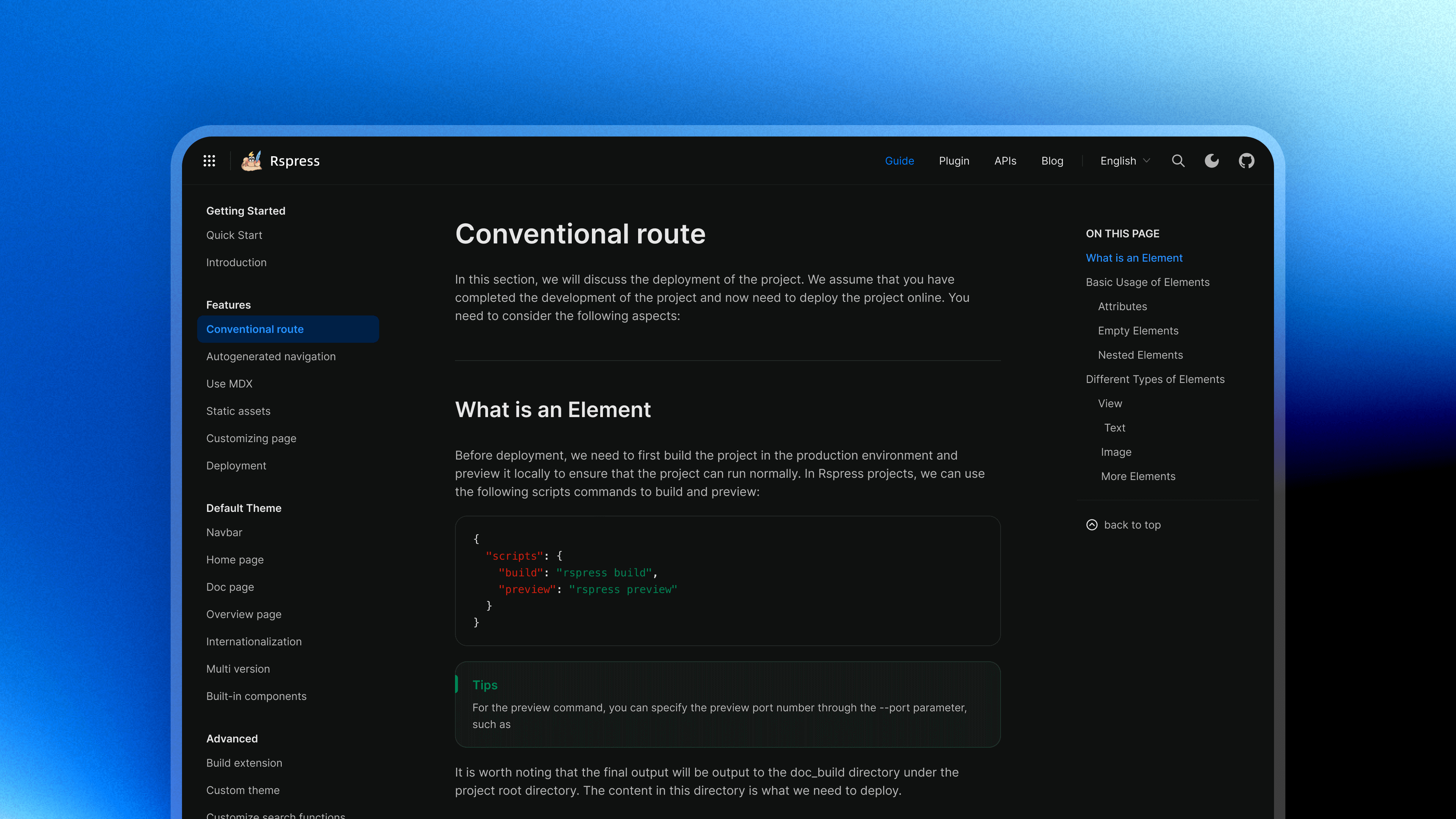
#### BEM naming convention
All built-in components now adopt the [BEM naming convention](https://getbem.com/). This is an old-school decision that enables developers to flexibly adjust styles through standard CSS selectors, avoiding conflicts with tools like Tailwind CSS and significantly lowering the barrier for style customization.
```css
/* Easily override component styles */
.rp-nav__title {
height: 32px;
}
.rp-nav-menu__item--active {
color: purple;
}
```
#### Rich CSS variables
The new theme exposes more CSS variables, covering styles for theme colors, code blocks, homepage components, and more. You can interactively preview and adjust these variables on the [CSS Variables](/ui/vars.md) page, then copy the configuration directly into your project once you're satisfied.
```css
:root {
/* Custom theme colors */
--rp-c-brand: #3451b2;
--rp-c-brand-dark: #2e4599;
/* Custom code block styles */
--rp-code-block-bg: #1e1e1e;
}
```
#### `rspress eject` Command
When CSS variables cannot meet your customization needs, you can use the new `rspress eject` command to copy the source code of built-in components to your project's theme directory for complete customization.
```bash
# Export nav component to theme directory
npx rspress eject Nav
```
This command copies the specified component's source code to the `theme/components/` directory, allowing you to freely modify the code for deep customization.
#### Built-in Multi-language Support
While V1 only had English text built-in, V2 now includes translations for Chinese, English, Japanese, Korean, and more languages, with more to come. The system automatically performs "Tree Shaking" based on language configuration and usage, bundling only the text you need. You can also easily extend or override translations through the [`i18nSource`](/api/config/config-basic.md#i18nsource) configuration option.
### SSG-MD
SSG-MD is a new capability introduced in Rspress V2. The only difference from [Static Site Generation (SSG)](https://rspress.rs/zh/guide/basic/ssg) is that it renders pages as Markdown files instead of HTML files and generates index files compliant with the [llms.txt](https://llmstxt.org/) specification, making it easier for large language models to understand and use your technical documentation.
In frontend frameworks based on React dynamic rendering, there's often the problem of difficulty extracting static information. `.mdx` files contain both Markdown content and support embedded React components. Rspress also allows users to enhance documentation expressiveness using MDX fragments, custom components, React Hooks, tsx files as routes, etc. However, this dynamic content is difficult to convert to Markdown format, and even converting HTML generated during the SSG phase to Markdown often yields unsatisfactory results. Just as SSG can generate static HTML files to improve [SEO](https://en.wikipedia.org/wiki/Search_engine_optimization), SSG-MD can relatively improve [GEO (Generative Engine Optimization)](https://en.wikipedia.org/wiki/Generative_engine_optimization) and the quality of static information for large models—compared to converting HTML to Markdown, React's virtual DOM during rendering provides a better information source.
```ts title="rspress.config.ts"
import { defineConfig } from '@rspress/core';
export default defineConfig({
llms: true,
});
```
Once enabled, the build output will include `llms.txt` (an index file showing page titles and descriptions in navigation and sidebar order), `llms-full.txt` (a complete file containing Markdown content from all pages), and `.md` files corresponding to each route. Multi-language sites will also output corresponding `{lang}/llms.txt` and `{lang}/llms-full.txt` for non-default languages.
Rspress internally implements a `renderToMarkdownString` method similar to `renderToString` in `react-dom`, and provides the `process.env.__SSR_MD__` environment variable to help users distinguish between SSG-MD rendering and browser rendering in components. Additionally, Rspress built-in components are fully adapted for SSG-MD, ensuring reasonable Markdown content is rendered. For example, `` will be rendered as code blocks containing commands for five package managers: npm, yarn, pnpm, bun, and deno. Custom components can also output different content for SSG-MD:
```tsx
export function MyComponent({ label }: { label: string }) {
if (process.env.__SSR_MD__) {
return <>{`**${label}**`};
}
return
{label}
;
}
```
We believe that with the launch of this feature, all websites built with React in the future can leverage SSG-MD for better GEO. For detailed usage, please refer to the [SSG-MD documentation](/guide/basic/ssg-md.md).
### Shiki integration for code highlighting
Rspress V2 uses [Shiki](https://shiki.style/) by default for code highlighting. Compared to runtime highlighting solutions, Shiki performs highlighting at compile time, achieving accurate syntax highlighting consistent with VS Code based on TextMate grammar, without adding runtime overhead or bundle size, and supports various built-in themes and custom configurations. You can customize code block color schemes through CSS variables, and interactively switch and preview different Shiki themes on the [CSS Variables](/ui/vars.md) page. Shiki also allows extensions through custom [transformers](https://shiki.style/guide/transformers) to enrich writing, such as [twoslash](https://twoslash.netlify.app/).
### Enhanced Performance: LazyCompilation and persistent cache enabled by default
Rspress V2 enables [lazyCompilation](https://rspack.rs/zh/config/experiments#experimentslazycompilation) and [persistent cache](https://rspack.rs/zh/config/experiments#experimentscache) by default.
LazyCompilation compiles on-demand in dev mode. Pages are only compiled when you visit them, significantly improving development startup speed and even achieving millisecond-level cold starts. Documentation site frameworks like Rspress, where only a few pages are edited during each development session and compilation content is evenly distributed across pages, are extremely well-suited for lazyCompilation optimization.
Rspress also implements a route preload strategy that preloads target route pages when hovering over links, working together with lazyCompilation to provide a lossless development experience.
For production builds, persistent cache is enabled by default, reusing previous compilation results during warm starts to improve build speed by 30%-60%.
### Documentation development experience
#### Dead link checking enabled by default
Rspress V2 enables dead link checking by default. During the build process, it automatically detects invalid links in documentation, helping you discover and fix issues promptly.
```ts title="rspress.config.ts"
import { defineConfig } from '@rspress/core';
export default defineConfig({
markdown: {
link: {
checkDeadLinks: true, // Enabled by default
},
},
});
```
#### HMR support for configuration files
Based on the redesigned virtual module plugin for Rsbuild, HMR is now supported for `_nav.json` navigation configuration, `_meta.json` sidebar configuration, and iframe-related configurations in `@rspress/plugin-preview`. After modifying these configuration files, the page will automatically hot-reload without manual refresh.
### More official Rspress plugins
Rspress V2 has added several official plugins:
- **[@rspress/plugin-algolia](/plugin/official-plugins/algolia.md)**: Replace Rspress's built-in search with Algolia DocSearch.
- **[@rspress/plugin-twoslash](/plugin/official-plugins/twoslash.md)**: Add type hints to TypeScript code blocks.
- **[@rspress/plugin-llms](/plugin/official-plugins/llms.md)**: Provide llms.txt generation capability for projects that don't support SSG.
- **[@rspress/plugin-sitemap](/plugin/official-plugins/sitemap.md)**: Automatically generate sitemaps.
## Other changes
### Rust-based MDX parser no longer used in Markdown/MDX compilation
After implementing lazyCompilation and persistent cache, performance optimization results are already quite significant. We decided to stop using the Rust-based MDX parser (`@rspress/mdx-rs`) in the Markdown/MDX compilation pipeline in exchange for better extensibility and maintainability.
This enables Rspress to better integrate tools from the JavaScript ecosystem like Shiki, bringing richer functionality. This trade-off is worthwhile—users no longer need to disable mdxRs when using remark/rehype plugins.
This doesn't mean we're abandoning Rust for the Markdown ecosystem. In the future, we may continue to advance Rust-based Markdown parser integration in Rspack / Rslint, providing performance optimization at a lower level.
### Node.js 20+ and React 18+ required
Rspress V2 requires Node.js version **20+** and React version **18+**.
### Configuration changes
The default theme has been migrated from `@rspress/theme-default` to `@rspress/core/theme`:
```diff
- import Theme from '@rspress/theme-default';
+ import Theme from '@rspress/core/theme';
```
For more migration details, please refer to the [Migration Guide](/guide/migration/rspress-1-x.md).
## Next steps
The release of Rspress 2.0 is just a new beginning. We will continue to advance ecosystem integration, deeper integration with Rslib and Rstest to provide an integrated development experience for frontend projects and component library projects; explore deeper integration possibilities between AI and documentation, such as intelligent Q\&A and automatic summarization; and refine SSG-MD to make it more stable and user-friendly.
Thank you to all developers and users who have contributed to Rspress! If you encounter any issues or have suggestions during use, please provide feedback in [GitHub Issues](https://github.com/web-infra-dev/rspress/issues).
Upgrade to Rspress 2.0 now and experience a brand new documentation development journey!
```sh [npm]
npm install @rspress/core@latest
```
```sh [yarn]
yarn add @rspress/core@latest
```
```sh [pnpm]
pnpm add @rspress/core@latest
```
```sh [bun]
bun add @rspress/core@latest
```
```sh [deno]
deno add npm:@rspress/core@latest
```
---
url: /index.md
---
# Rspress
Lightning Fast Static Site Generator
> Simple, efficient and easy to extend
[Introduction](./guide/start/introduction) | [Quick Start](./guide/start/getting-started)
## Features
- [/speed.svg **Blazing fast build speed**](./guide/start/introduction): The core compilation module is based on the Rust front-end toolchain, providing a more ultimate development experience.
- [/mdx.svg **Support for MDX**](./guide/use-mdx/components): MDX is a powerful way to write content, allowing you to use React components in Markdown.
- [/search.svg **Built-in full-text search**](./guide/advanced/custom-search): Automatically generates a full-text search index for you during construction, providing out-of-the-box full-text search capabilities.
- [/ai.svg **AI-friendly**](./guide/basic/ssg-md): Generate llms.txt and Markdown files compliant with the llms.txt specification through SSG-MD, making it easier for large language models to understand and use your documentation.
- [/static.svg **Static site generation**](./guide/basic/ssg): In production, it automatically builds into static HTML files, which can be easily deployed anywhere.
- [/custom.svg **Providing multiple custom capabilities**](./guide/basic/custom-theme): Through its extension mechanism, you can easily extend theme UI and build process.
 ```
Both usage above will be transformed into:
```mdx title="index.mdx"
import image from './demo.png';
```
Both usage above will be transformed into:
```mdx title="index.mdx"
import image from './demo.png';
}) ;
```
## Top left corner logo
In Rspress, you can specify the logo image at the top left corner through the `logo` field. For example:
```ts title="rspress.config.ts"
import { defineConfig } from '@rspress/core';
export default defineConfig({
logo: 'https://avatars.githubusercontent.com/u/56892468?s=200&v=4',
});
```
The logo field supports both string and object configurations.
When the logo is a string, there are the following config situations:
- Configured as an **external link**, like the above example.
- Configured as an **absolute path**, such as `/rspress-logo.png`. In this case, Rspress will automatically find the `rspress-logo.png` image in the `public folder` of your **document root directory** and display it.
- Configured as a **relative path**, such as `./docs/public/rspress-logo.png`. In this case, Rspress will find the `rspress-logo.png` image based on the project root directory and display it.
If your website needs to adapt to dark mode, you can also use the object configuration of the logo, such as:
```ts title="rspress.config.ts"
import { defineConfig } from '@rspress/core';
export default defineConfig({
logo: {
light: 'https://avatars.githubusercontent.com/u/56892468?s=200&v=4',
dark: 'https://avatars.githubusercontent.com/u/56892468?s=200&v=4',
},
});
```
Here, `light` represents the logo address in light mode, and `dark` represents the logo address in dark mode. Their configuration methods are consistent with the above string configuration.
## Favicon
In Rspress, you can specify the site's favicon icon through the `icon` field. For example:
```ts title="rspress.config.ts"
import { defineConfig } from '@rspress/core';
export default defineConfig({
icon: 'https://avatars.githubusercontent.com/u/56892468?s=200&v=4',
});
```
The icon field supports string or URL config, with the following specific ways:
- Configured as an **external link**, like the above example.
- Configured as an **absolute path**, such as `/favicon.ico`. In this case, Rspress will automatically find the `favicon.ico` icon in the public folder of your **document root directory** and display it.
- Configured as a **relative path**, such as `./docs/public/favicon.ico`. In this case, Rspress will find the `favicon.ico` icon based on the project root directory and display it.
- Configured as a `file://` protocol or `URL`, such as `file:///local_path/favicon.ico`. In this case, Rspress will use the local absolute path `/local_path/favicon.ico` icon directly and display it.
## Homepage logo
In the [frontmatter configuration](/api/config/config-frontmatter.md#hero) of the homepage, you can specify the homepage logo image through the `hero.image.src` field. For example:
```mdx title="index.mdx"
---
pageType: home
hero:
image:
src: https://avatars.githubusercontent.com/u/56892468?s=200&v=4
alt: Rspress
---
```
Here, src is a string, supporting the following configurations:
- Configured as an **external link**, like the above example.
- Configured as an **absolute path**, such as `/rspress-logo.png`. In this case, Rspress will automatically find the `rspress-logo.png` image in the `public folder` of your **document root directory** and display it.
## Other static assets
In some scenarios, you may need to deploy certain specific static assets, such as adding the deployment configuration file `_headers` of `Netlify` to specify custom HTTP response headers.
In that case, you can directly put these static assets in the `public folder` of the document root directory (such as `docs`). During the project build process, Rspress will automatically **copy all assets in the public folder to the product directory**. In this way, the assets under public can be deployed to the server.
---
url: /guide/migration/rspress-1-x.md
---
# Migrating from Rspress 1.x
This document will help you migrate from Rspress 1.x to Rspress V2. We recommend using the "Copy as Markdown" feature to pass this document to an LLM for automated migration assistance.
## Quick migration checklist
- [ ] **Node.js** ^20.19.0 || >=22.12.0
- [ ] **Dependencies**: `rspress` → `@rspress/core`, remove `@rspress/shared`
- [ ] **Import paths**: `rspress/runtime` → `@rspress/core/runtime`, `rspress/theme` → `@rspress/core/theme`
- [ ] **Custom themes**: Change default exports to named exports, use `@rspress/core/theme-original`
- [ ] **Top-level navigation**: `_meta.json` → `_nav.json` (top-level only)
- [ ] **Code highlighting**: Prism → Shiki, line highlight syntax `{1,3-4}` requires transformer config
- [ ] **builderPlugins**: Move to `builderConfig.plugins`
- [ ] **Sass/Less**: Manually install `@rsbuild/plugin-sass` or `@rsbuild/plugin-less`
- [ ] **External code blocks**: `
;
```
## Top left corner logo
In Rspress, you can specify the logo image at the top left corner through the `logo` field. For example:
```ts title="rspress.config.ts"
import { defineConfig } from '@rspress/core';
export default defineConfig({
logo: 'https://avatars.githubusercontent.com/u/56892468?s=200&v=4',
});
```
The logo field supports both string and object configurations.
When the logo is a string, there are the following config situations:
- Configured as an **external link**, like the above example.
- Configured as an **absolute path**, such as `/rspress-logo.png`. In this case, Rspress will automatically find the `rspress-logo.png` image in the `public folder` of your **document root directory** and display it.
- Configured as a **relative path**, such as `./docs/public/rspress-logo.png`. In this case, Rspress will find the `rspress-logo.png` image based on the project root directory and display it.
If your website needs to adapt to dark mode, you can also use the object configuration of the logo, such as:
```ts title="rspress.config.ts"
import { defineConfig } from '@rspress/core';
export default defineConfig({
logo: {
light: 'https://avatars.githubusercontent.com/u/56892468?s=200&v=4',
dark: 'https://avatars.githubusercontent.com/u/56892468?s=200&v=4',
},
});
```
Here, `light` represents the logo address in light mode, and `dark` represents the logo address in dark mode. Their configuration methods are consistent with the above string configuration.
## Favicon
In Rspress, you can specify the site's favicon icon through the `icon` field. For example:
```ts title="rspress.config.ts"
import { defineConfig } from '@rspress/core';
export default defineConfig({
icon: 'https://avatars.githubusercontent.com/u/56892468?s=200&v=4',
});
```
The icon field supports string or URL config, with the following specific ways:
- Configured as an **external link**, like the above example.
- Configured as an **absolute path**, such as `/favicon.ico`. In this case, Rspress will automatically find the `favicon.ico` icon in the public folder of your **document root directory** and display it.
- Configured as a **relative path**, such as `./docs/public/favicon.ico`. In this case, Rspress will find the `favicon.ico` icon based on the project root directory and display it.
- Configured as a `file://` protocol or `URL`, such as `file:///local_path/favicon.ico`. In this case, Rspress will use the local absolute path `/local_path/favicon.ico` icon directly and display it.
## Homepage logo
In the [frontmatter configuration](/api/config/config-frontmatter.md#hero) of the homepage, you can specify the homepage logo image through the `hero.image.src` field. For example:
```mdx title="index.mdx"
---
pageType: home
hero:
image:
src: https://avatars.githubusercontent.com/u/56892468?s=200&v=4
alt: Rspress
---
```
Here, src is a string, supporting the following configurations:
- Configured as an **external link**, like the above example.
- Configured as an **absolute path**, such as `/rspress-logo.png`. In this case, Rspress will automatically find the `rspress-logo.png` image in the `public folder` of your **document root directory** and display it.
## Other static assets
In some scenarios, you may need to deploy certain specific static assets, such as adding the deployment configuration file `_headers` of `Netlify` to specify custom HTTP response headers.
In that case, you can directly put these static assets in the `public folder` of the document root directory (such as `docs`). During the project build process, Rspress will automatically **copy all assets in the public folder to the product directory**. In this way, the assets under public can be deployed to the server.
---
url: /guide/migration/rspress-1-x.md
---
# Migrating from Rspress 1.x
This document will help you migrate from Rspress 1.x to Rspress V2. We recommend using the "Copy as Markdown" feature to pass this document to an LLM for automated migration assistance.
## Quick migration checklist
- [ ] **Node.js** ^20.19.0 || >=22.12.0
- [ ] **Dependencies**: `rspress` → `@rspress/core`, remove `@rspress/shared`
- [ ] **Import paths**: `rspress/runtime` → `@rspress/core/runtime`, `rspress/theme` → `@rspress/core/theme`
- [ ] **Custom themes**: Change default exports to named exports, use `@rspress/core/theme-original`
- [ ] **Top-level navigation**: `_meta.json` → `_nav.json` (top-level only)
- [ ] **Code highlighting**: Prism → Shiki, line highlight syntax `{1,3-4}` requires transformer config
- [ ] **builderPlugins**: Move to `builderConfig.plugins`
- [ ] **Sass/Less**: Manually install `@rsbuild/plugin-sass` or `@rsbuild/plugin-less`
- [ ] **External code blocks**: ` Rspress
 ',
},
],
},
});
```
- When in `link` mode, click the icon to jump to the link.
- When in `text` mode, when the mouse moves over the icon, a pop-up box will be displayed, and the content of the pop-up box is the entered text
- When in the `img` mode, moving the mouse over the icon will display a bullet box, and the content of the bullet box is the specified picture. It should be noted that the picture needs to be placed in the `public` directory.
- When in dom mode, html to render can be passed directly into the content field. Use '' for wrapping
Related links support the following types of images, which can be selected through the icon attribute:
```ts
export type SocialLinkIcon =
| 'lark'
| 'discord'
| 'facebook'
| 'github'
| 'instagram'
| 'linkedin'
| 'slack'
| 'x'
| 'youtube'
| 'wechat'
| 'qq'
| 'juejin'
| 'zhihu'
| 'bilibili'
| 'weibo'
| 'gitlab'
| 'X'
| 'bluesky'
| 'npm'
| { svg: string };
```
If you need to customize the icon, you can pass in an object with `svg attribute`, and the value of svg is the content of the custom icon, for example:
```js
import { defineConfig } from '@rspress/core';
export default defineConfig({
themeConfig: {
socialLinks: [
{
icon: {
svg: '',
},
mode: 'link',
content: 'https://github.com/',
},
],
},
});
```
## nextPageText
- **Type**: `string`
- **Default**: `Next Page`
Text for the next page. for example:
```ts title="rspress.config.ts"
import { defineConfig } from '@rspress/core';
export default defineConfig({
themeConfig: {
nextPageText: 'Next Page',
},
});
```
## locales
- **Type**: `Array
',
},
],
},
});
```
- When in `link` mode, click the icon to jump to the link.
- When in `text` mode, when the mouse moves over the icon, a pop-up box will be displayed, and the content of the pop-up box is the entered text
- When in the `img` mode, moving the mouse over the icon will display a bullet box, and the content of the bullet box is the specified picture. It should be noted that the picture needs to be placed in the `public` directory.
- When in dom mode, html to render can be passed directly into the content field. Use '' for wrapping
Related links support the following types of images, which can be selected through the icon attribute:
```ts
export type SocialLinkIcon =
| 'lark'
| 'discord'
| 'facebook'
| 'github'
| 'instagram'
| 'linkedin'
| 'slack'
| 'x'
| 'youtube'
| 'wechat'
| 'qq'
| 'juejin'
| 'zhihu'
| 'bilibili'
| 'weibo'
| 'gitlab'
| 'X'
| 'bluesky'
| 'npm'
| { svg: string };
```
If you need to customize the icon, you can pass in an object with `svg attribute`, and the value of svg is the content of the custom icon, for example:
```js
import { defineConfig } from '@rspress/core';
export default defineConfig({
themeConfig: {
socialLinks: [
{
icon: {
svg: '',
},
mode: 'link',
content: 'https://github.com/',
},
],
},
});
```
## nextPageText
- **Type**: `string`
- **Default**: `Next Page`
Text for the next page. for example:
```ts title="rspress.config.ts"
import { defineConfig } from '@rspress/core';
export default defineConfig({
themeConfig: {
nextPageText: 'Next Page',
},
});
```
## locales
- **Type**: `Array